Tag Added
Last updated: July 29, 2025
Use this guide to understand how the Tag Added trigger works in GoHighLevel (GHL), and how you can control which tags appear and trigger automations.
🔄 What This Trigger Does
When a tag is added to a contact — either manually or automated (via GHL or Zapier) — you can use that as a trigger to kick off an automation.
You can:
Start a workflow
Send a message
Assign a task
Or trigger any other follow-up steps
🧩 Trigger Setup in GHL
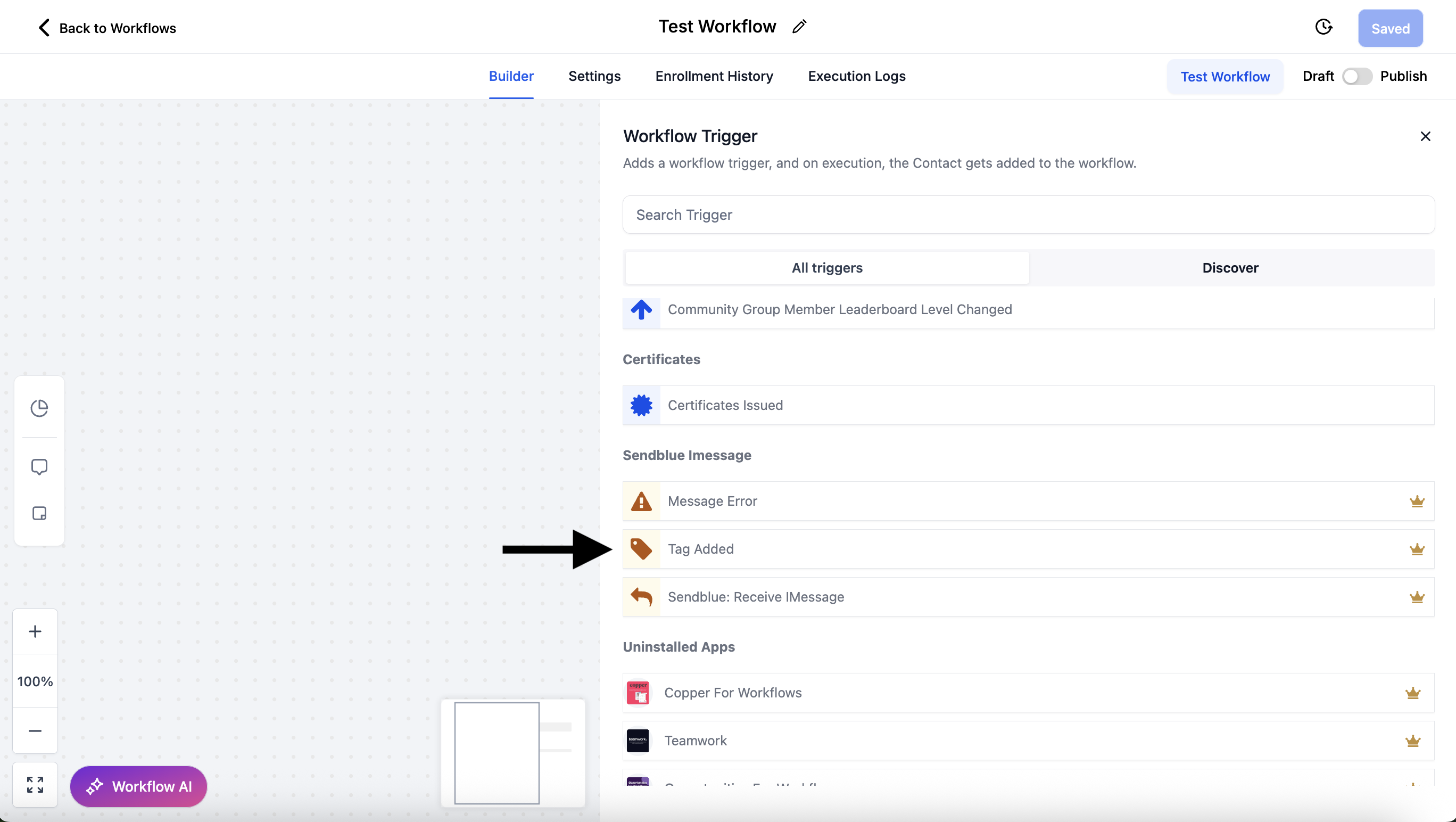
You’ll see a “Tag Added” trigger option when creating a workflow. This lets you:
Choose specific tag to start the automation
Run actions immediately after that tag is applied
🔧 Manage Available Tags (Sendblue Dashboard)
To control which tags are available in GHL:
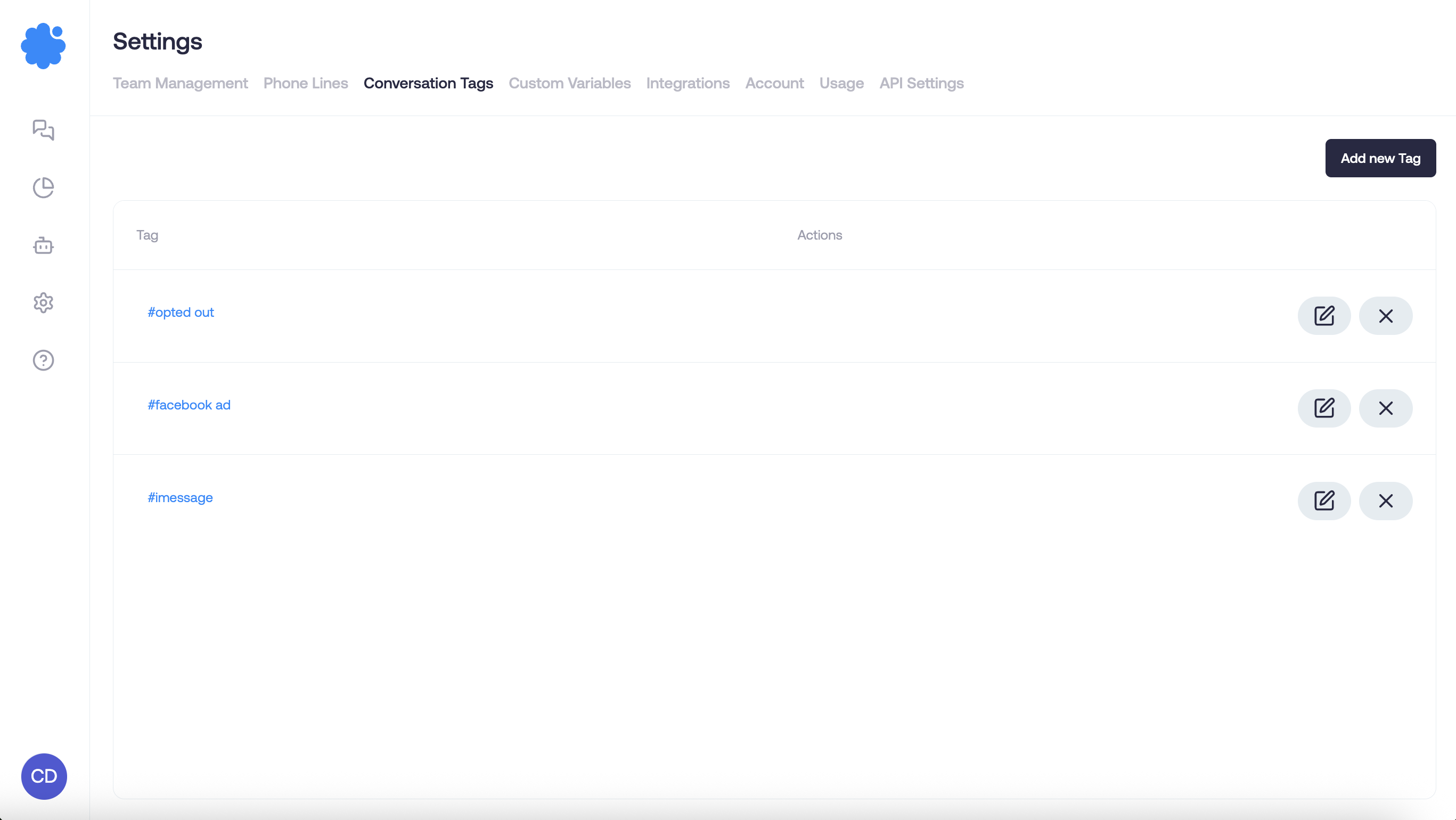
Log in to your Sendblue dashboard
Click the gear icon (Settings) on the left-hand side
Click “Conversation Tags” at the top
Select the tags you want to make available for use in GHL workflows
✋ Manually Add Tags (to Trigger an Automation)
To manually add a tag to a contact:
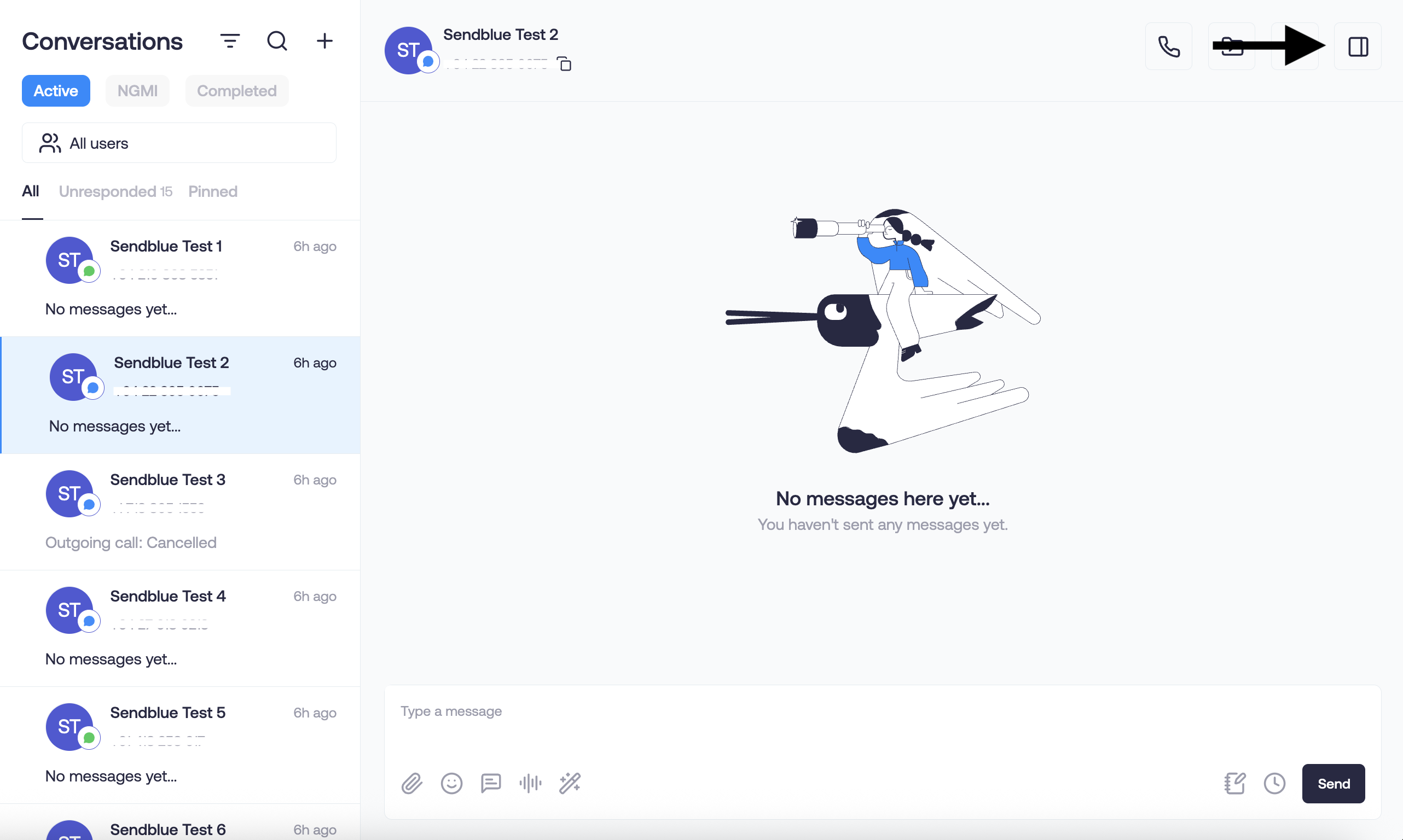
Go to the Conversations tab in Sendblue
Click the far right button on the top right of a message/conversation
Click “Add New Tag”
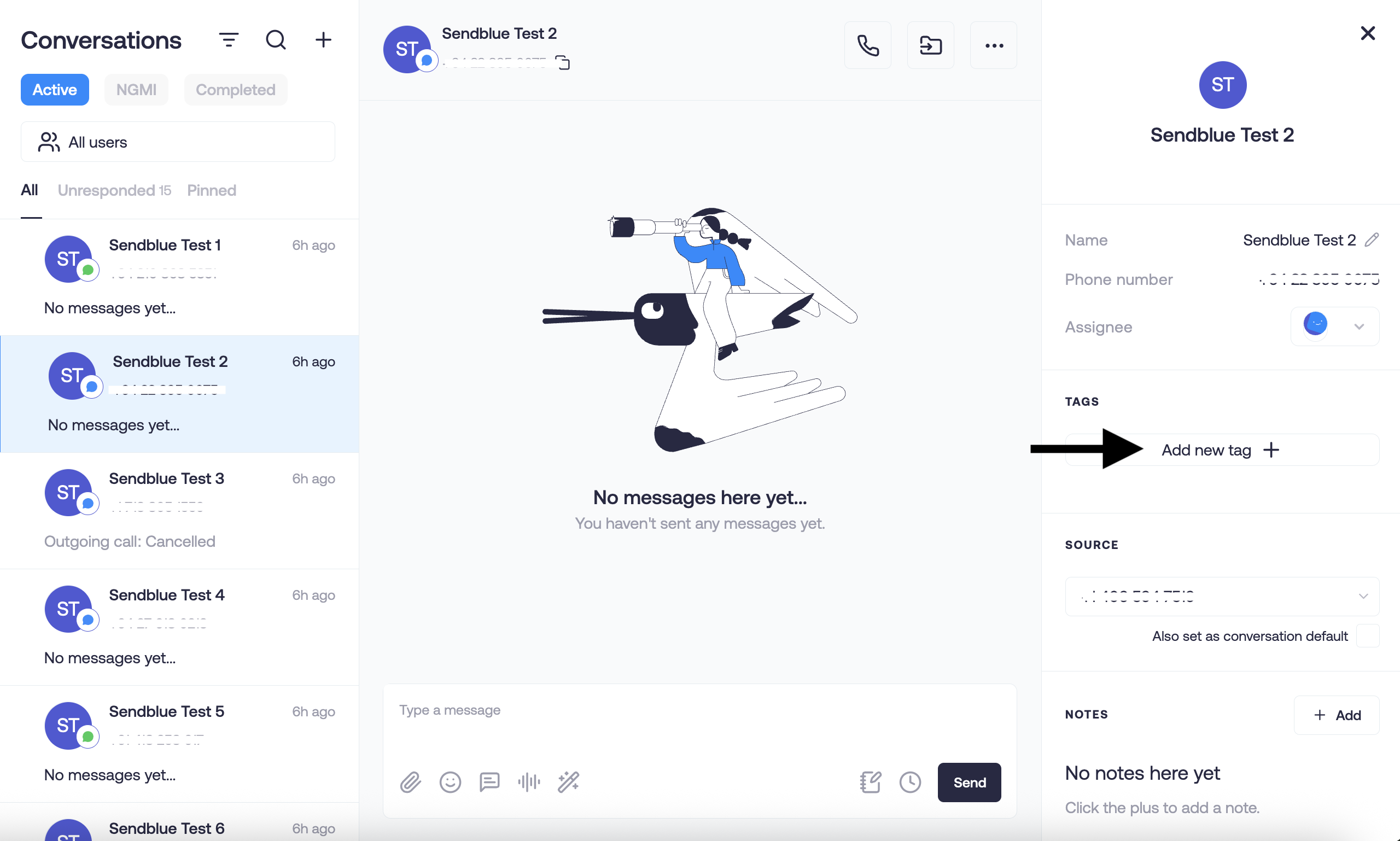
Select a tag from the list
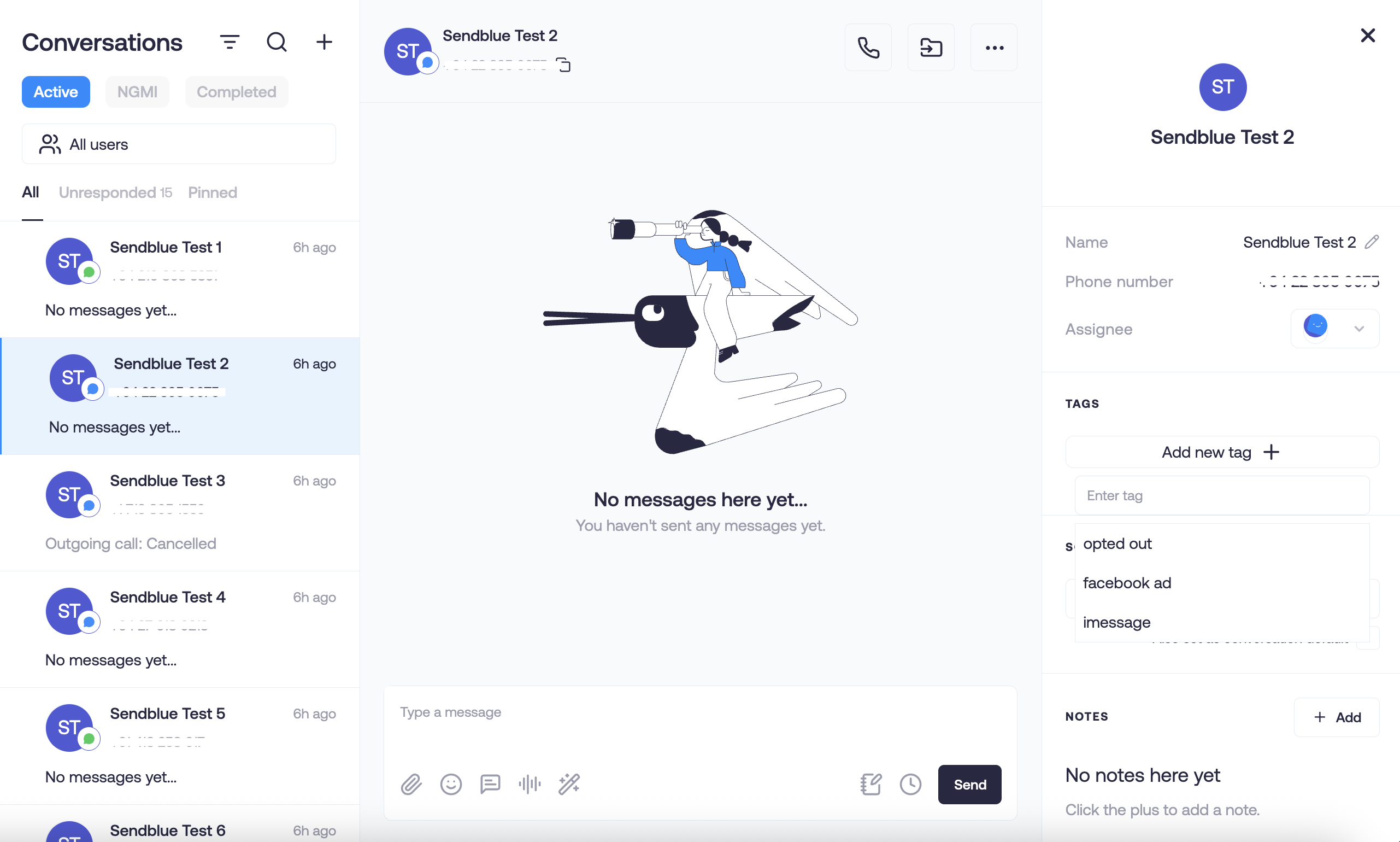
This will trigger any GHL workflow that uses the Tag Added trigger with that tag.
💡 Tips
You can use tags added from Zapier, GHL, or manually — they all work.
Use clear, specific tag names (e.g.
booked-call,no-show,cold-lead) so it’s easy to manage logic later.Tags can be used across conversations, contacts, and workflows — super flexible.