Generate and Send AI Voice Memo with ElevenLabs
Last updated: April 9, 2025
Overview
Sendblue allows you to create and send AI-generated voice messages using ElevenLabs. Follow these steps to set up voice cloning, generate AI voice memos, and send them via iMessage.
Step 1: Sign Up for ElevenLabs
Sign up for a free account.
Step 2: Access the Voices Tab
Click on Voices in the left sidebar.
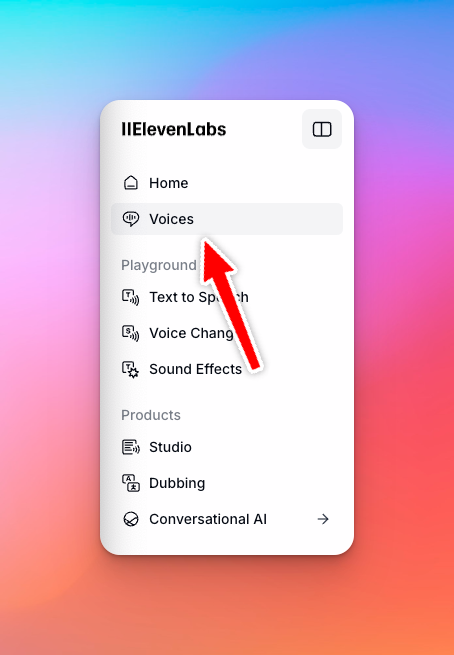
Step 3: Add a New Voice
Click Add a New Voice.
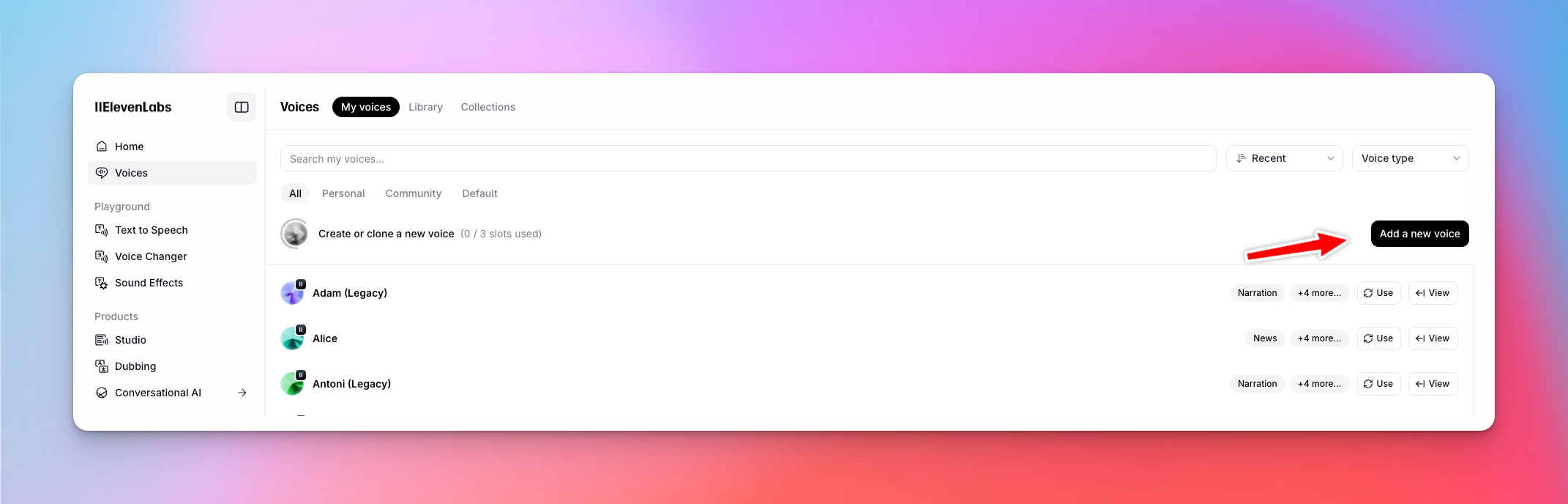
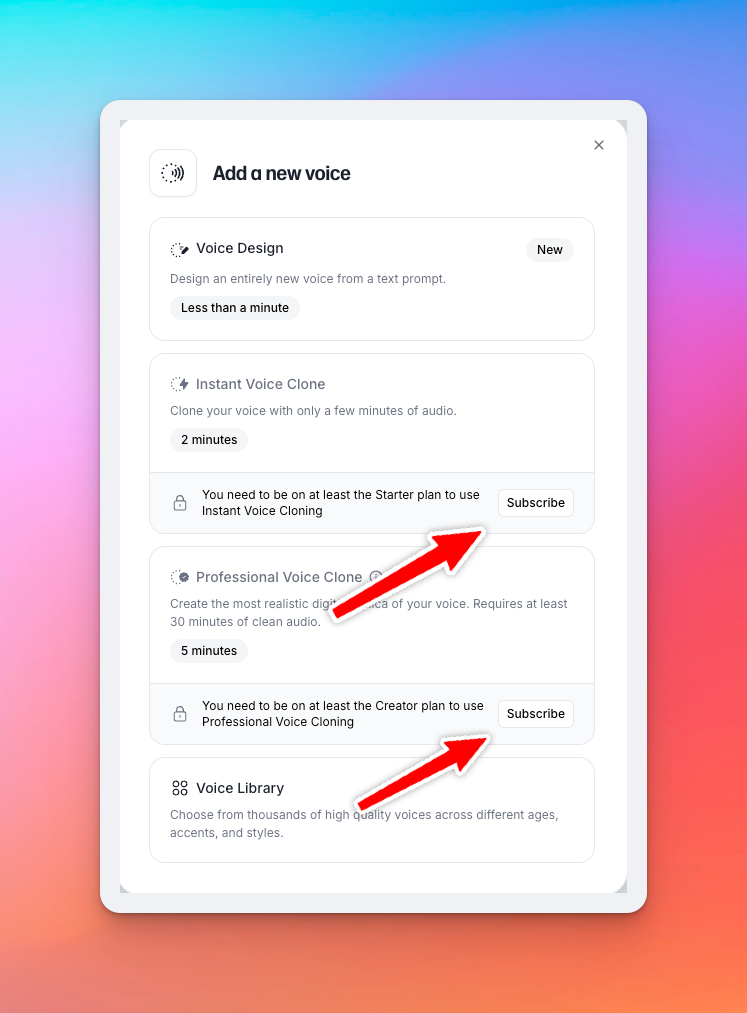
Step 4: Choose a Voice Cloning Option
If you want to clone your own voice, subscribe to one of their plans.
Use Instant Voice Clone for quick voice notes under 5 seconds.
Use Professional Voice Clone for the highest quality and longer voice memos.
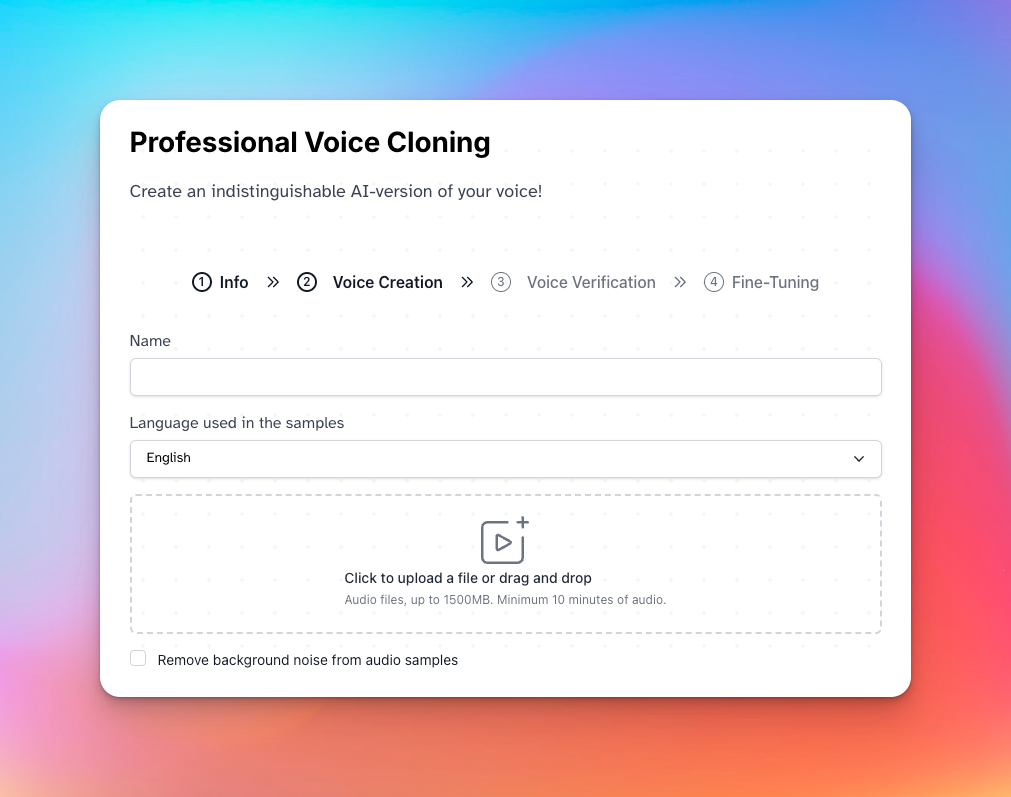
Step 5: Set Up a Professional Voice Clone
Name your Clone.
Upload at least 10 minutes of audio to create the clone.
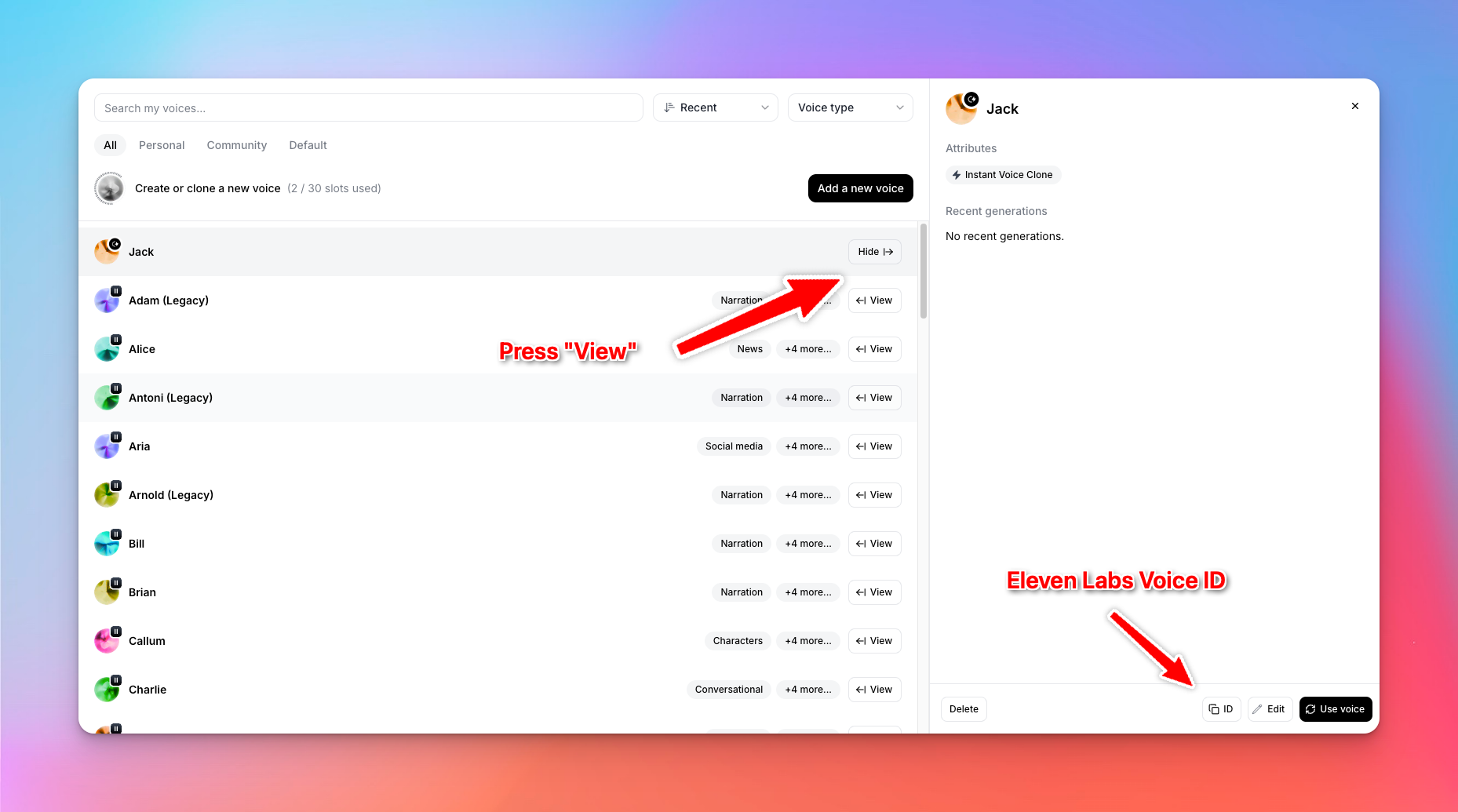
Step 6: Retrieve Your Voice ID
On your voice clone, click View.
Copy the Voice ID.
This Voice ID will be used in your automation workflows.
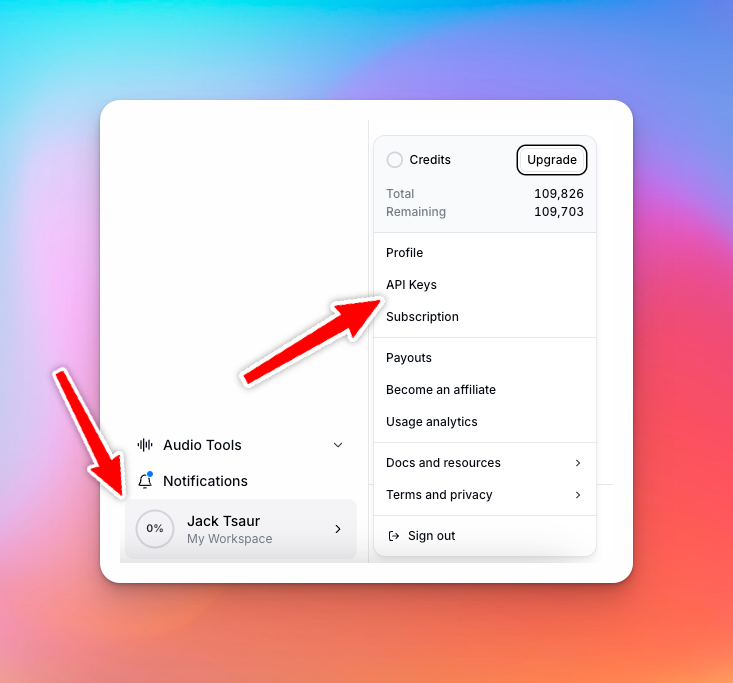
Step 7: Create an API Key
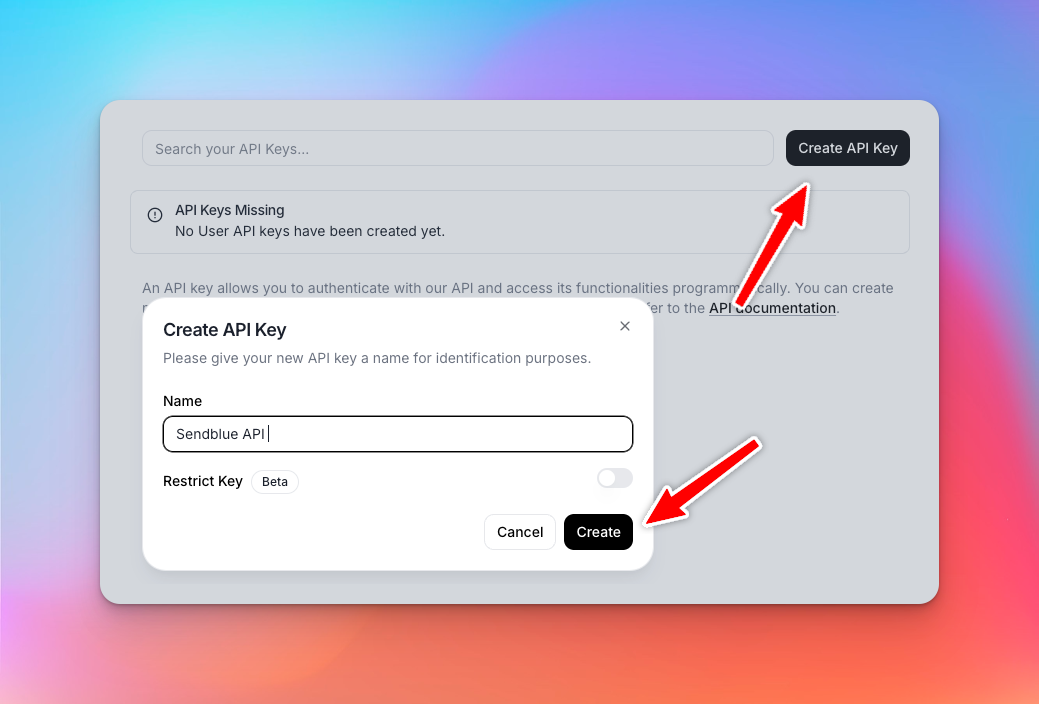
Click Create API Key.
Press Create.
Copy the API Key to your clipboard.
Step 8: Paste API Key into GoHighLevel
Paste the API Key into your GoHighLevel (GHL) Action.
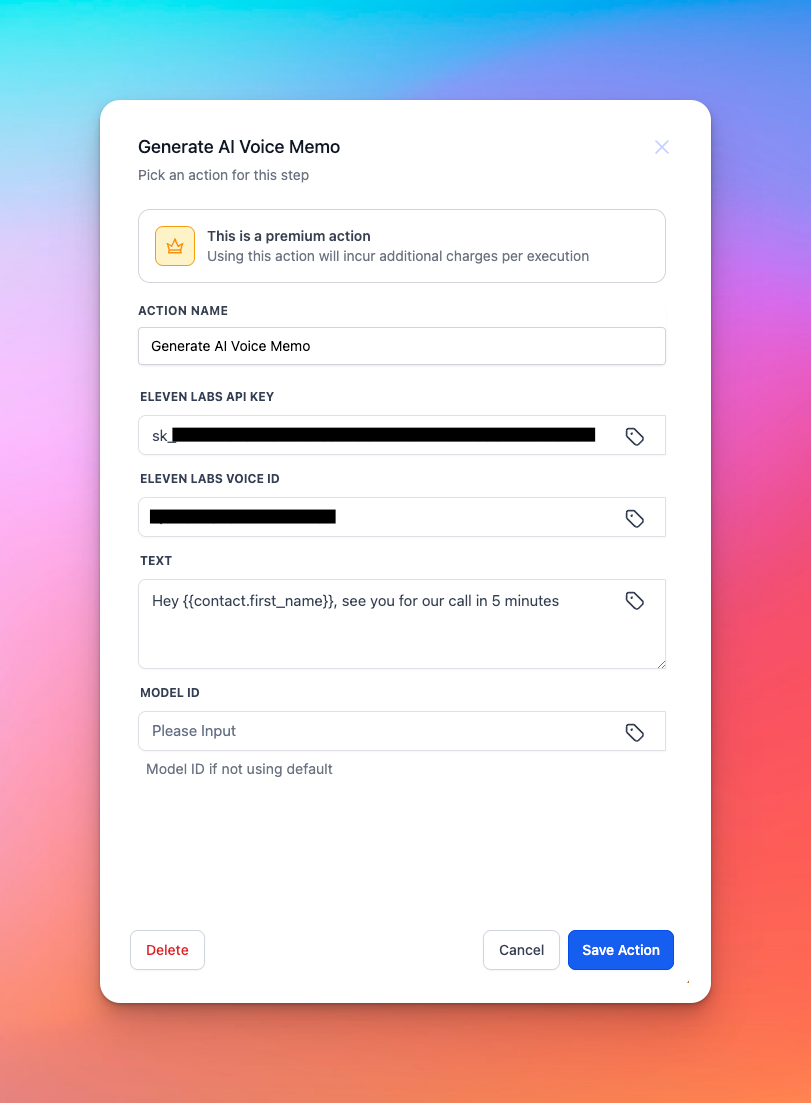
Step 9: Use the Generate Voice Memo Action in GoHighLevel
Add the Generate Voice Memo Action in GoHighLevel.
Enter your ElevenLabs API Key and Voice ID.
Type what you want the voice clone to say in the text field.
Use custom fields for personalization (e.g., contact name, business name, etc.).
Leave the Model ID empty.
Step 10: Create a Send iMessage Action
In GoHighLevel, create a Send iMessage Action.
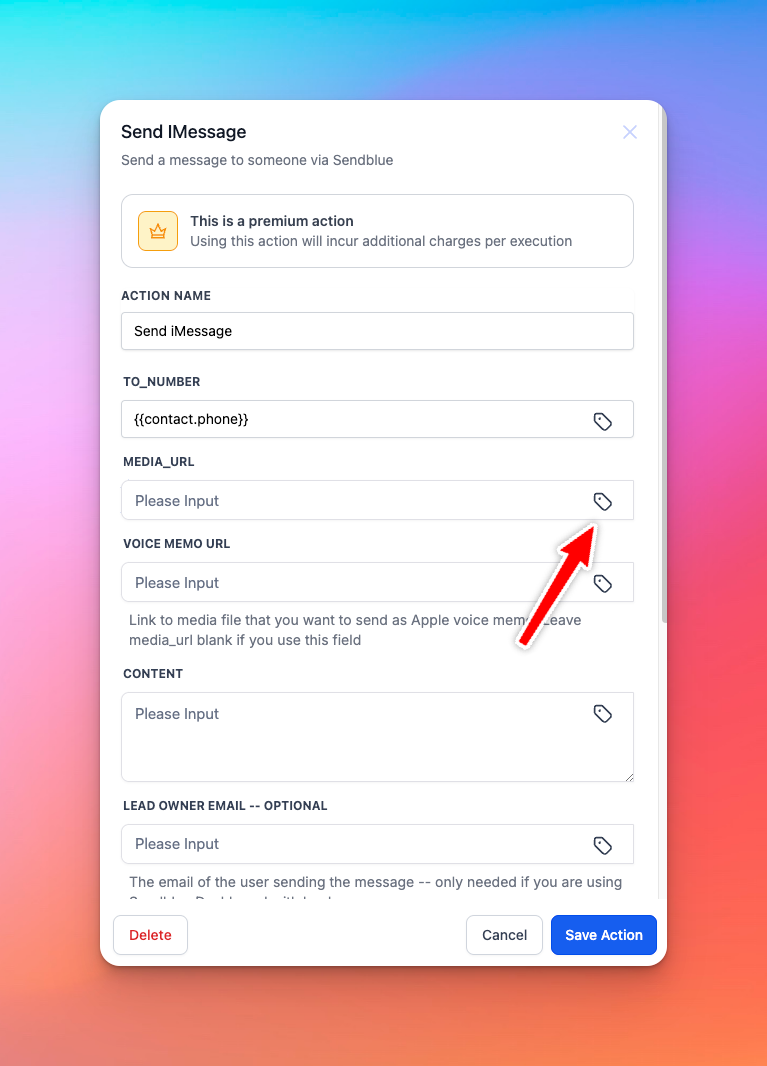
Step 11: Enter the Contact’s Phone Number
Input the recipient’s phone number.
Step 12: Add the Media URL
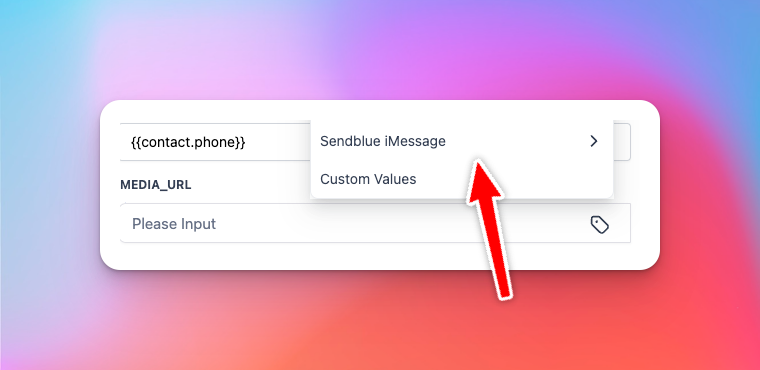
Input the Media URL generated in the previous step into Voice Memo URL
Click Sendblue iMessage.
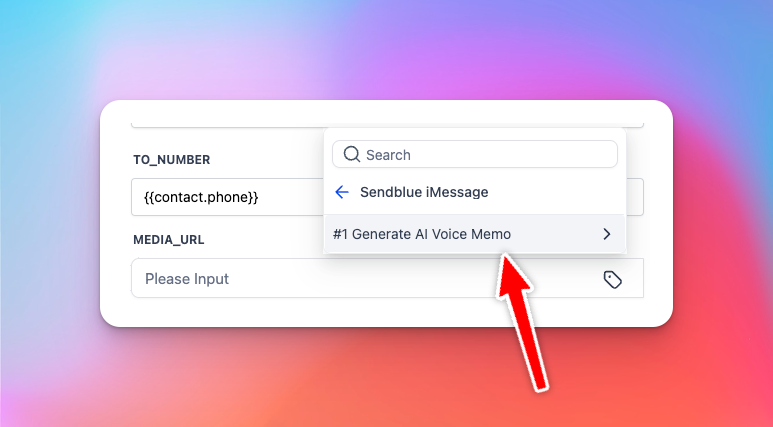
Click Generate AI Voice Memo.
Click on Media URL.
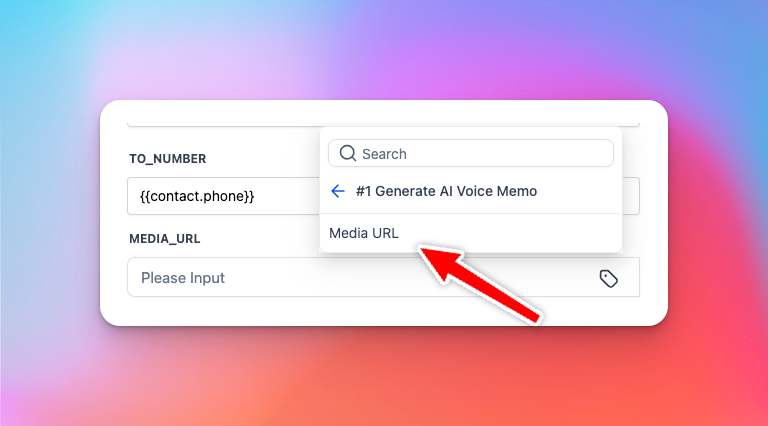
Save the Action, and you're done!