Add Sendblue as a Verified Caller ID
Last updated: April 10, 2025
Overview
Sendblue allows you to make native calls in GoHighLevel (GHL) if you have one Sendblue phone line. If you have multiple lines, you must use the Sendblue Chrome Extension to ensure calls originate from the correct number.
Do not proceed with the below instructions if:
You have more than 1 Sendblue line
Your calling provider is Twilio (Options for Twilio here).
Step-by-Step Guide
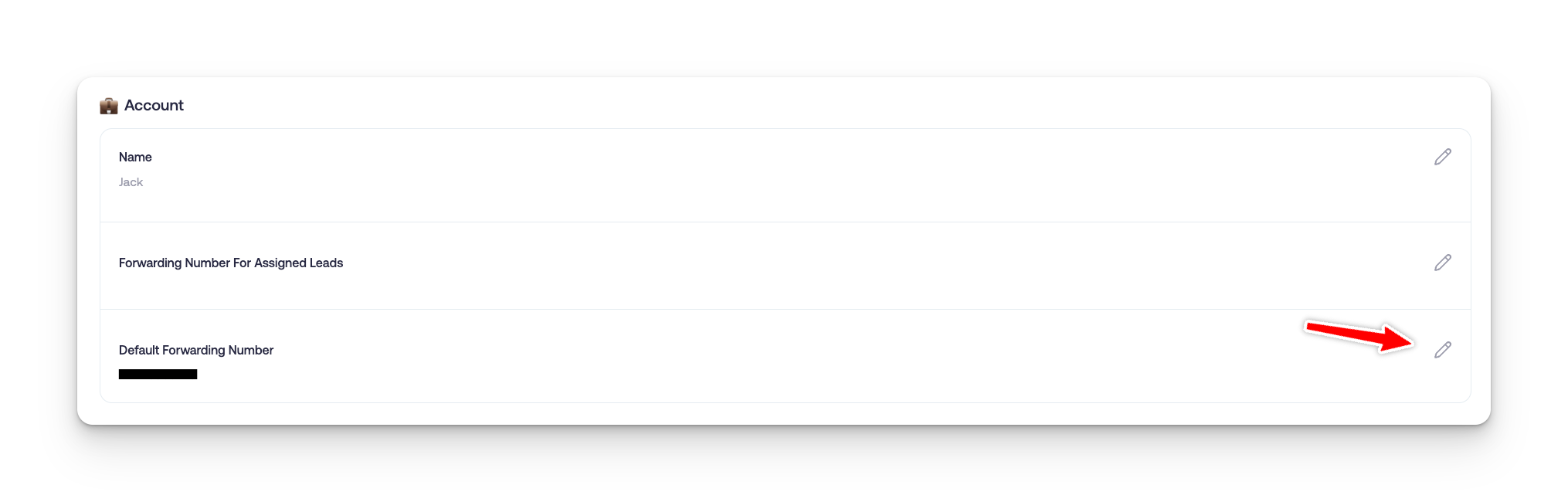
Step 1: Set Your Default Forwarding Number
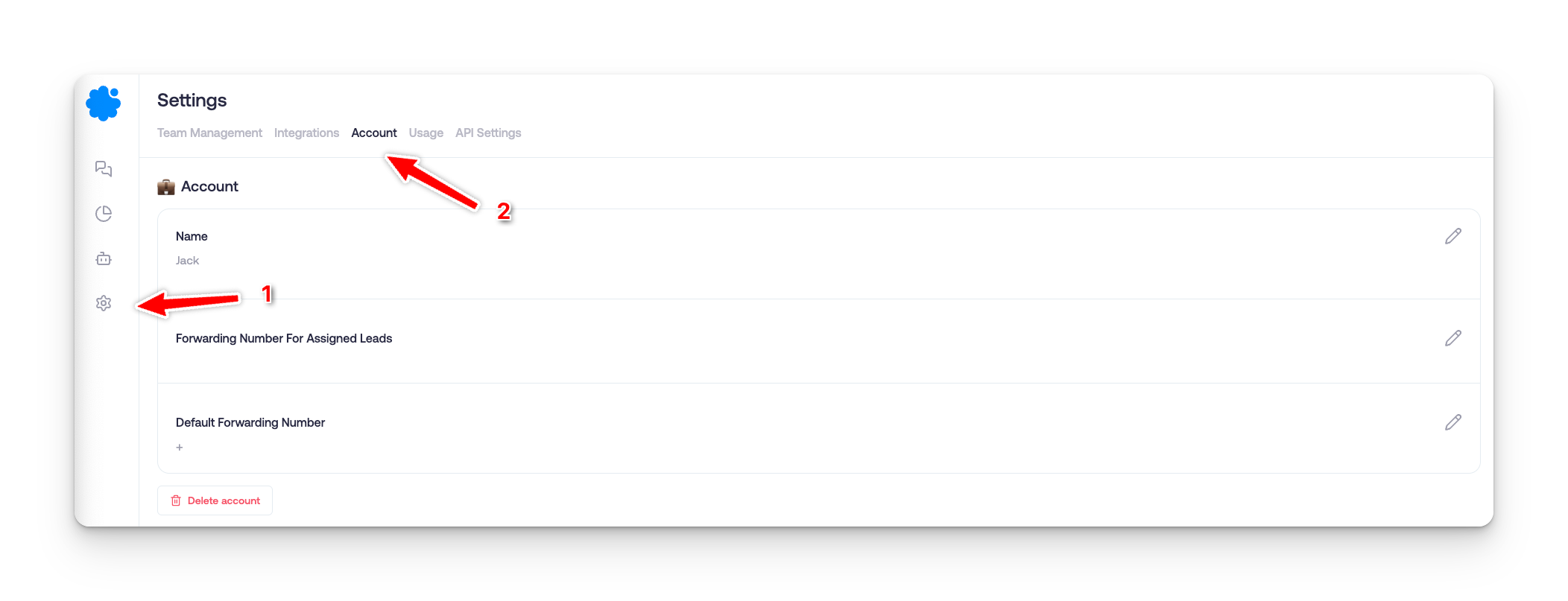
Navigate to Settings > Account in Sendblue.
Enter your personal cell phone number as the Default Forwarding Number.
Click Save.
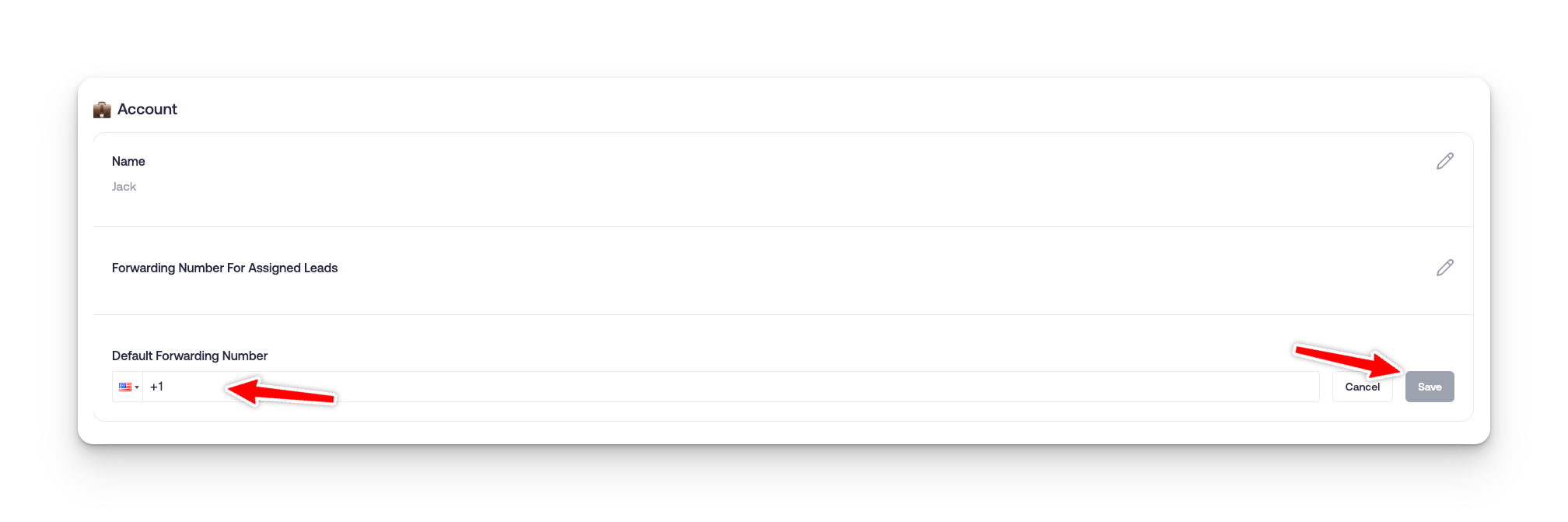
Important: This number must be one you have access to, as it will be used in the verification process.
Step 2: Add Your Sendblue Number in GHL
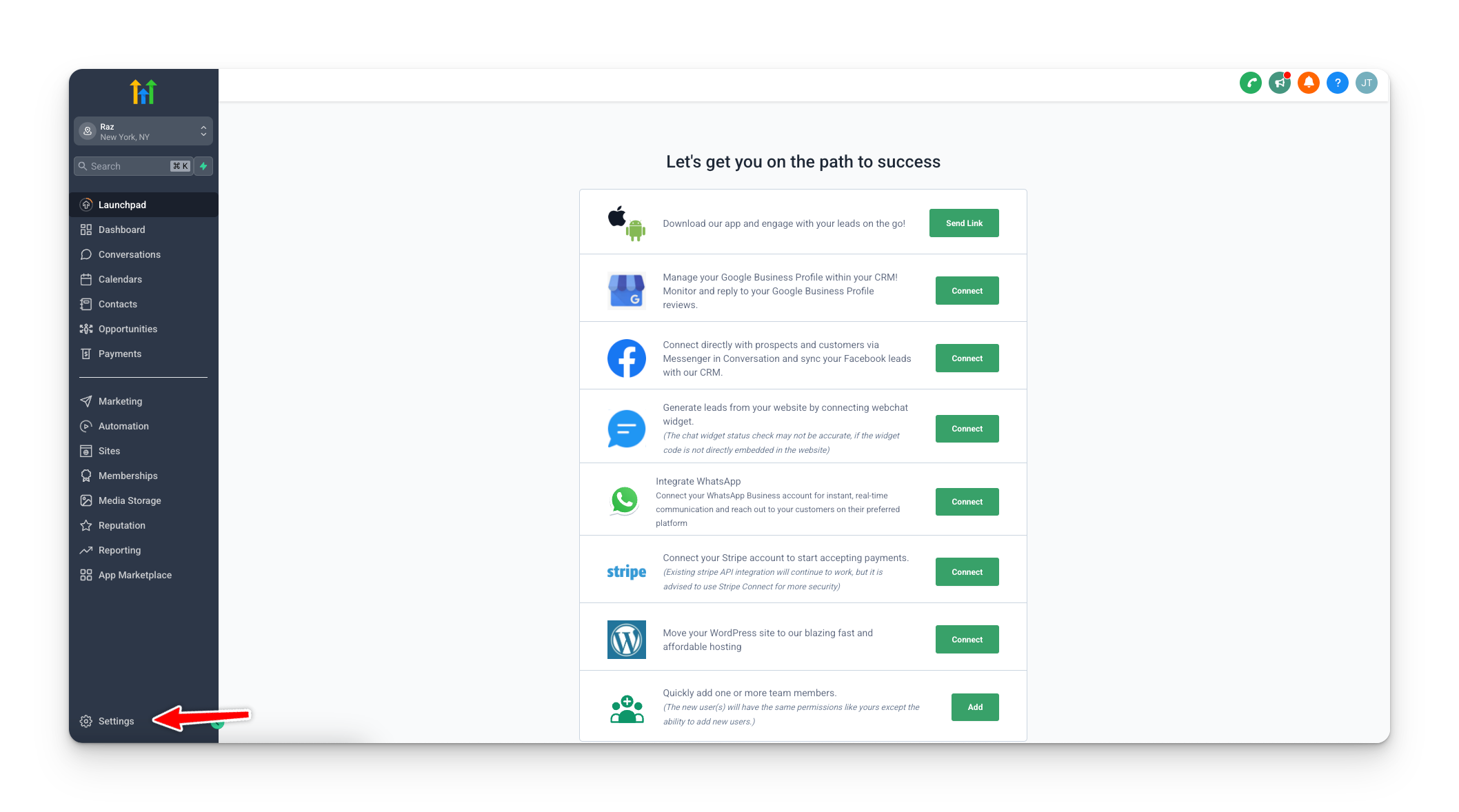
Go to your GoHighLevel Sub-Account.
Click on Settings.
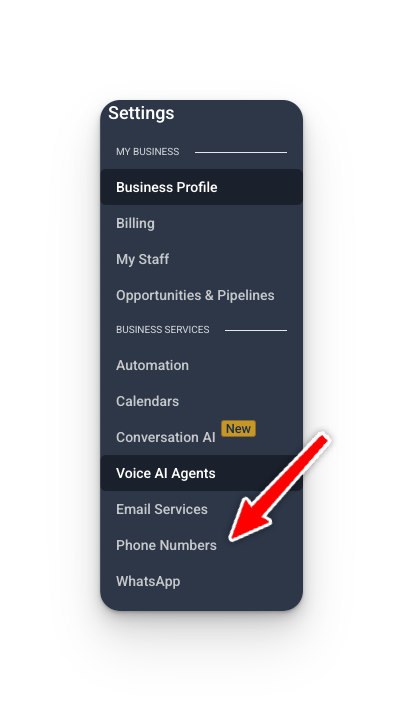
Select Phone Numbers.
Click Add Number → Add Verified Caller ID.
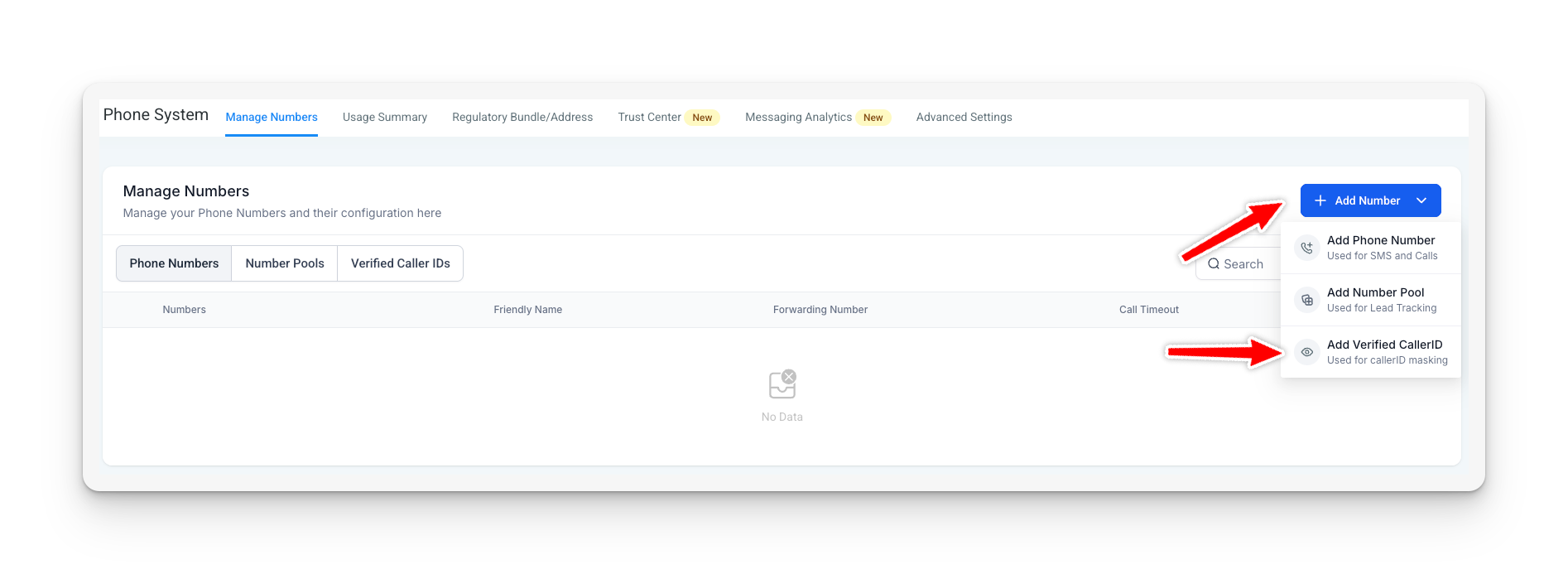
Enter your Sendblue phone number (found under the Usage tab in the Sendblue platform).
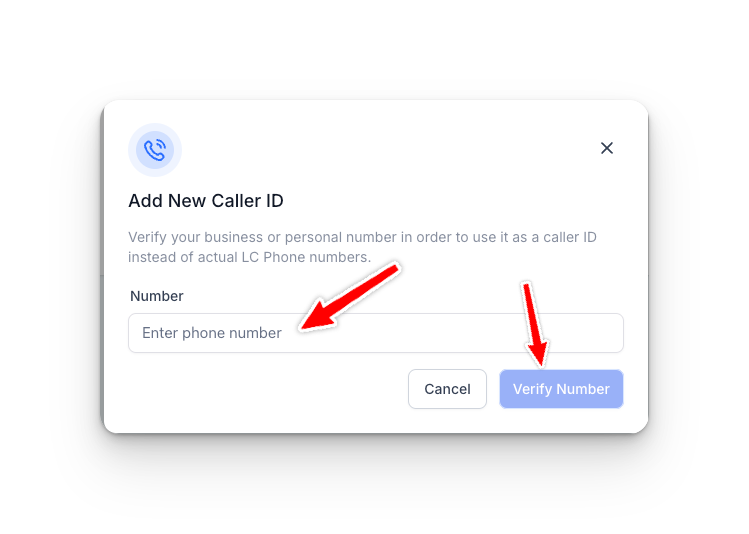
Step 3: Verify Your Sendblue Number
You will receive a verification call on your forwarding number.
Follow the instructions to complete the verification process.

Step 4: Update Your Forwarding Number (After Verification)
Once verified, change the Default Forwarding Number to the phone number where you want to receive inbound calls to your Sendblue number.
Example: Your default GHL number.
Step 5: Mask your LeadConnector phone number
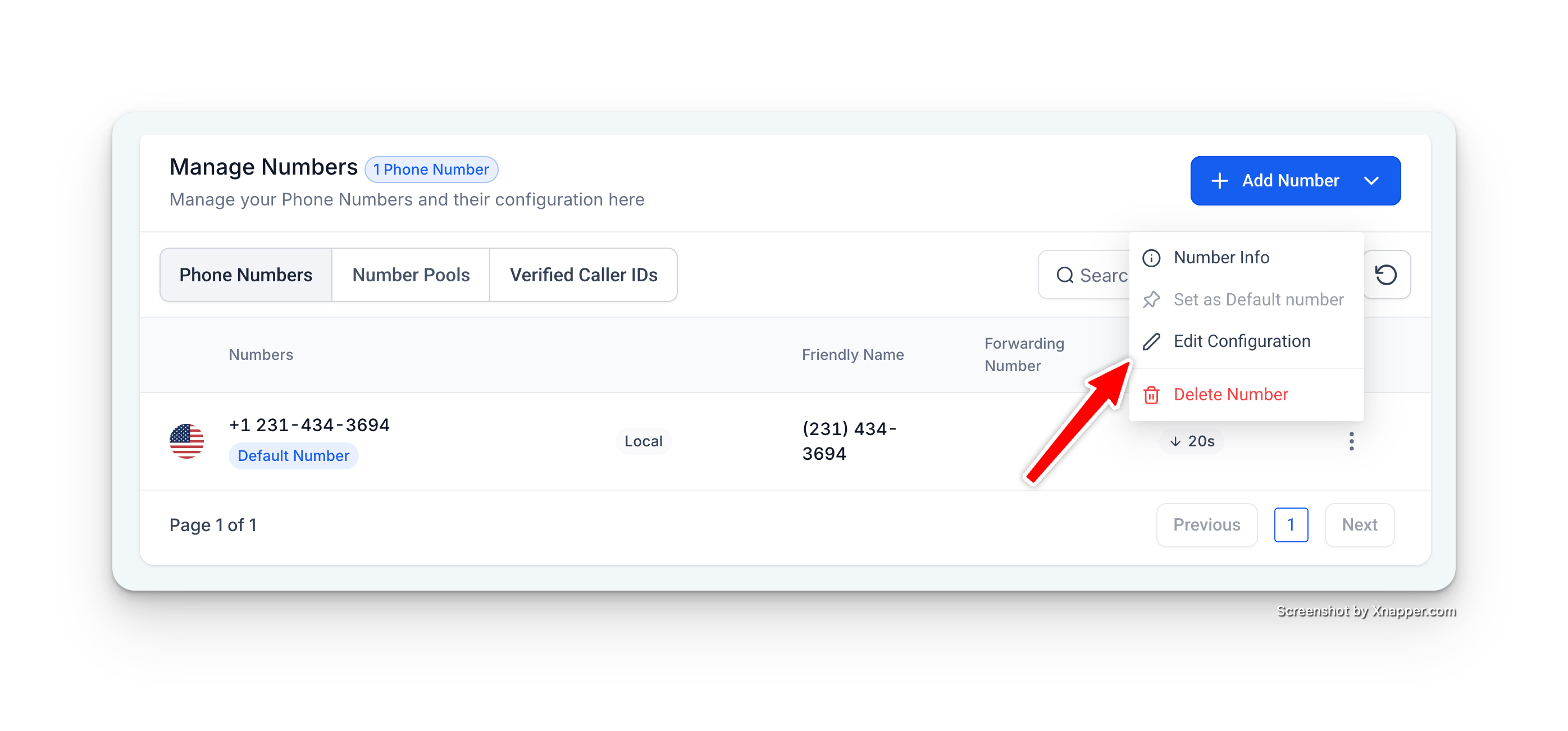
Under Settings > Phone Numbers
Choose your default phone number that you want to mask and go to the settings on the far right
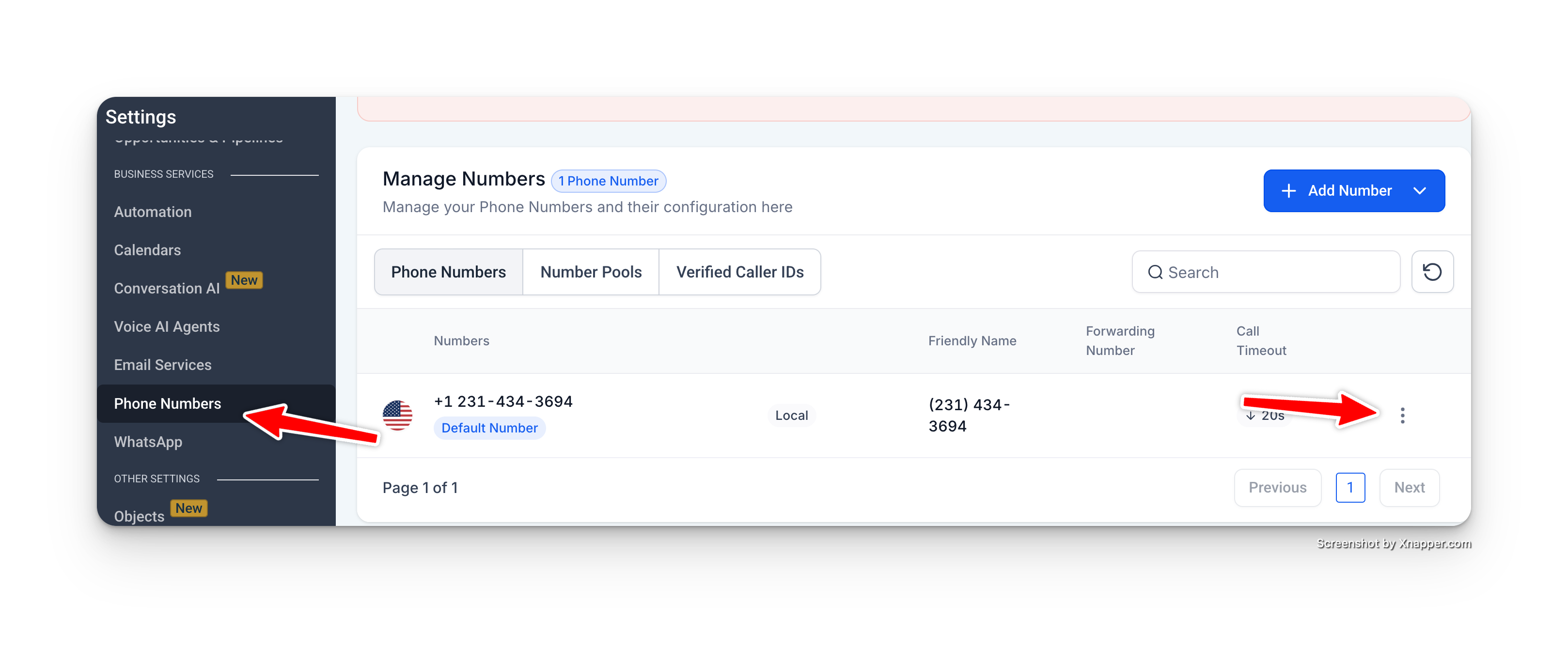
Step 6: Press "Edit Configuration"
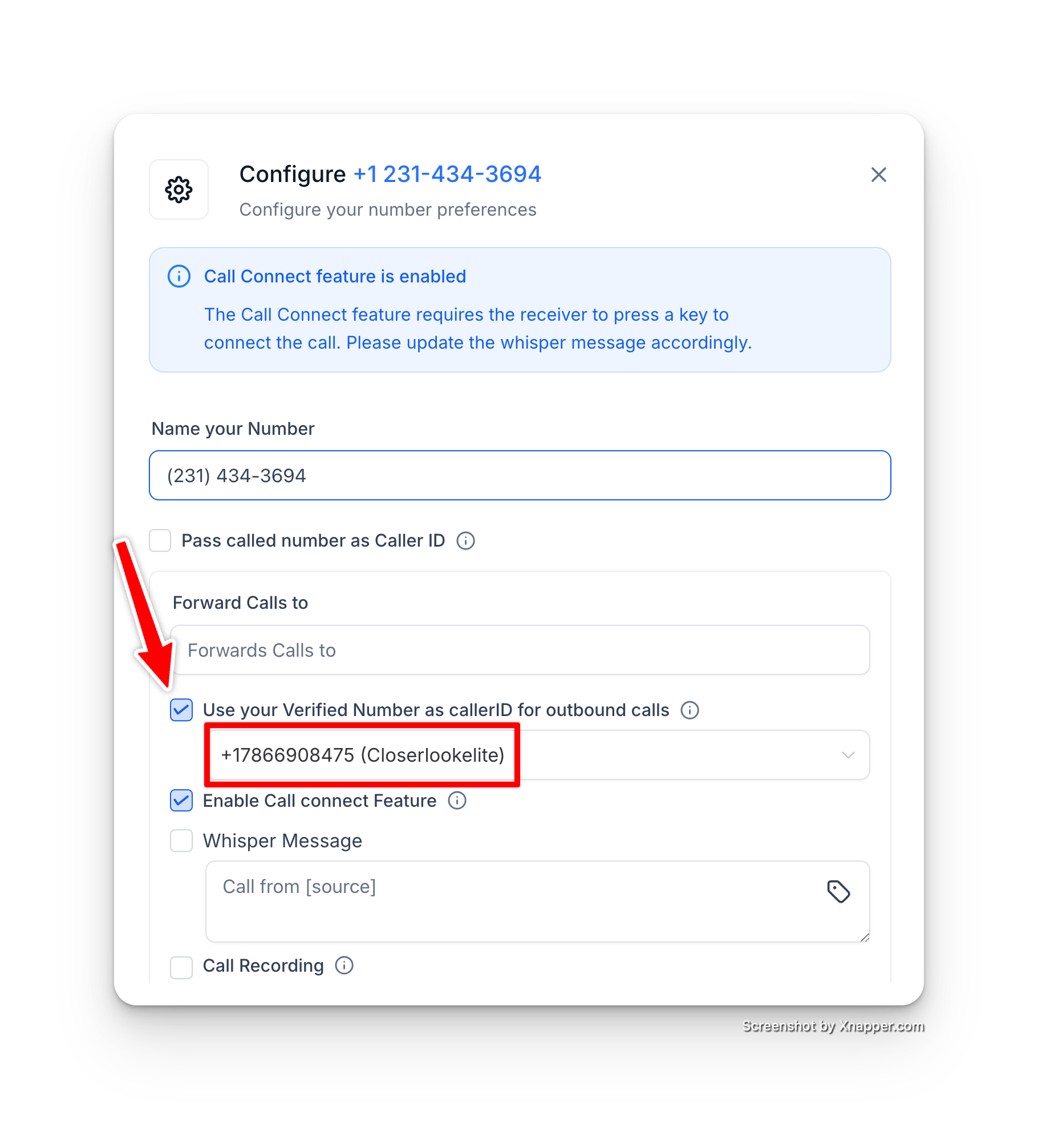
Step 7: Set the Sendblue phone number as a callerID
Make sure "Use your Verified Number as callerID for outbound calls is checked off
Open the dropdown and select the Sendblue number you have added as a verified caller ID
If you are unable to verify your line, please send a message in your designated Slack channel