How to Integrate Zoho Into Sendblue
Last updated: March 10, 2026
Customers can bring leads from Zoho CRM into Sendblue in two ways:
• Zapier: best for a faster, low-code setup
• Custom API / Webhook: best for customers who want more control
Once the lead is in Sendblue, it can then be moved into a Sendblue workflow.
If the customer also uses the Sendblue Chrome extension, reps can work inside Zoho without needing to leave the CRM.
Overview
There are two supported implementation paths:
Option 1: Zoho CRM → Zapier → Sendblue
Use Zapier to capture new leads or contacts from Zoho and send them directly into Sendblue.
Best For:
• A low-code or no-code setup
• The fastest implementation
• A direct handoff from Zoho into a Sendblue workflow
Option 2: Zoho CRM → Custom webhook / middleware → Sendblue Contacts API
Use a webhook to create contacts in Sendblue. From there, a Sendblue workflow can start using the Contact Created trigger.
Best For:
• Custom business logic
• Validation or enrichment before contact creation
• More control over routing, ownership, or lead qualification
Option 1: Set Up Zoho CRM with Sendblue Through Zapier
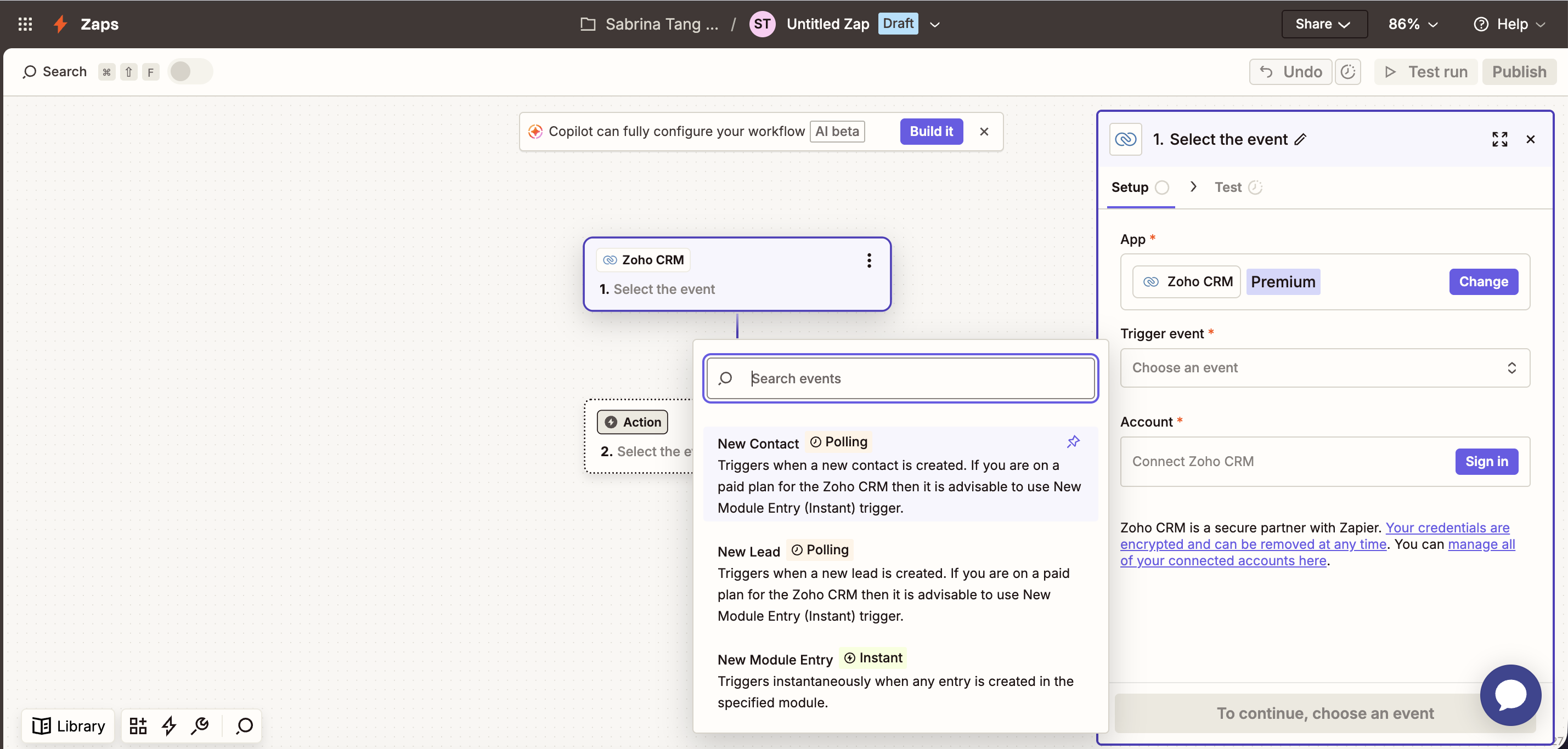
Trigger: Add Contact from Zoho CRM
Use a Zoho CRM trigger such as New Contact, New Lead, or New Module Entry, depending on how you organize your lead flow in your CRM.
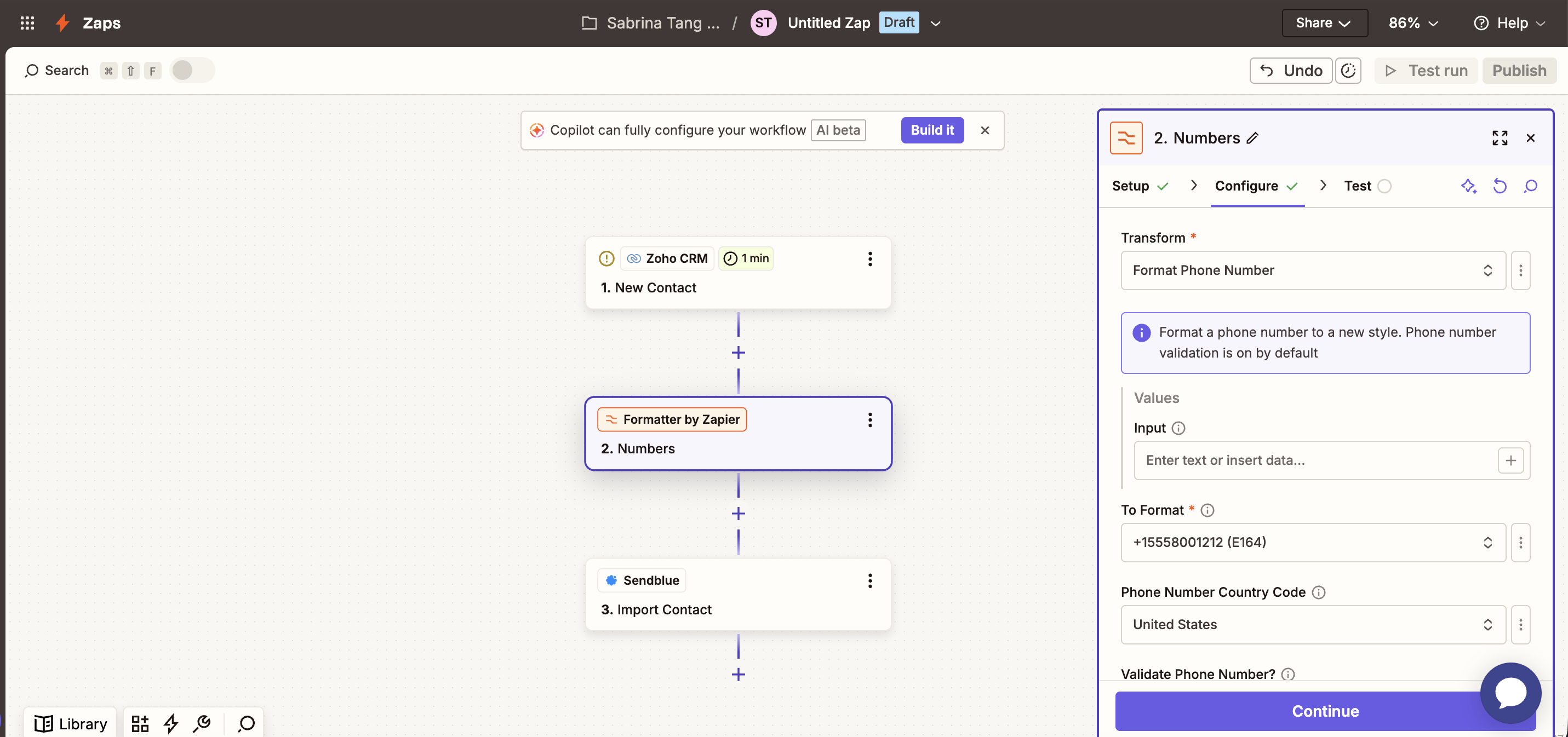
Formatter → Numbers → Format Phone Number
Use the Formatter step in Zapier to format the phone number from Zoho into E164 format (e.g., +14155551234 ). Place the phone number into "Input".
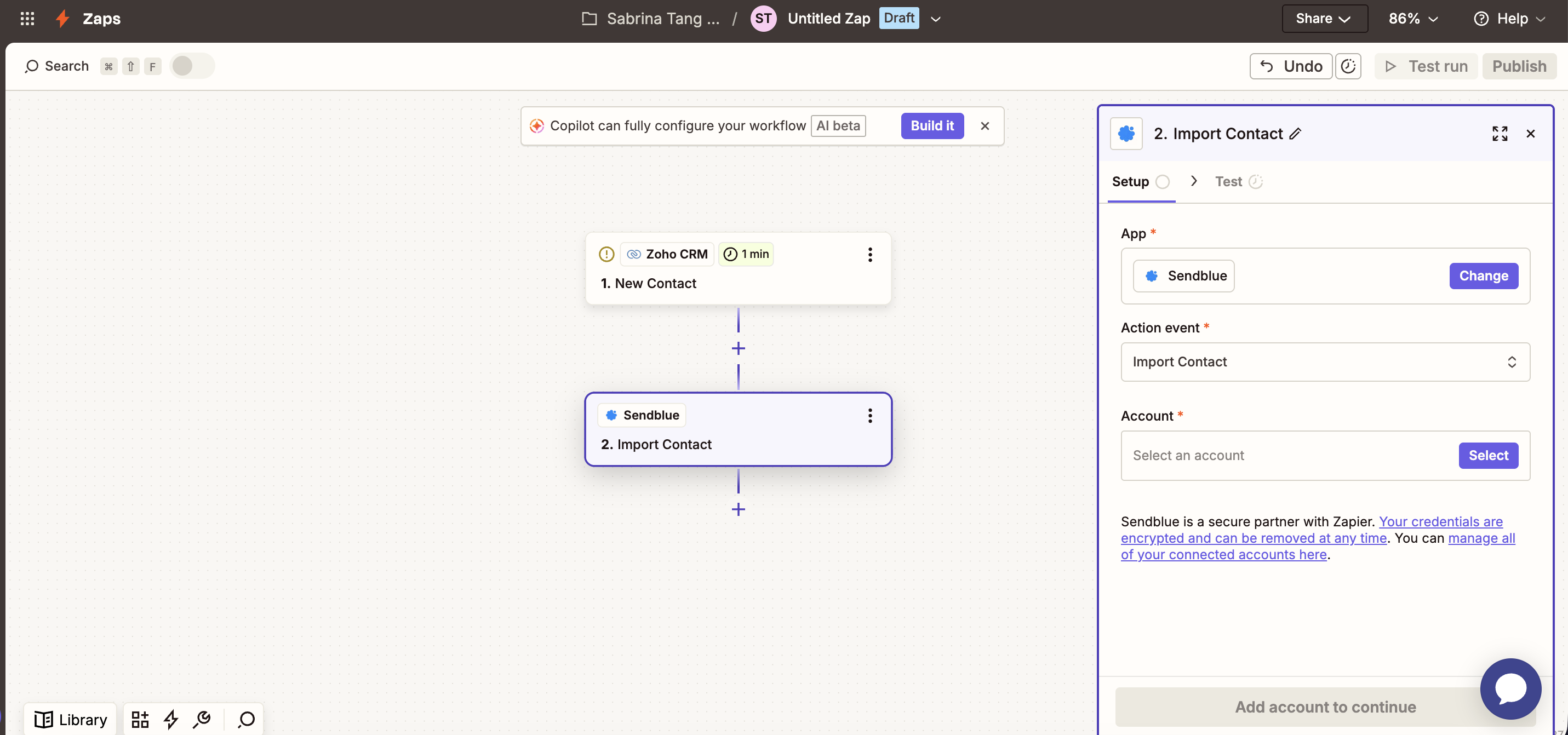
Import Contact
• Zoho First Name → Sendblue first name
• Zoho Last Name → Sendblue last name
• Zoho Phone Number → IMPORTANT: Map from previous formatter step
• Zoho Email → optional metadata/custom variable
• Zoho Lead Source → tag or custom variable
• Zoho Owner → tag, routing field, or custom variable
• Zoho Status / Stage → tag or custom variable
Option 2: Set Up Zoho CRM with Sendblue Through Custom API / Webhook
Technical Implementation Guide
Prerequisites
Before implementing, the customer should have:
• A Sendblue account
• Sendblue API credentials
• A Zoho CRM workflow rule, webhook, Zoho Flow, or Deluge function
• Phone numbers that are formatted in E164
───
Sendblue API authentication
All Sendblue API requests should include:
• sb-api-key-id: YOUR_API_KEY
• sb-api-secret-key: YOUR_API_SECRET
Base URL:https://api.sendblue.co
───
Create a contact in Sendblue
Use the Contacts API to create a contact when a Zoho lead is created or updated.
EndpointPOST /api/v2/contacts
Example request
curl -X POST 'https://api.sendblue.co/api/v2/contacts' \
  -H 'sb-api-key-id: YOUR_API_KEY' \
  -H 'sb-api-secret-key: YOUR_API_SECRET' \
  -H 'Content-Type: application/json' \
  -d '{
    "number": "+14155551234",
    "first_name": "Jane",
    "last_name": "Doe",
    "tags": ["Zoho", "Inbound Lead"],
    "update_if_exists": true,
    "custom_variables": {
      "Lead Source": "Zoho CRM",
      "Lifecycle Stage": "New Lead",
      "Zoho Owner": "Alice Smith",
      "Zoho Record ID": "5544332211"
    }
  }'
Recommended payload fields
Required
• number
Common optional fields
• first_name
• last_name
• tags
• sendblue_number
• assigned_to_email
• update_if_exists
• custom_variables
Why update_if_exists helps
If a lead may already exist in Sendblue, setting:"update_if_exists": true
helps avoid duplicate contact creation and lets the customer safely re-sync lead updates from Zoho.
───
Example Zoho → Sendblue field mapping
A common mapping looks like:
• Zoho First Name → first_name
• Zoho Last Name → last_name
• Zoho Phone / Mobile → number
• Zoho Lead Source → custom_variables["Lead Source"]
• Zoho Lead Status → custom_variables["Lifecycle Stage"]
• Zoho Owner → custom_variables["Zoho Owner"]
• Zoho record ID → custom_variables["Zoho Record ID"]
• static value Zoho → tags
Optional: Register Sendblue webhooks
If the customer also wants to receive real-time Sendblue events in their own system, they can register Sendblue webhooks.
Supported webhook types include:
• receive
• outbound
• typing_indicator
• call_log
• line_blocked
• line_assigned
• contact_created
This is optional for the Zoho → Sendblue import flow, but useful if the customer wants downstream sync or audit visibility.
Using the Sendblue Chrome Extension Inside Zoho
In addition to the integration itself, the customer can use the Sendblue Chrome extension so users can work directly inside Zoho.
What this enables
The extension overlays Sendblue functionality across the Zoho workflow so reps can:
• Stay inside Zoho
• Access messaging functionality in-context
• Avoid switching back and forth between platforms
This gives the customer two layers of value:
Back-end automation
• Zoho leads flow into Sendblue
• Workflows in Sendblue automate outreach
Front-end rep workflow
• Reps can continue operating in Zoho
• The end user does not need to leave the Zoho platform for day-to-day use
So even if Sendblue is handling the messaging and workflow logic, Zoho can remain the primary workspace for the rep.