Sendblue Product Deep-Dive: Analytics
Last updated: January 13, 2026
Analyze Your Outreach Performance with Sendblue Analytics
Want to know if your messages get better results on iMessage or SMS? Curious which outreach strategies actually drive conversations? Sendblue Analytics puts all your outreach activity—calls, messages, and pickups—in one place, so you can double down on what’s working and adjust what’s not.
Sendblue Analytics makes performance visible, letting you compare channels and user activity to spot effective tactics.
How to Use Sendblue Analytics
Step 1: Select a Custom Date Range
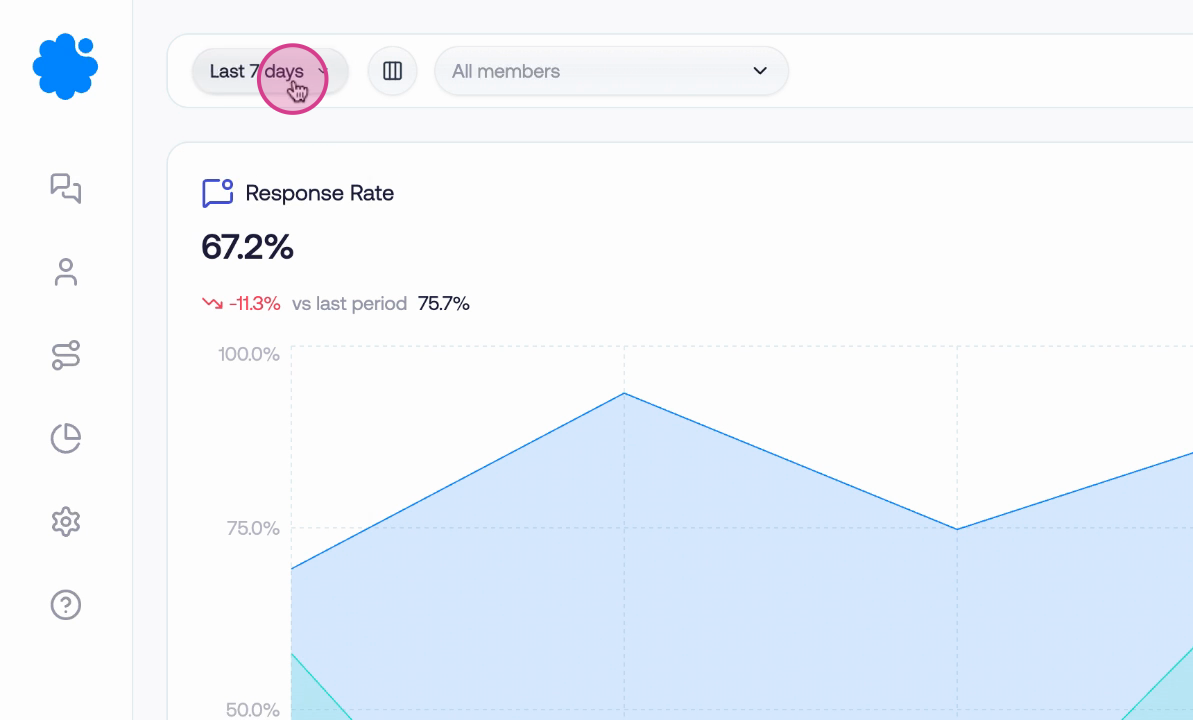
Start by picking the date range for your analytics. By default, it’s set to the last seven days, but you can choose yesterday, today, or any custom timeframe.
Step 2: Configure Your Date Preferences
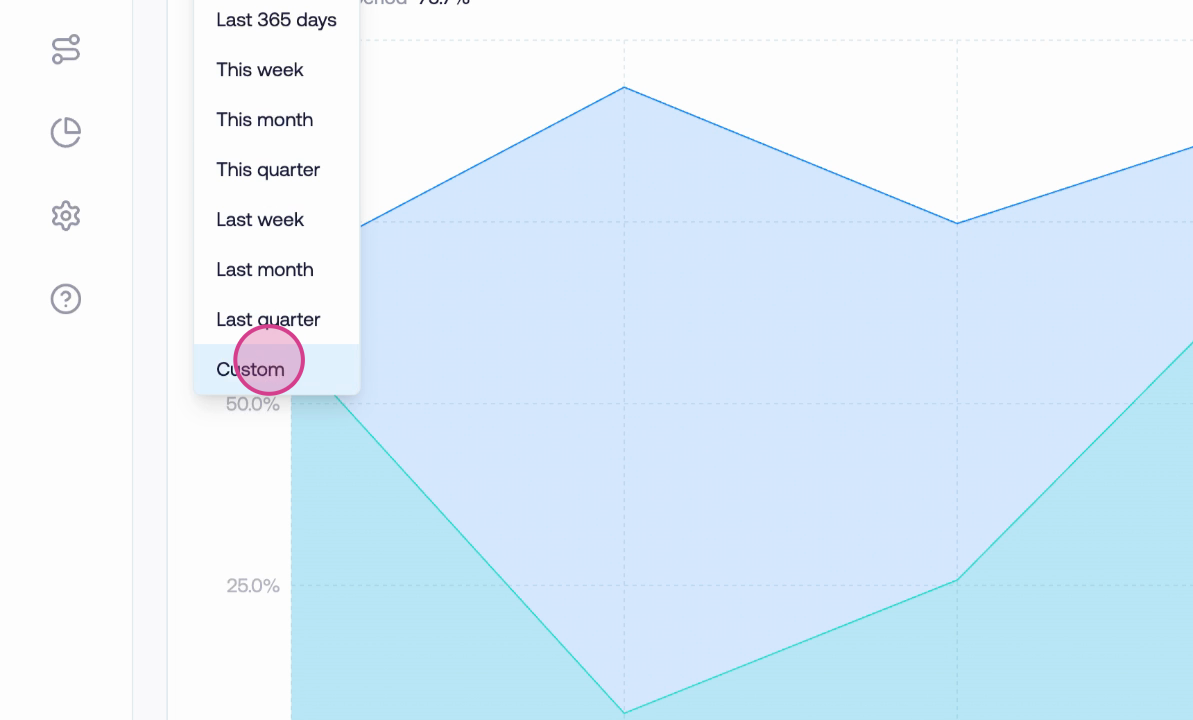
Click on the date selector to set a start date, end date, data interval, and time zone. When finished, hit Apply Filters to update your view.
Step 3: Review Outreach Metrics
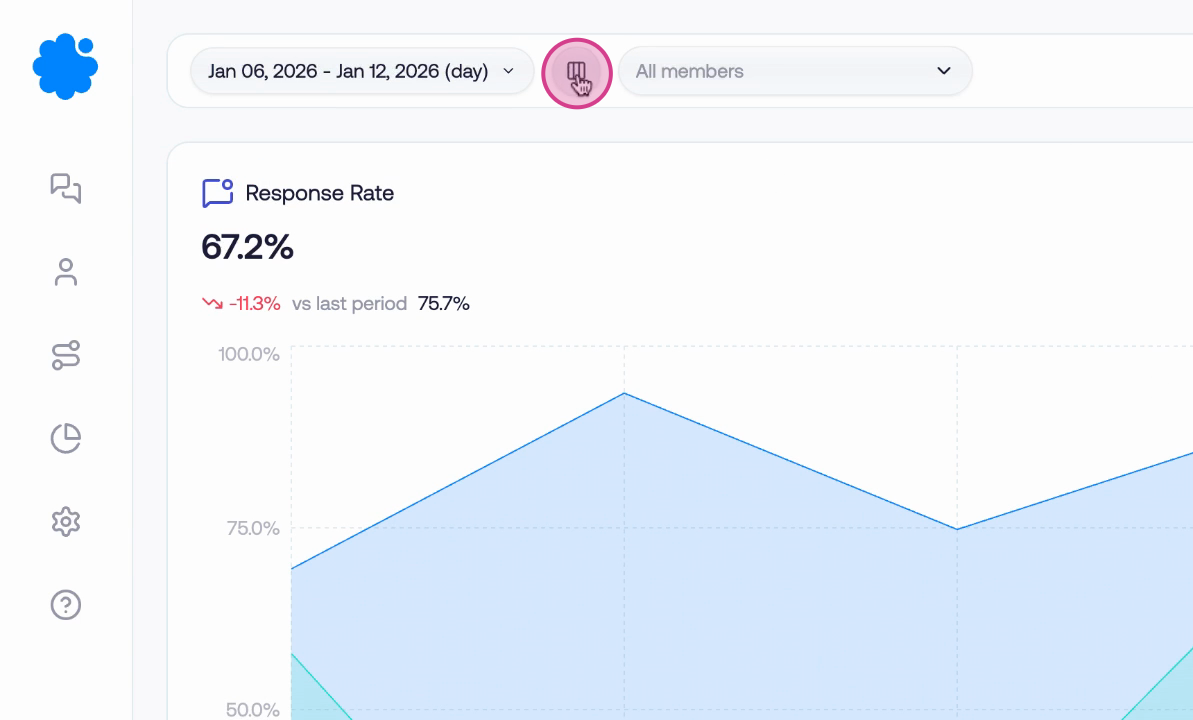
You’ll now see graphs displaying key metrics and changes over time, including period-over-period comparisons. Look for details like number of FaceTime calls and pickup rates.
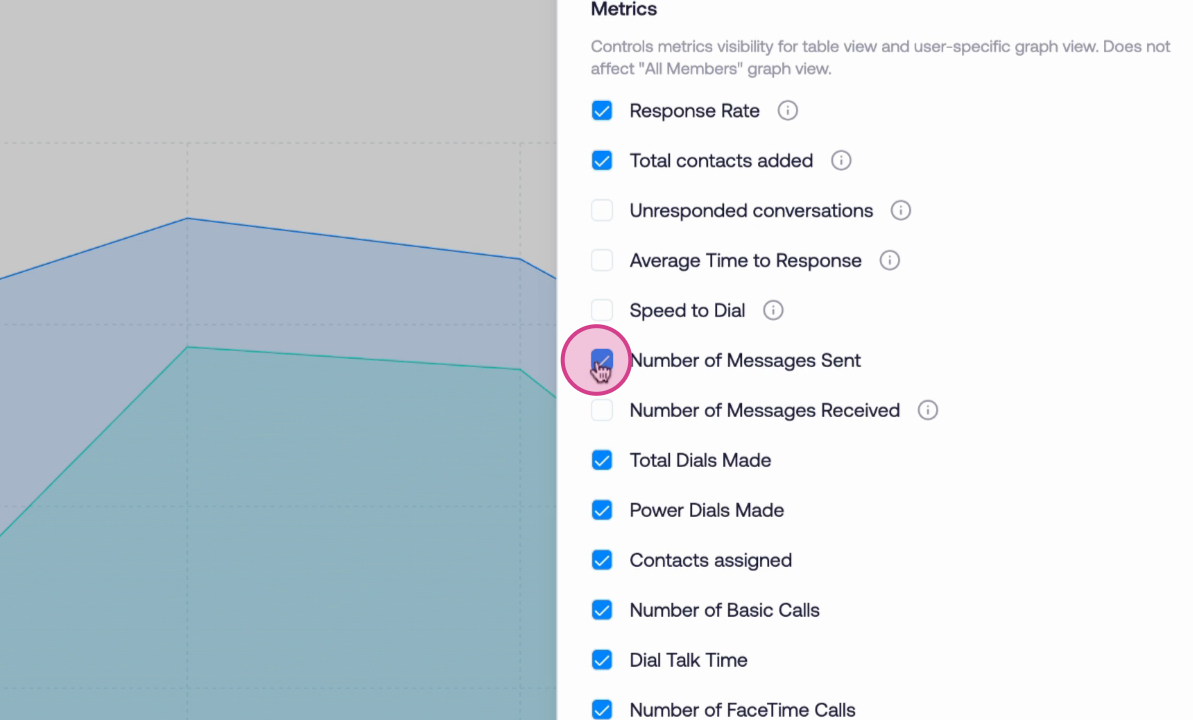
Step 4: Customize Which Metrics Are Displayed
Want a cleaner view? Click the metrics button in the upper area to show or hide specific metrics—for example, you might hide messages sent, total dials, or power dials to focus on what matters most.
Step 5: Apply Your Metric Selections
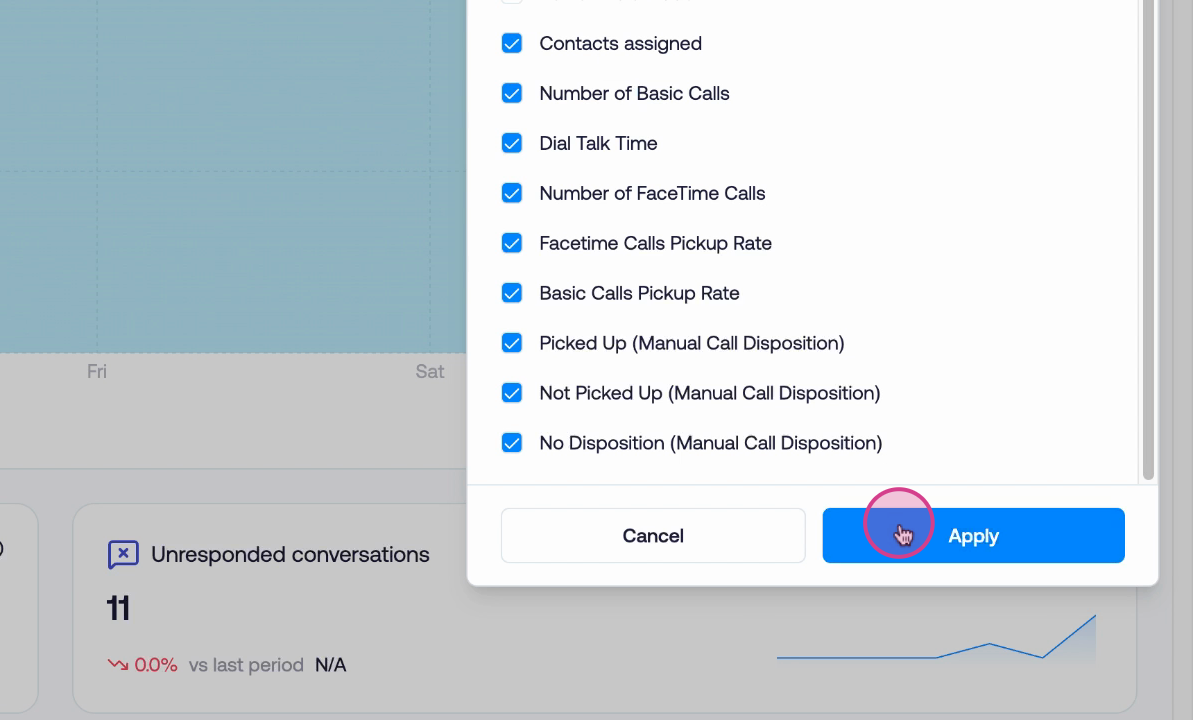
When you’re satisfied with the metrics you want to see, hit Apply to refresh the dashboard.
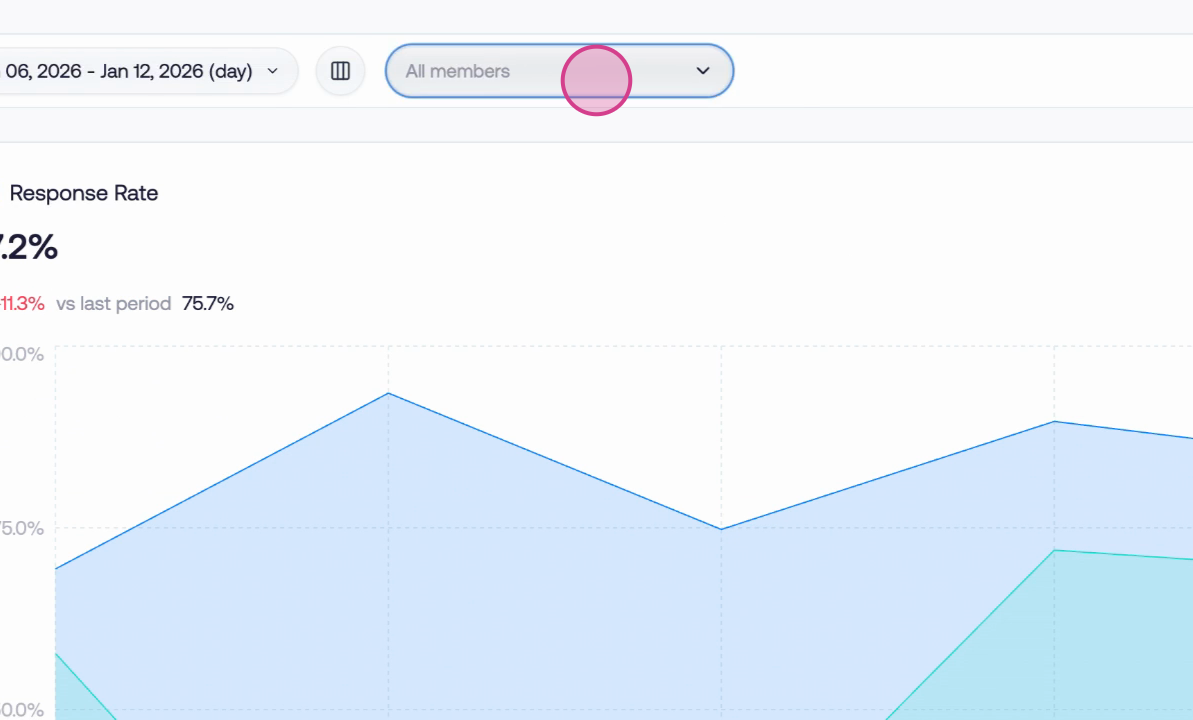
Step 6: Filter by Team Member
Focus on specific users by selecting their profiles. This lets you see all activity and trends for selected team members.
Dive Deeper with Table View
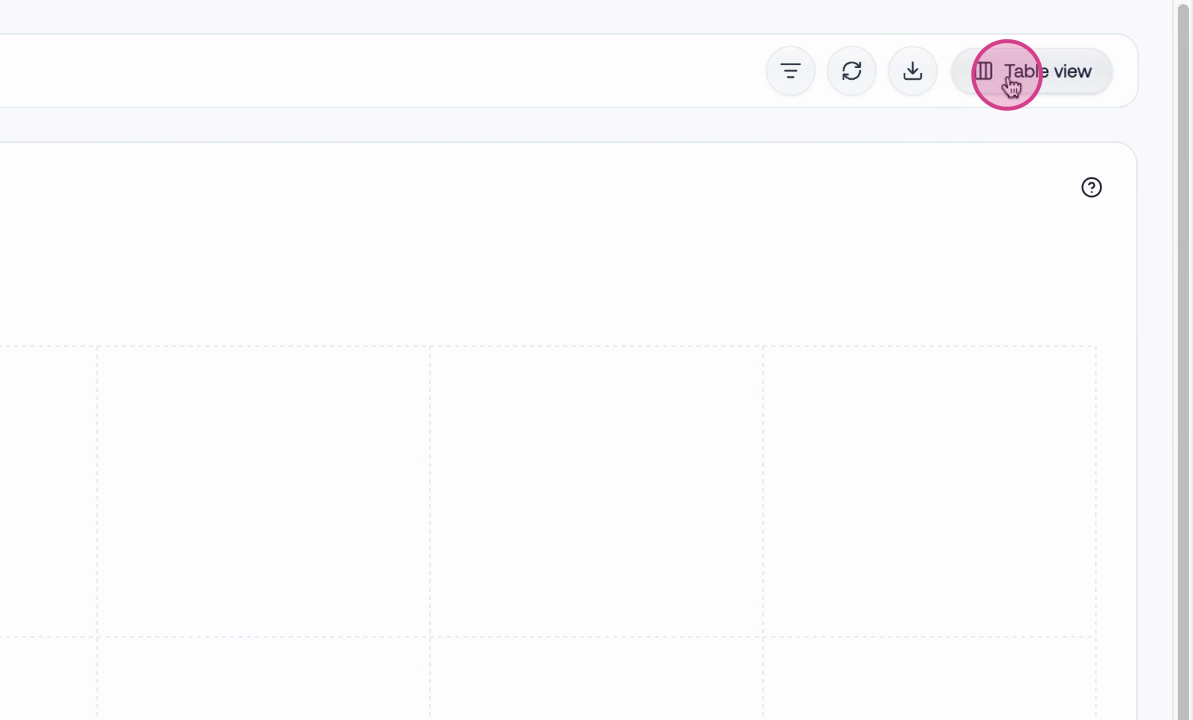
Step 1: Open the Table View
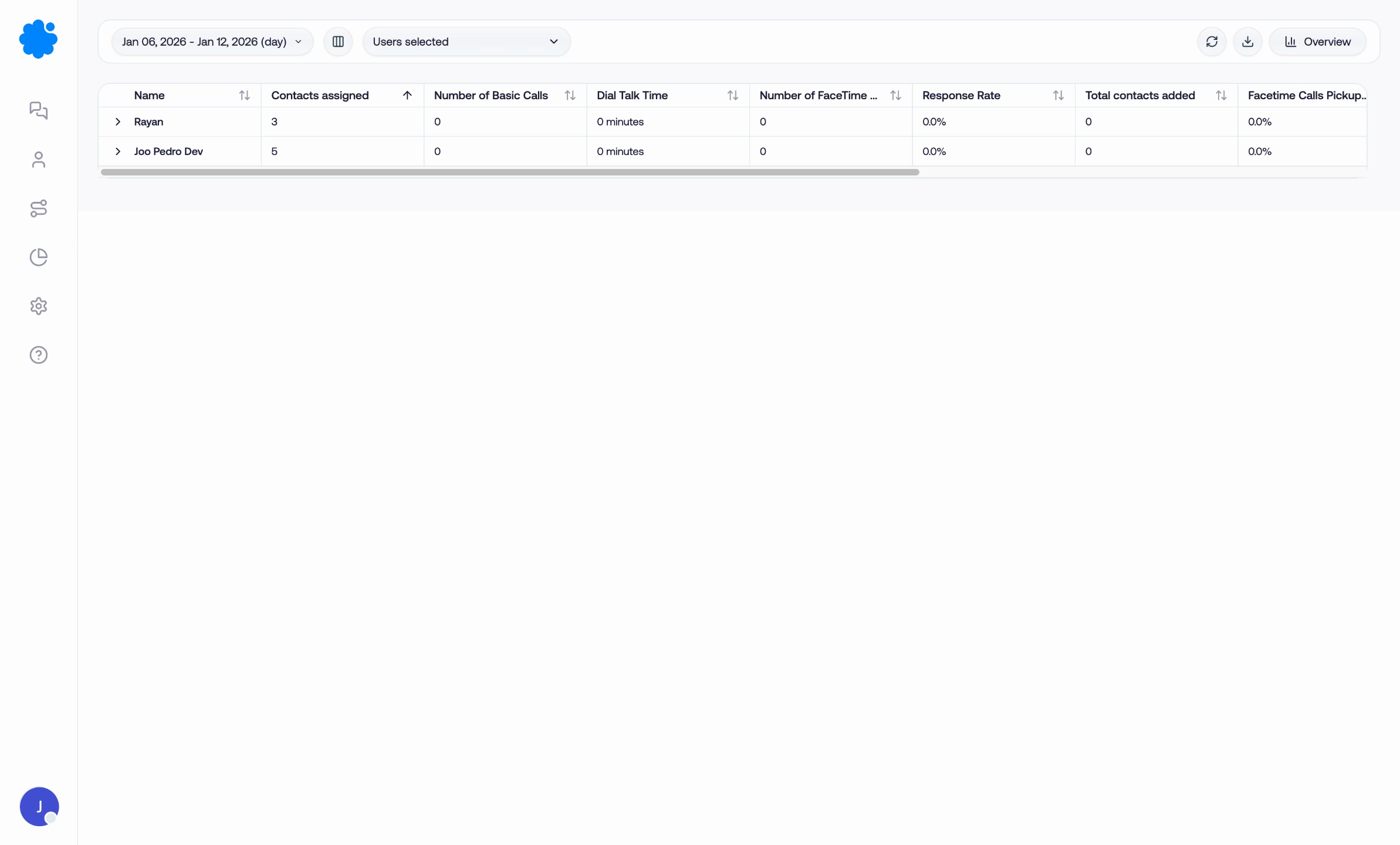
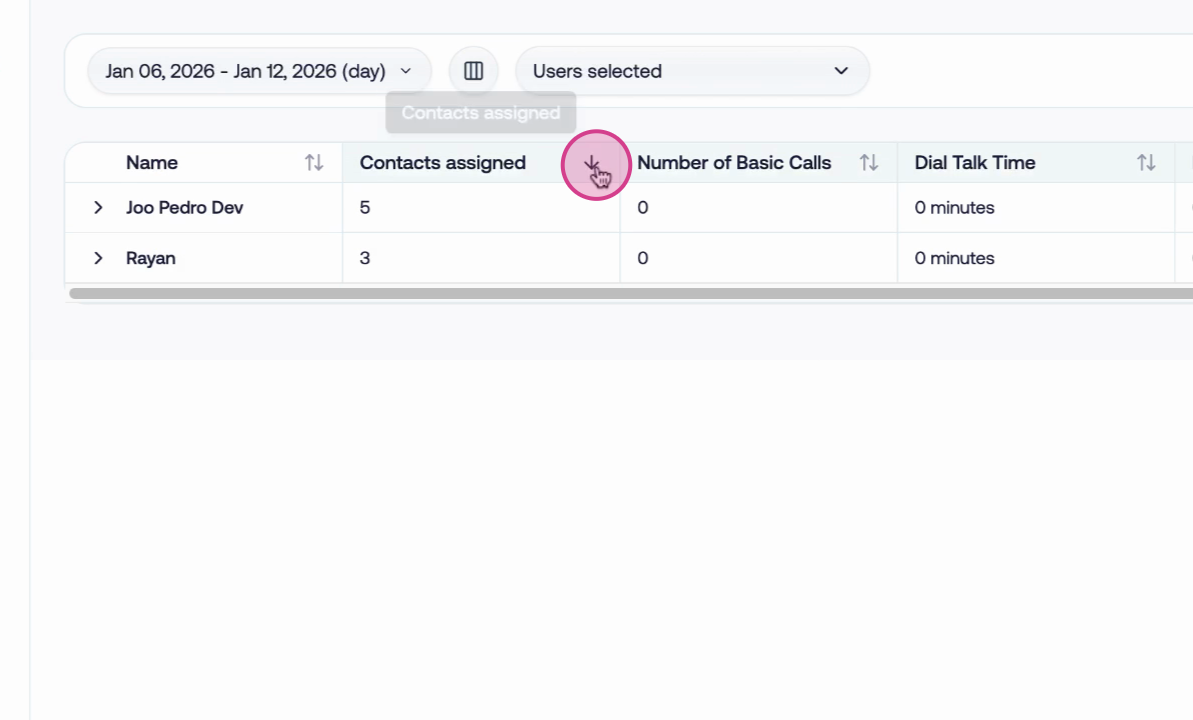
Switch to the table view for a detailed breakdown of selected users and their key metrics.
Step 2: Analyze and Sort Data
Sort columns to discover patterns—see who makes the most calls, sends the most messages, or achieves the fastest response times.
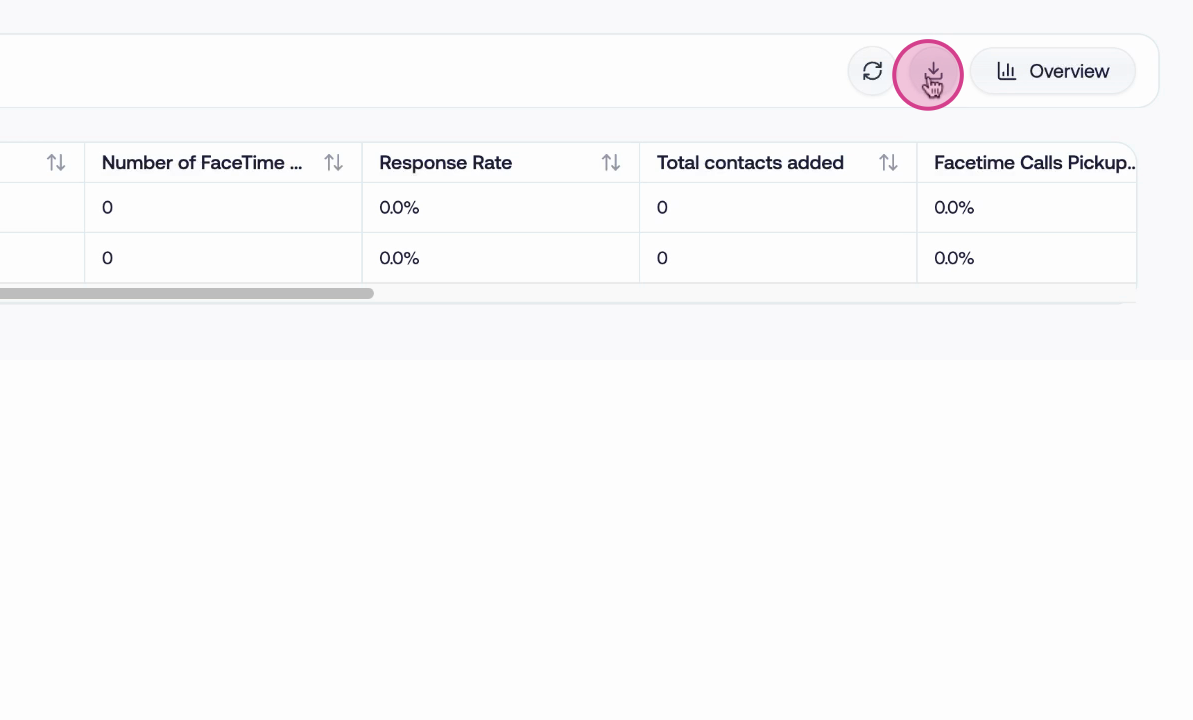
Step 3: Export Your Data
Download your metrics for further analysis by clicking the export button. This will save your data as a CSV.
Getting Started and Next Steps
Access the new analytics page from the menu. Explore the table view to see details by user and channel.