How To Enable Notifications on Mac
Last updated: January 15, 2026
How to Enable Sendblue Notifications & Sound
Click the settings icon to the left of the URL in your browser's address bar (it may appear as a lock 🔒 or sliders icon)
Find "Notifications" and set it to Allow
Find "Sound" and set it to Allow
Refresh the page to apply changes
How to Enable Chrome Notifications for SendBlue on Mac
Stay on top of your alerts by making sure Chrome and SendBlue notifications work seamlessly on your Mac. Follow these steps to set up notifications and get sound alerts whether you’re working in Chrome or using your phone.
Make Sure Chrome Notifications are Enabled in Mac Settings
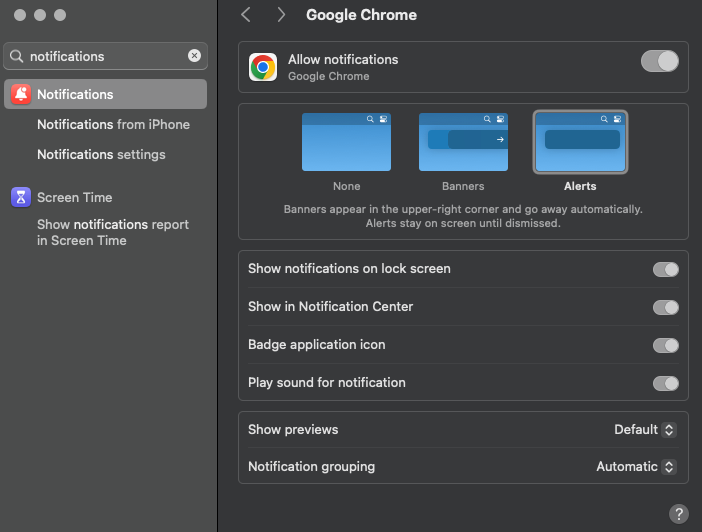
Step 1: In your Mac's System Settings, select Notifications from the left sidebar.
Step 2: Find Google Chrome in the notifications list and click on it.
Step 3: Choose your alert style—Banners or Alerts. Alerts stay visible until you dismiss them, making them harder to miss.
Step 4: Make sure notification options (like allowing notifications and sound) are checked for Chrome.
> Note: Notification sounds from Chrome will only play when the relevant tab is active. To receive sounds in the background, try one of the options below.
Option 1: Get Background Notification Sounds
Step 1: Enable iPhone Notifications on your Mac to forward mobile alerts. Ensure the SendBlue app is installed and push notifications are enabled on your iPhone.
Step 2: Search for "Notifications from iPhone" in your Mac settings and turn this on.
Step 3: On your iPhone, open the SendBlue app and make sure notifications are enabled in your phone's settings.
Option 2: Use the SendBlue App on Your Mac
Step 1: Search for the SendBlue app in the Mac App Store.
Step 2: Download and install the app. Log in to your SendBlue account.
Step 3: Open the SendBlue app and leave it on in the background.
Step 4: Make sure notifications are enabled on the Sendblue App
> The SendBlue app is designed for iPhone, but you can use it on your Mac to receive notifications as well.
Setting up notifications across devices keeps you informed and responsive, whether you’re working in Chrome or away from your desk. Choose the method that fits your workflow and never miss a critical alert again.