Zapier

Last updated: April 12, 2026

Last Updated: April 12, 2026


Integration Setup Guide

Overview

Zapier is the fastest way to move data between Sendblue and the rest of your stack when you do not need a custom direct API build. Use it to create leads, trigger sends, react to replies, and connect Sendblue events to your CRM or other automation tools.

What Zapier is best for

  • Pushing new leads into Sendblue from forms, CRMs, scheduling tools, or spreadsheets.

  • Telling Sendblue to send or update something when another app fires first.

  • Triggering downstream actions when Sendblue events happen.

Before you connect Zapier

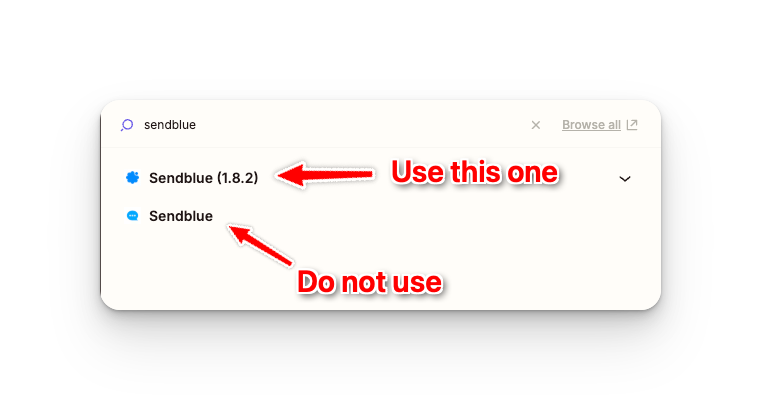
  • Make sure you are using the current Sendblue Zapier integration, not an older or deprecated version.

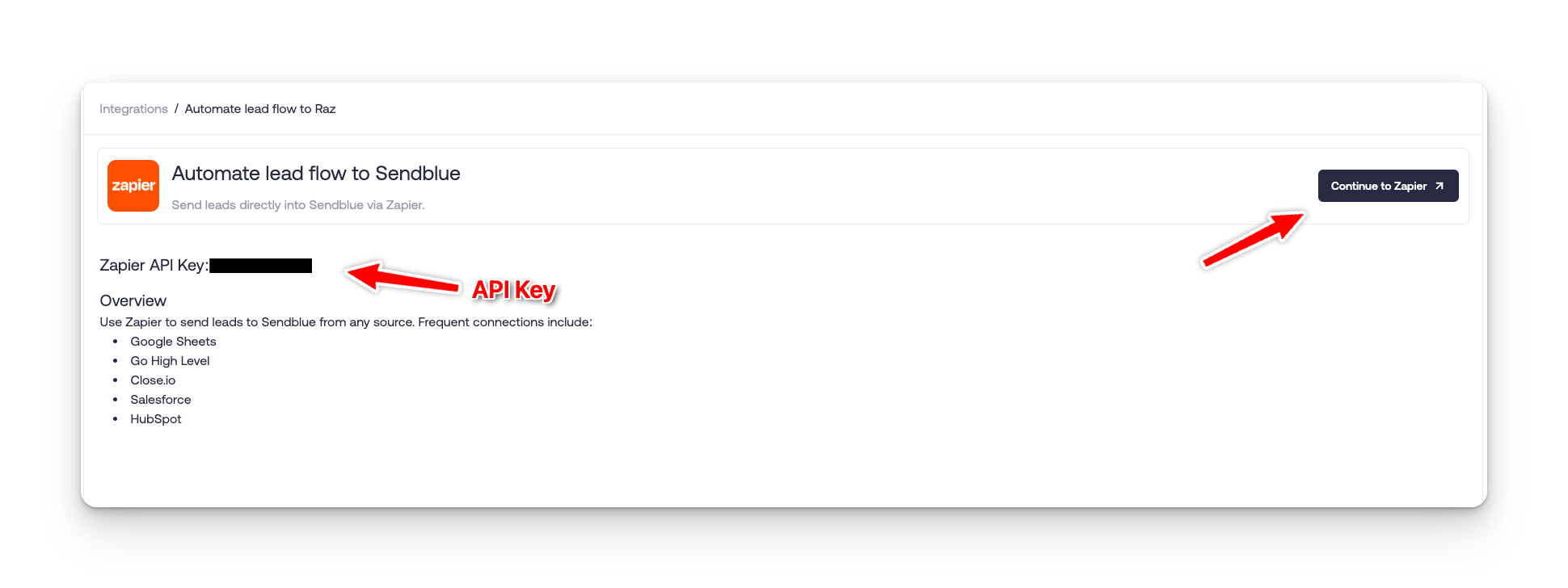
  • Copy the correct Sendblue API key from your account before you begin the Zap auth step.

  • Know whether you need a Zapier action, a Zapier trigger, or a full end-to-end workflow pattern before building the Zap.

Recommended setup flow

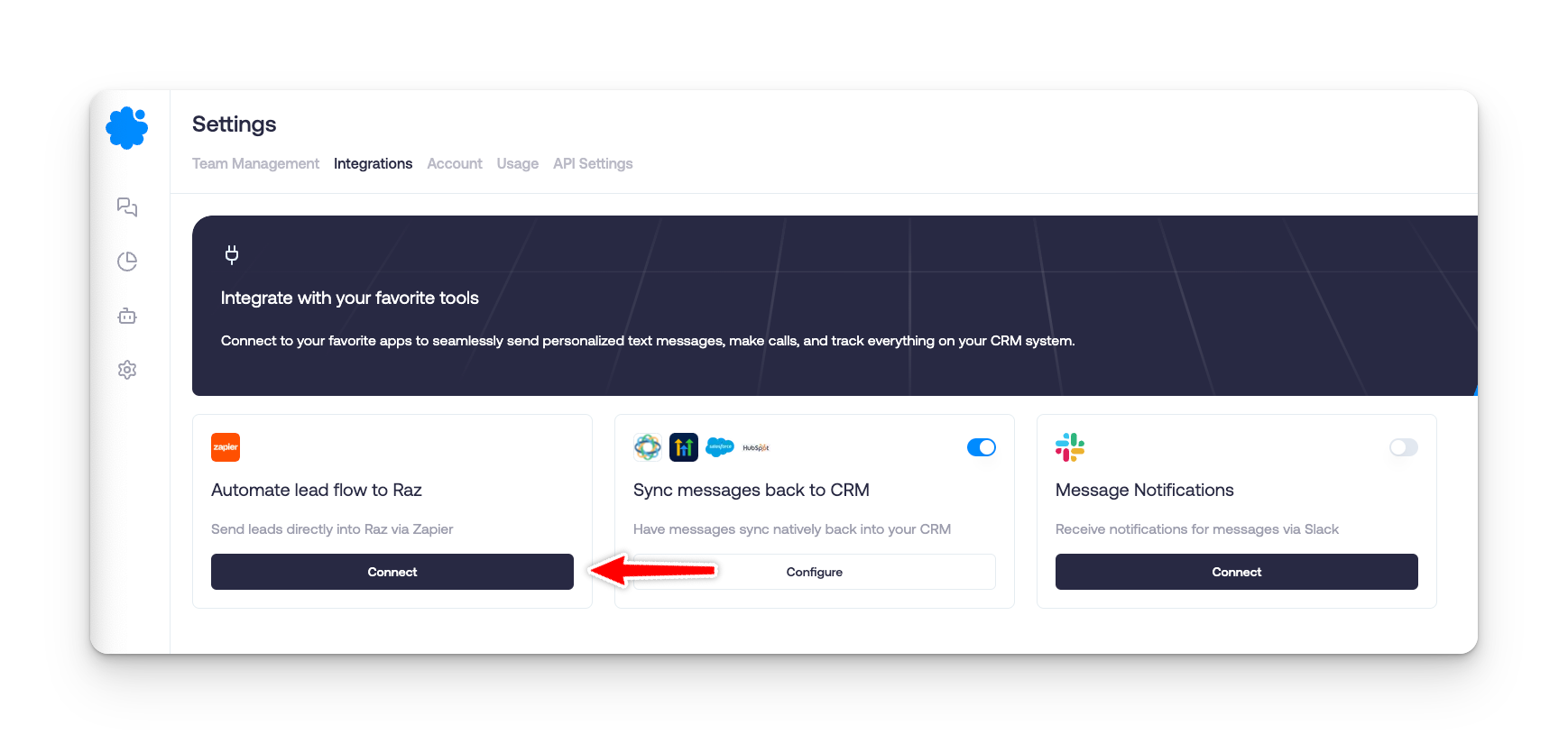
  1. Go to Sendblue Settings and open Integrations.

  2. Open the Zapier connection path and copy the API key you will use for auth.

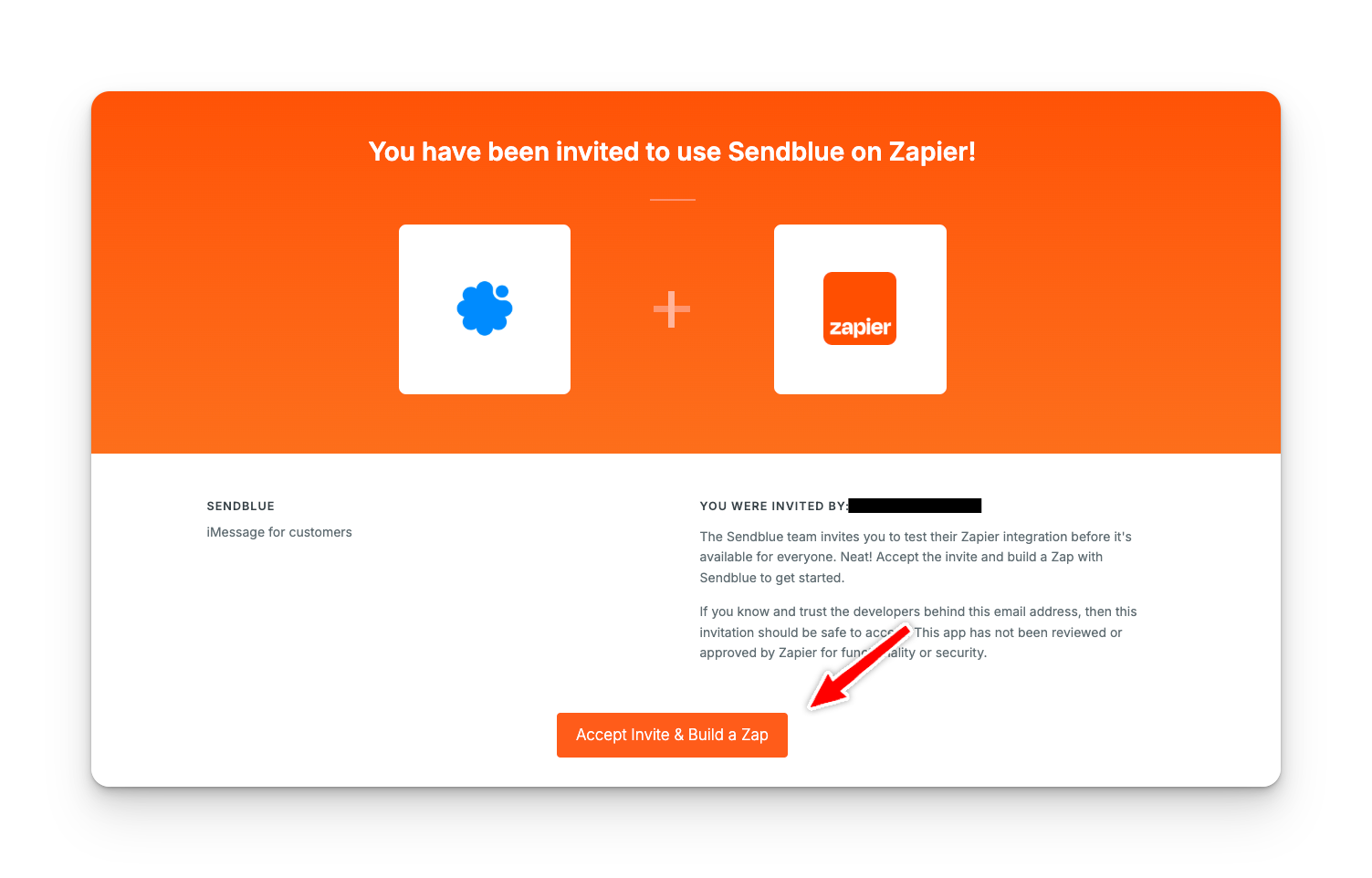
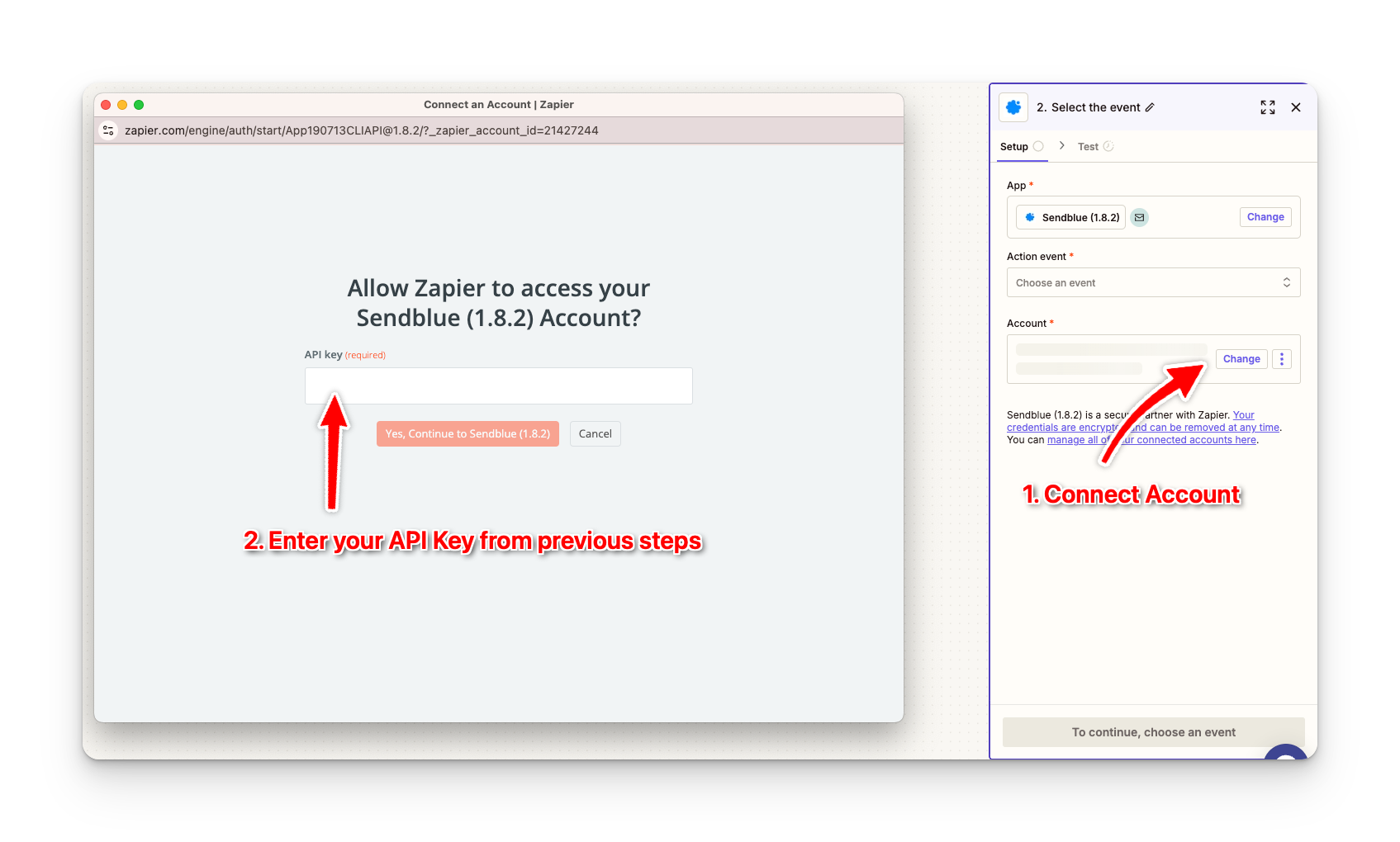
  3. In Zapier, choose the current Sendblue app and connect your Sendblue account with that API key.

  4. Build one small test Zap first so you can validate data shape and phone formatting before scaling up.

  5. Only after the test passes should you duplicate or expand the automation for production use.

How to choose the right Zapier guide

NeedBest doc
Overall setup logic and end-to-end workflow thinkingZapier + Sendblue Workflow
Tell Sendblue to do something from ZapierSendblue Actions in Zapier
Fire another workflow when Sendblue does somethingSendblue Triggers in Zapier

Common mistakes

  • Using bad phone formatting and then treating the failure as a Sendblue outage.

  • Building duplicate Zaps that trigger the same send path more than once.

  • Authenticating successfully but never testing whether the right fields are actually reaching Sendblue.

  • Forgetting that media URLs, custom variables, or owner logic may need their own validation before launch.

How to test and verify it

  1. Run one test contact through the Zap from start to finish.

  2. Confirm the exact contact and fields arrive in Sendblue as expected.

  3. If the Zap sends a message, verify it used the intended Sendblue path and number.

  4. If it listens for Sendblue events, confirm the trigger fired only once and carried the right data out.

Related guides