GoHighLevel Media Storage
Last updated: May 8, 2026
Overview
Send images, videos, and voice memos through Sendblue by uploading media files and inputting them in the Media URL fields in the Sendblue Actions. Please note that any media will overwrite the text content of the message. If you'd like to send text as well you should use another send iMessage action.
Step-by-Step Guide
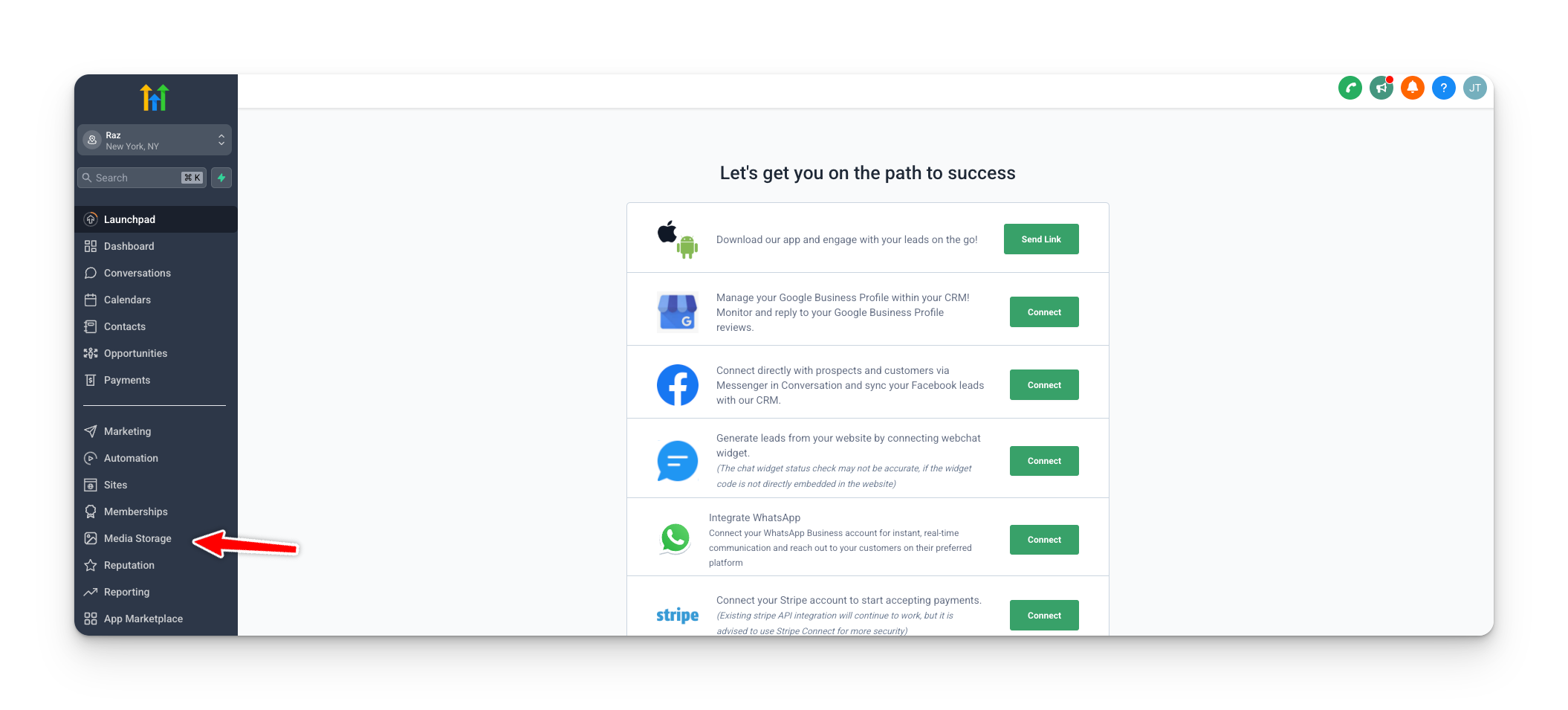
Step 1: Access Media Storage
From your GoHighLevel Sub-Account home page, click on the Media Storage tab.
Step 2: Upload Media Files
Click Upload and select the media files (images, videos, or voice memos) you want to store.

Step 3: Retrieve Media URL
Hover over the media file you would like to send.
Click the three dots that appear.
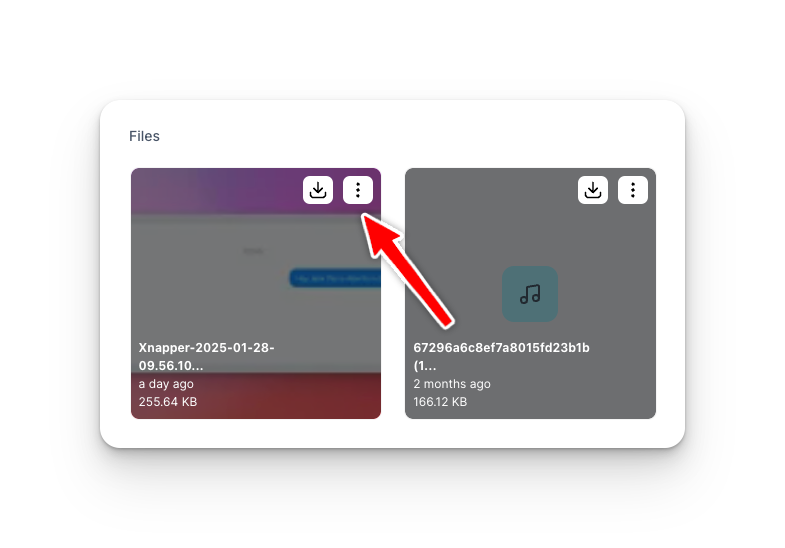
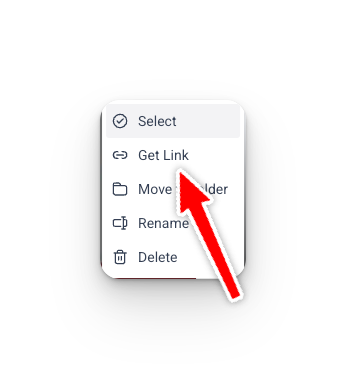
Select Get Link to generate the Media URL.
Step 4: Use Send iMessage (Advanced) - Media URL in Sendblue Actions
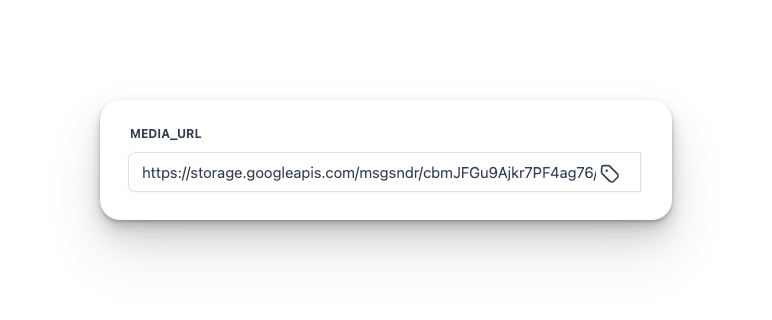
Paste the link into the Media URL or Voice Memo URL field in the relevant Sendblue Action (Send iMessage (Advanced) or Send Group iMessage).
Media URL is for videos, images, pdfs, etc.
Voice Memo URL is only for voice memos.
If sending videos, make sure the file size is less than 20MB. You can compress it using a online video compressor.