How to Use Sendblue's Chrome Extension Inside GHL's Opportunities (Pipelines) Tab
Last updated: April 16, 2026
Use this guide to make sure the Sendblue blue bubbles show up next to phone numbers in the Opportunities view of GoHighLevel.
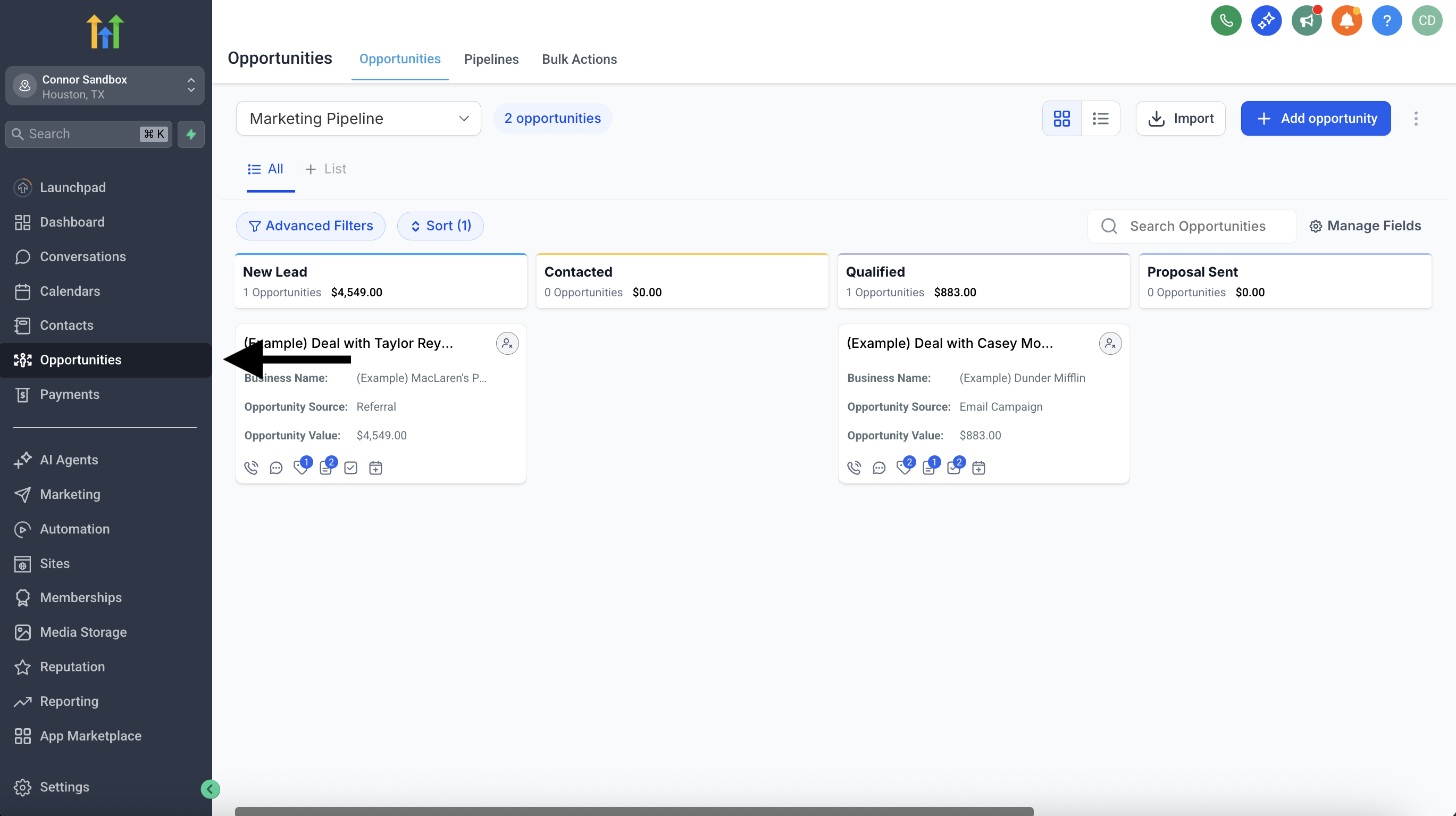
Step 1: Go to the Opportunities Tab
Open GoHighLevel and navigate to the Opportunities tab.
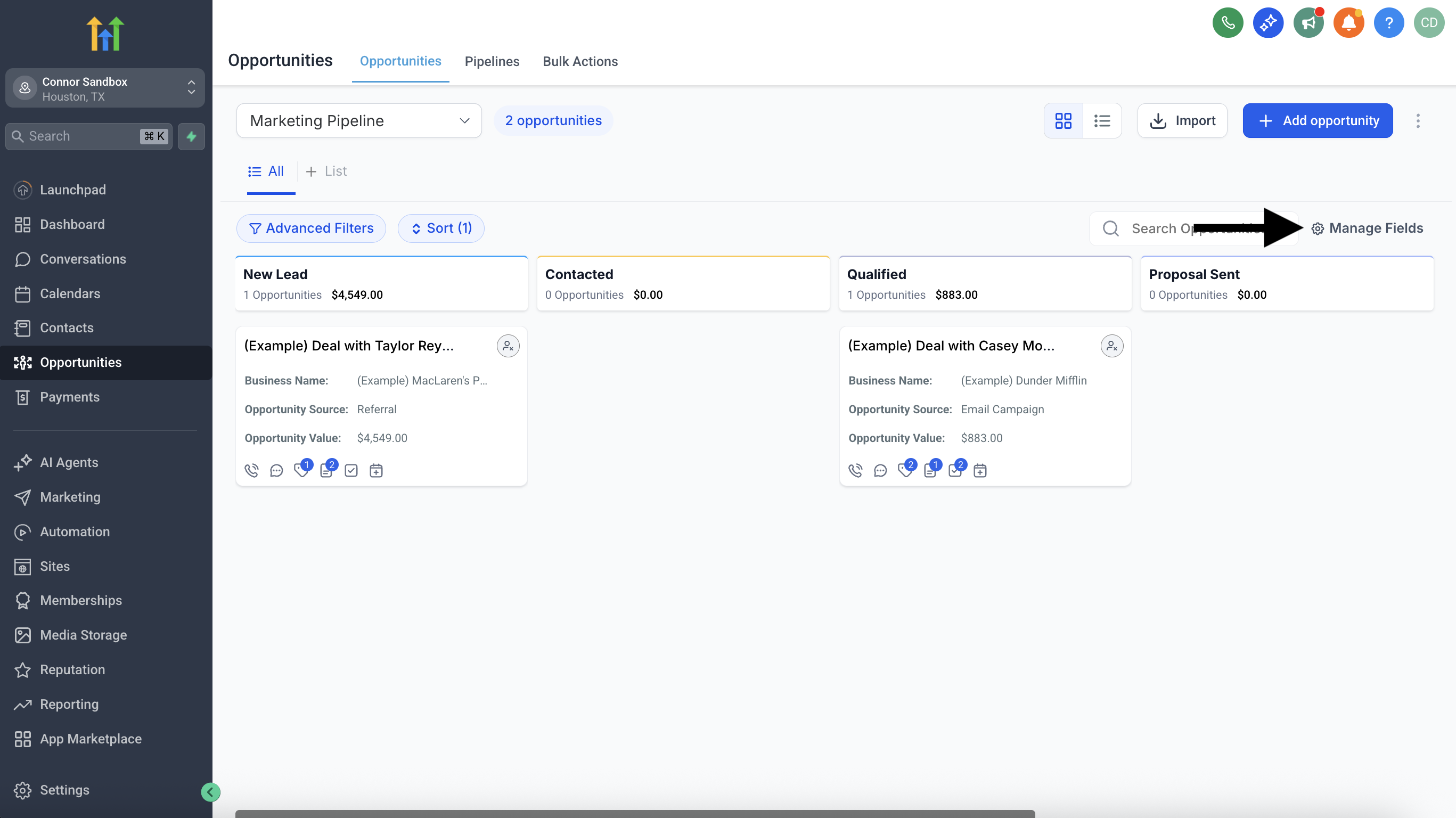
Step 2: Click 'Manage Fields'
In the top right, click the Manage Fields button.
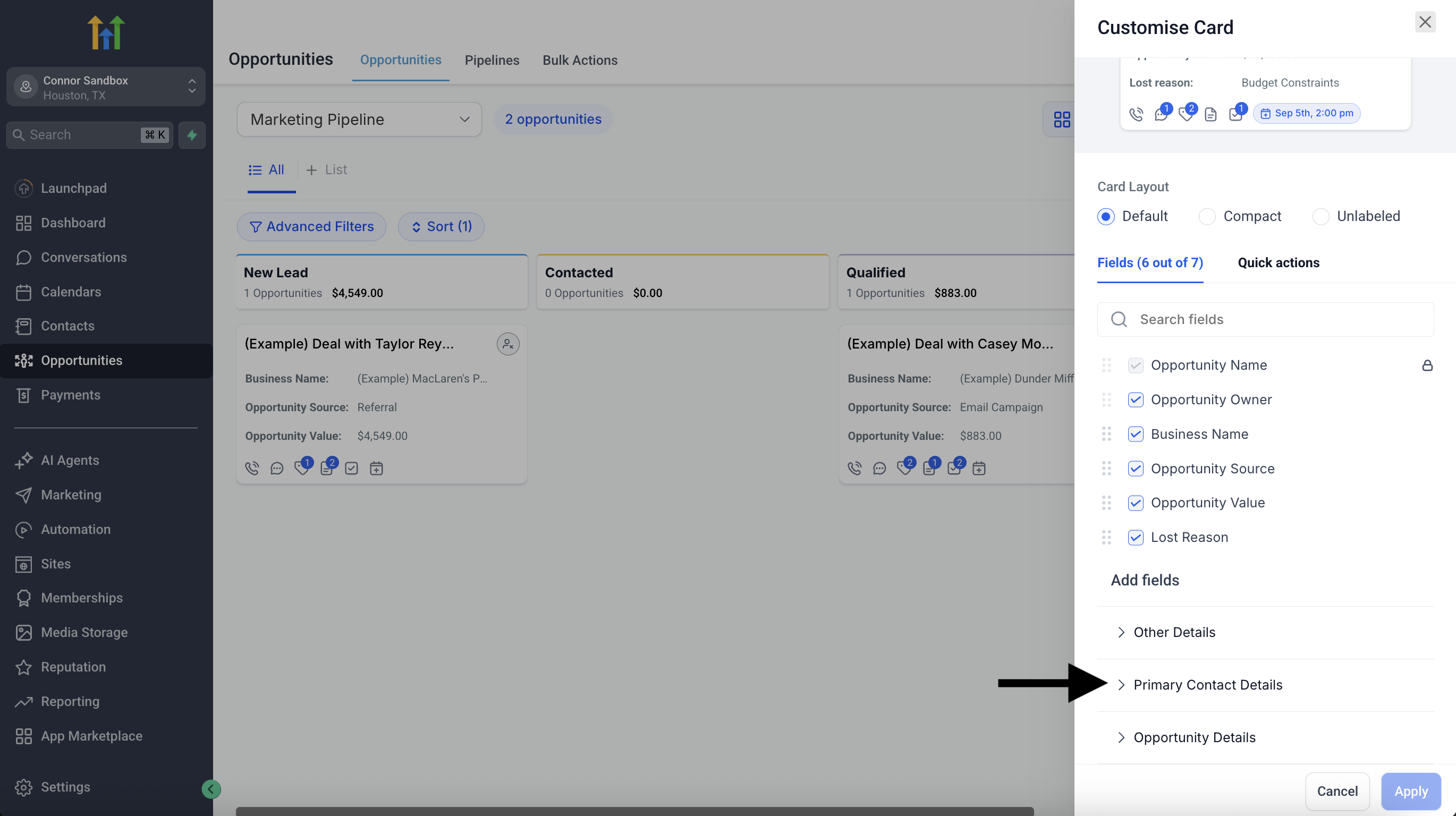
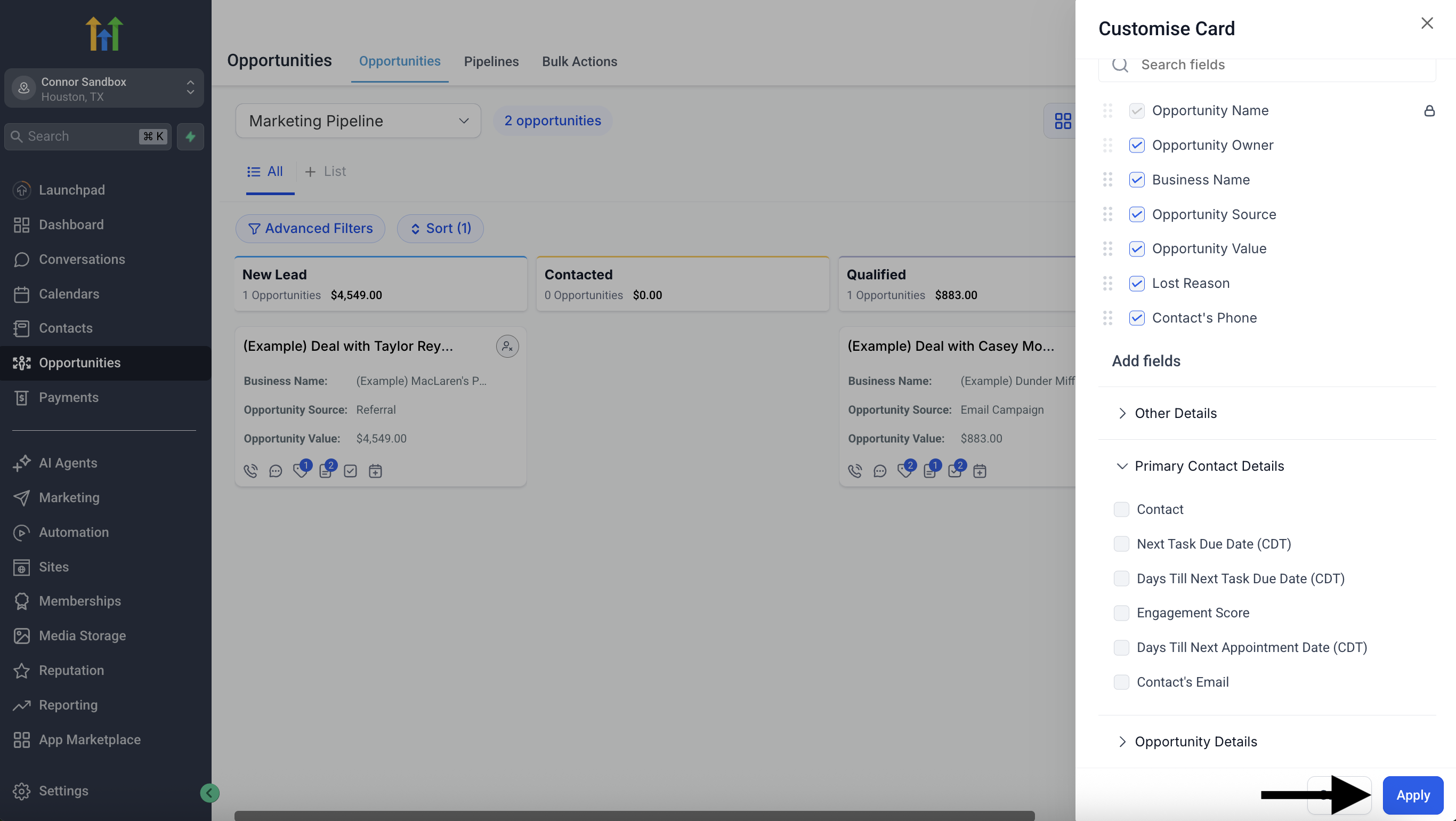
Step 3: Add 'Primary Contact Details'
Under Add Fields, click on Primary Contact Details.
Step 4: Select 'Contact's Phone'
From the dropdown, select Contact’s Phone.
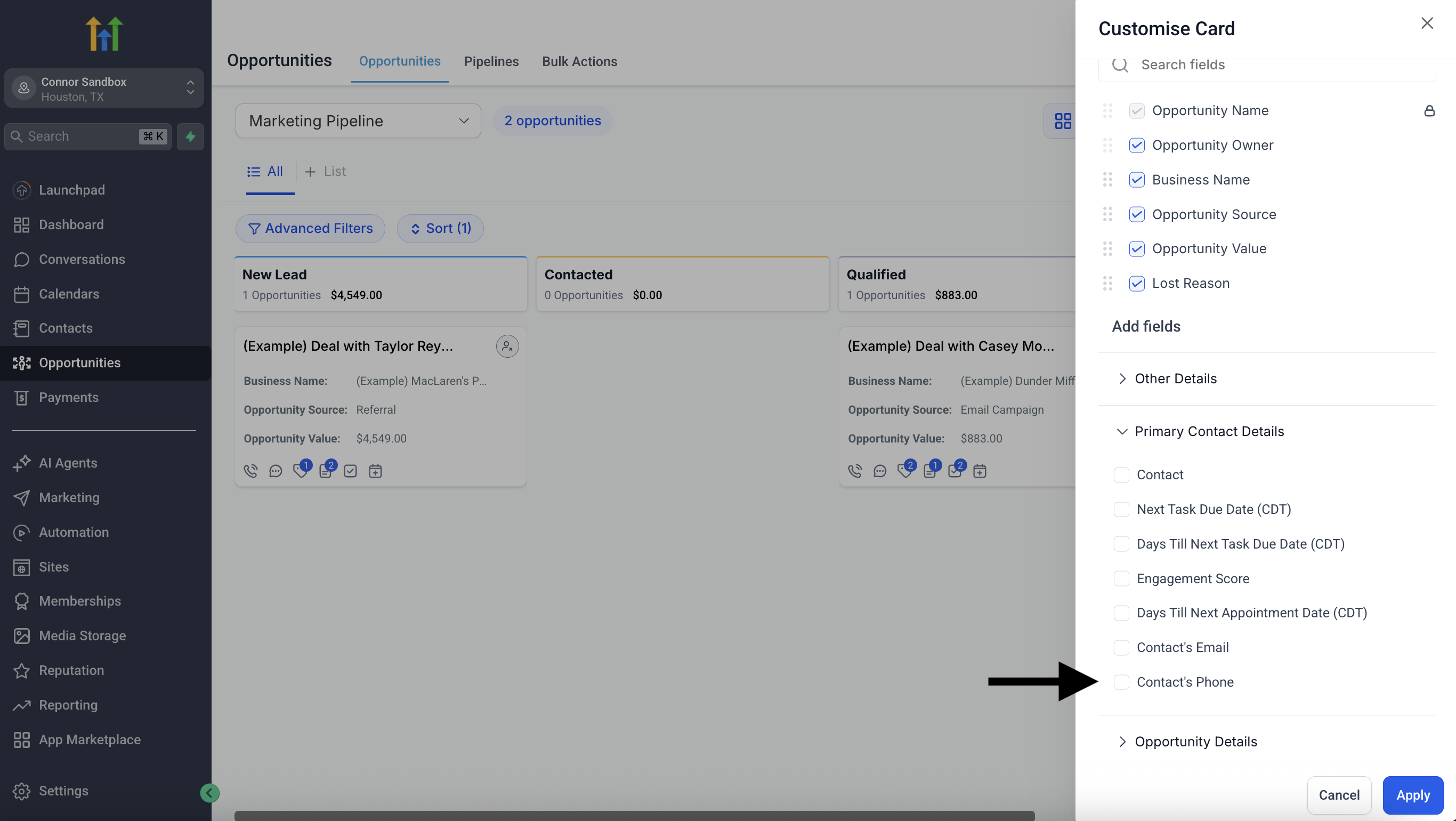
Step 5: Click 'Apply'
Once you’ve selected the phone field, click Apply.
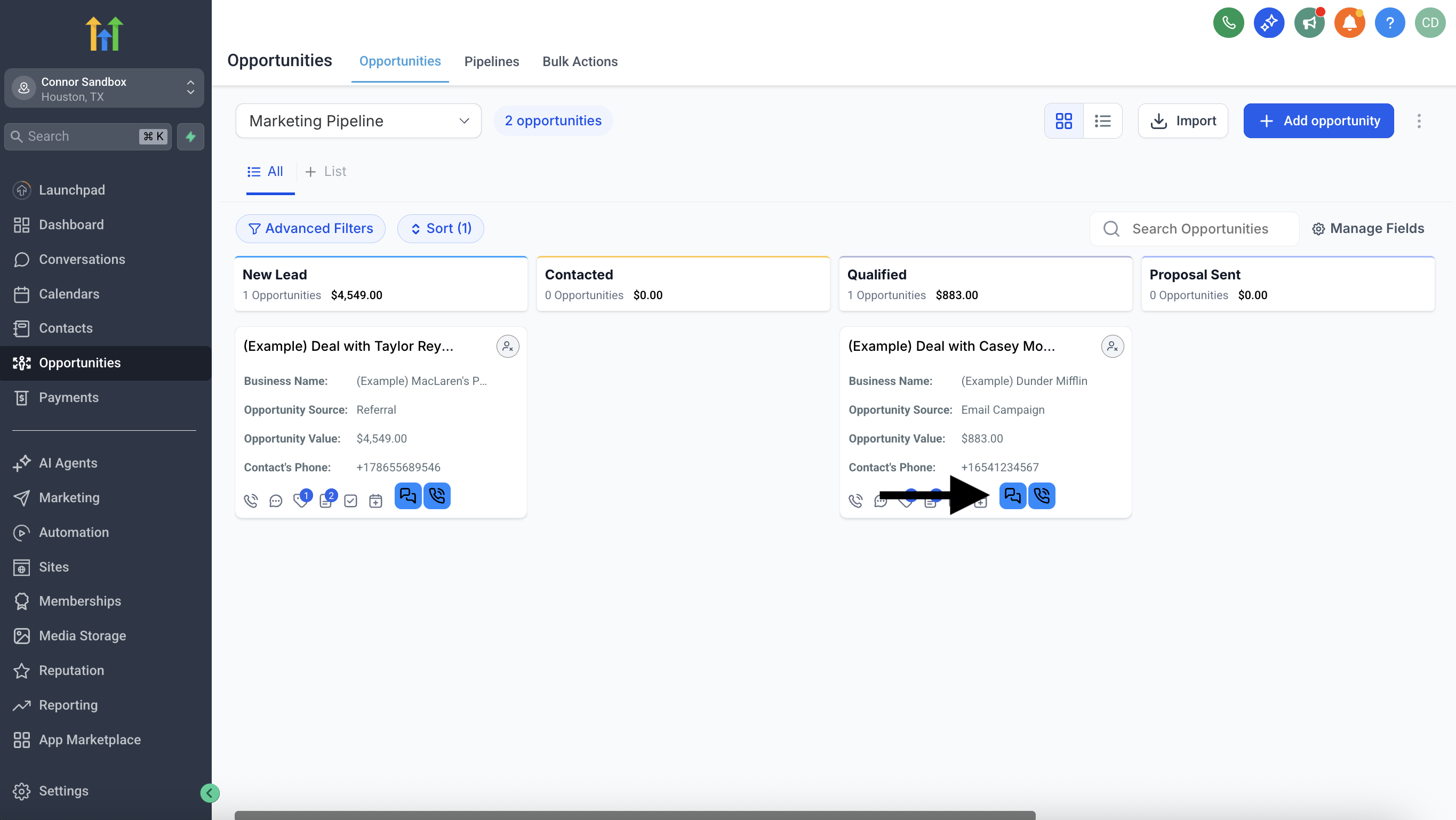
✅ Done!
You should now see the two blue bubbles (iMessage and SMS) next to each Opportunity that has a phone number.
Still not working? Check this doc, try refreshing the page, or reach out to the Sendblue team.