Full Breakdown of the Setting Page by Tab
Last updated: December 1, 2025
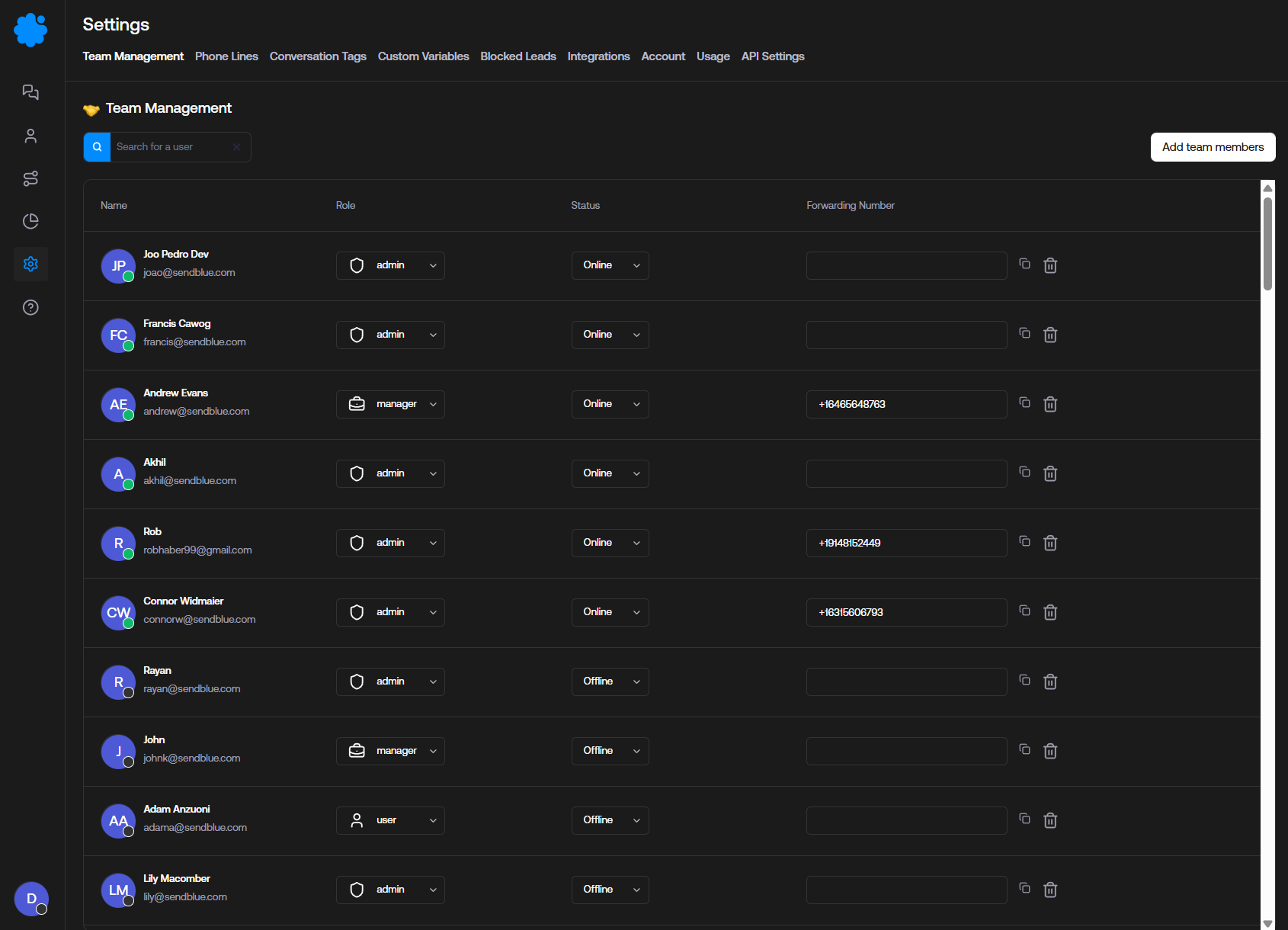
Team Management:
Change team member permissions
Admin: Superuser access
Manager: Ability to see all leads but ONLY respond to assigned leads
User: Ability to ONLY see and respond to leads they're assigned
Add Team Members
Change Online Status
Designate Specific iMessage Lines to Individual Team Members
Assign Individual Forwarding Numbers to Team Members
Phone Lines:
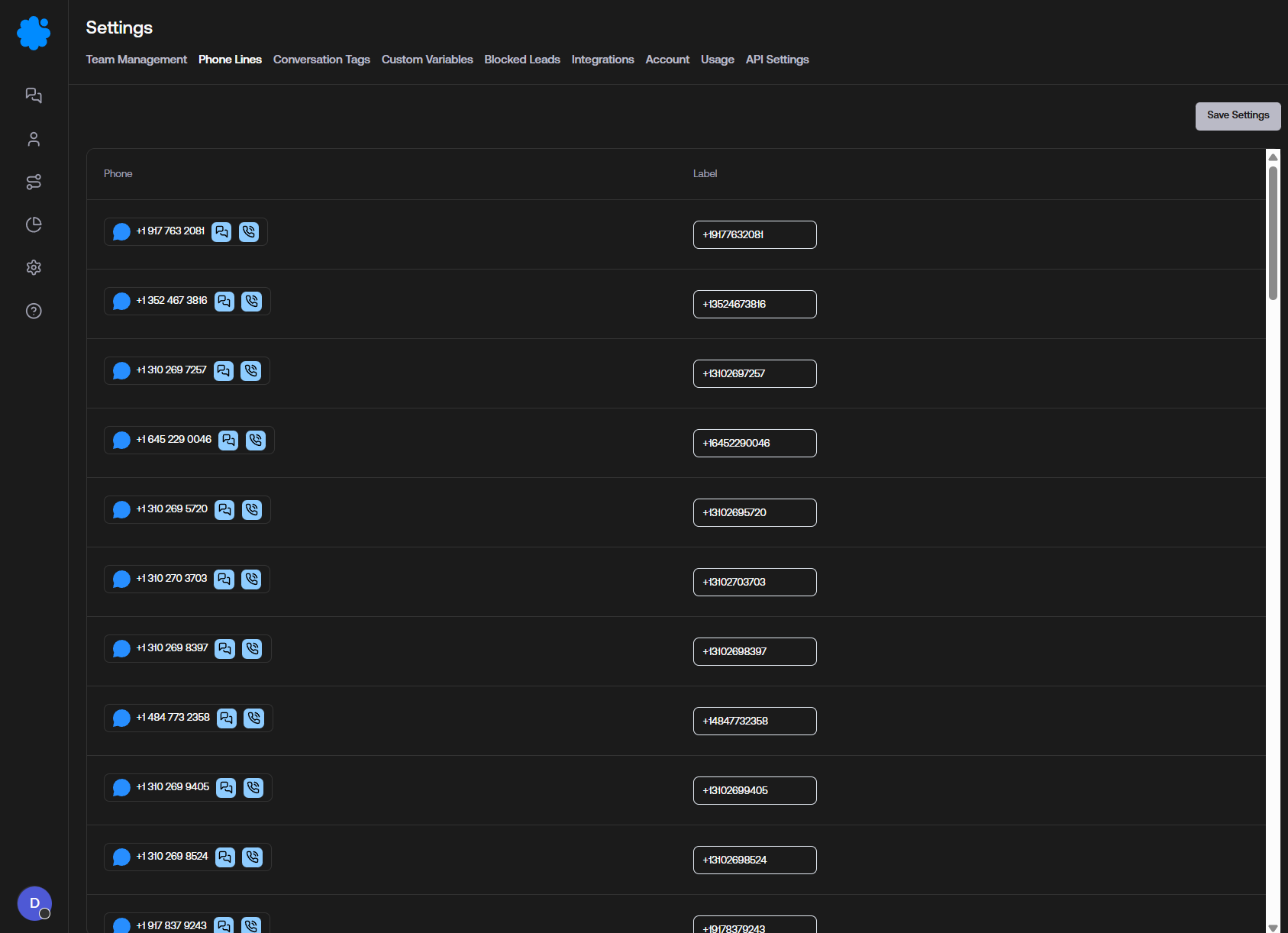
Where current phone lines are shown
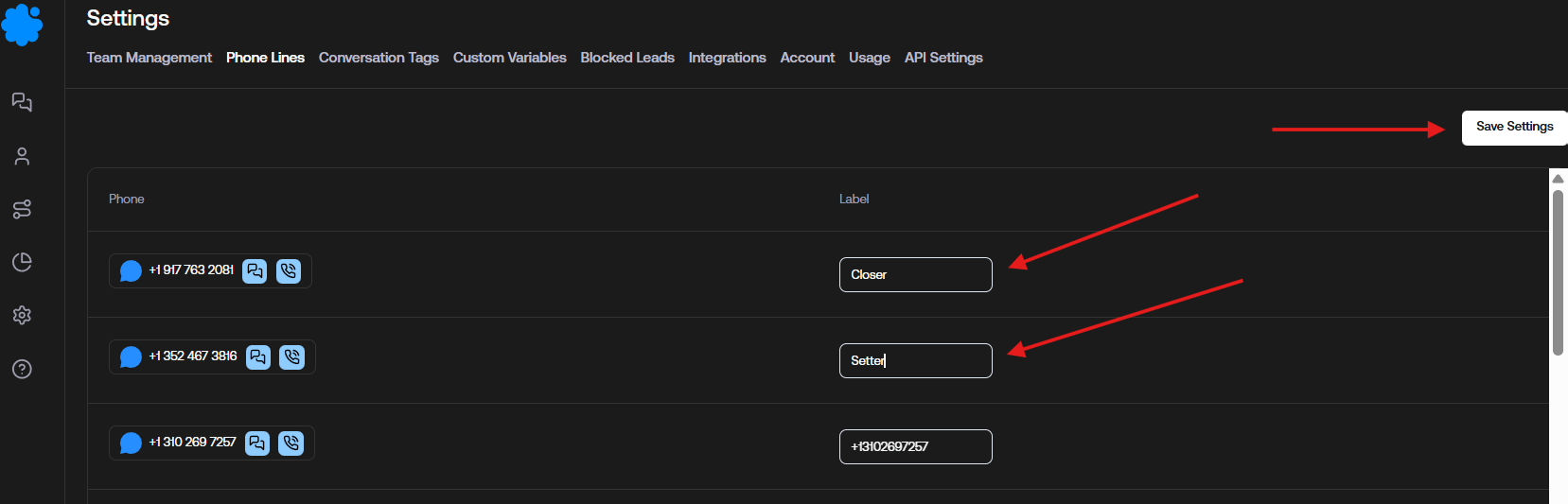
Ability to rename phone lines for organizational clarity within the dashboard
Conversation Tags
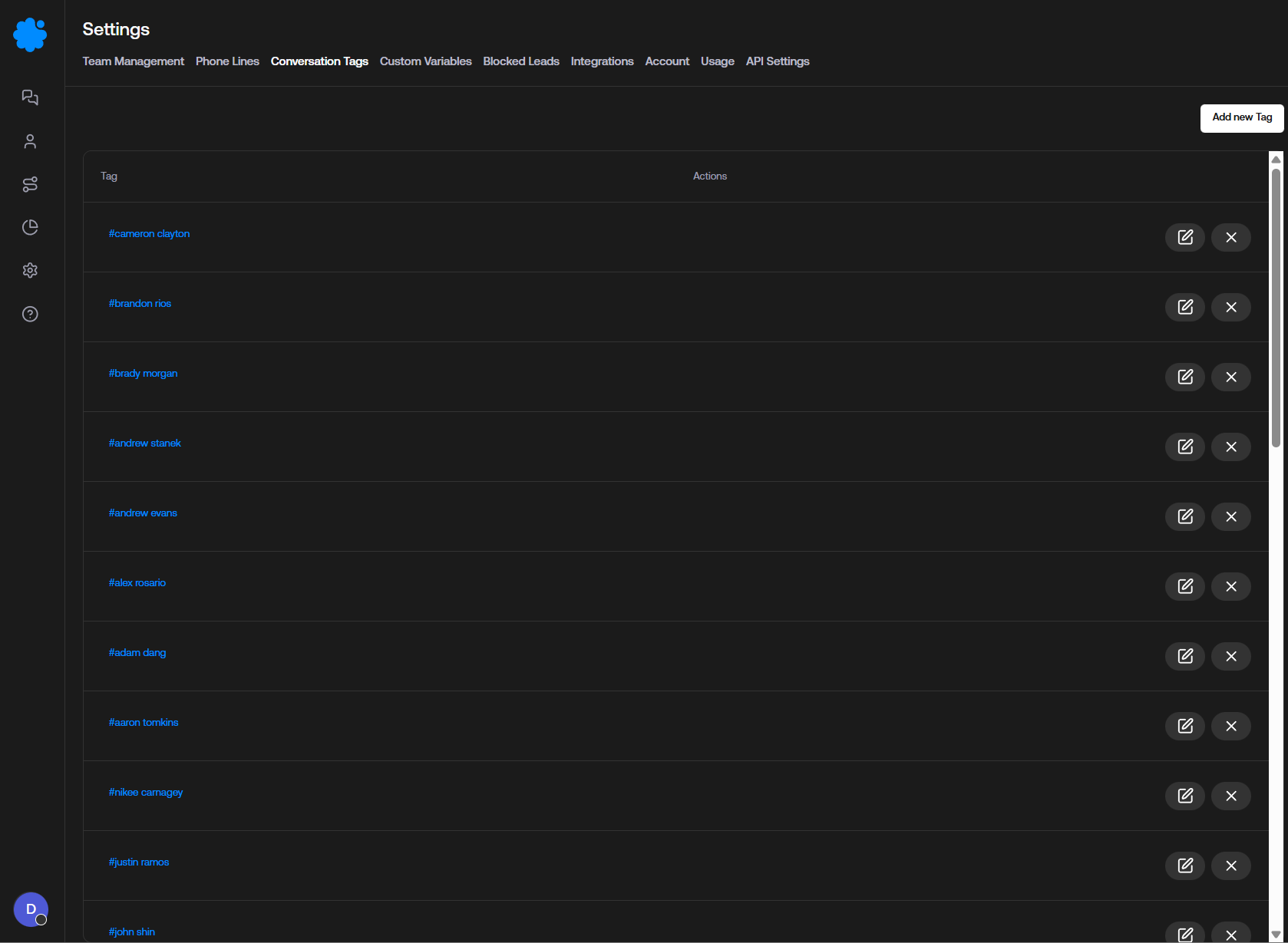
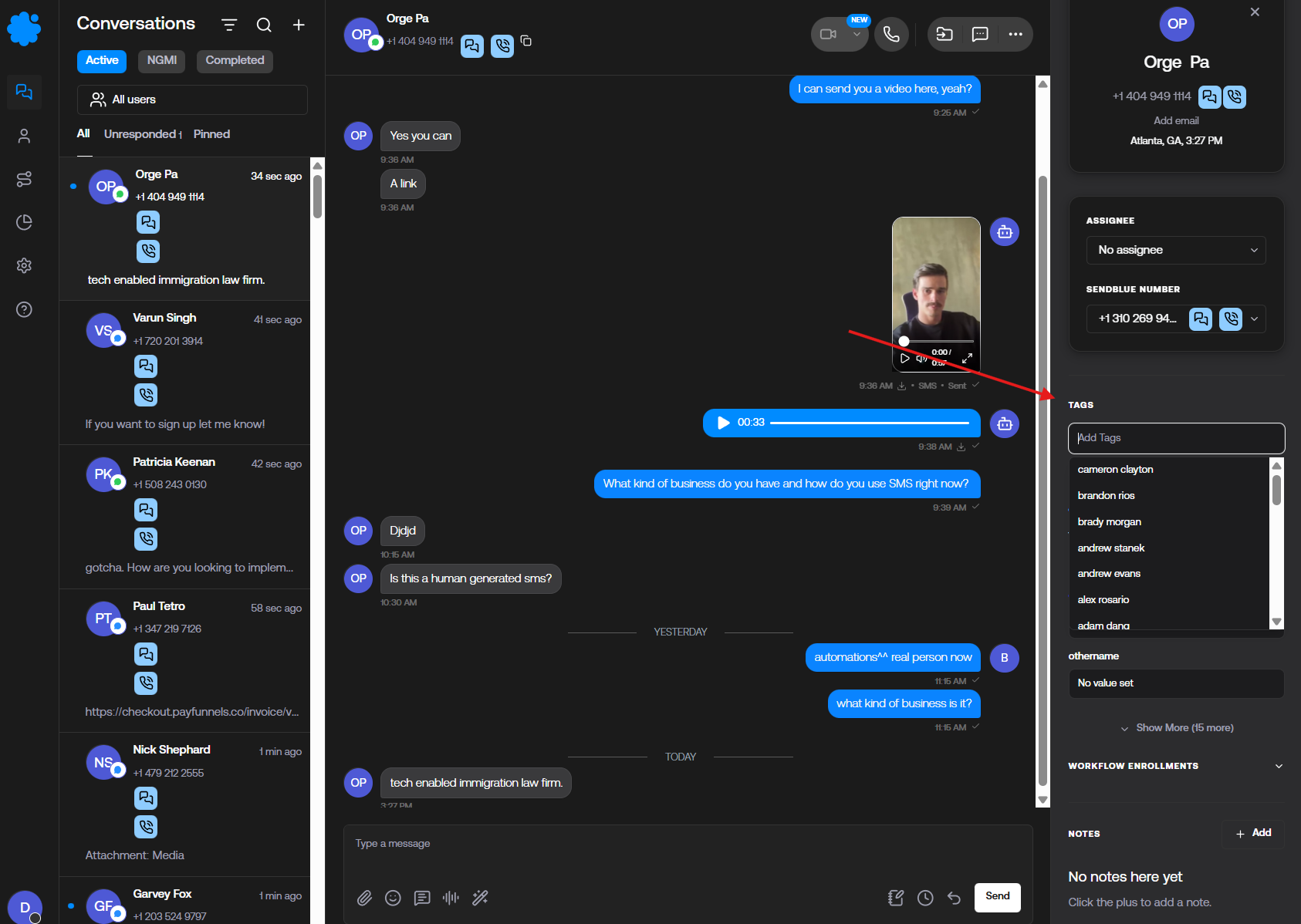
Allows users to tag conversations and sort by these in custom buckets
You can assign tags in the contact panel sidebar as pictured below
Custom Variables
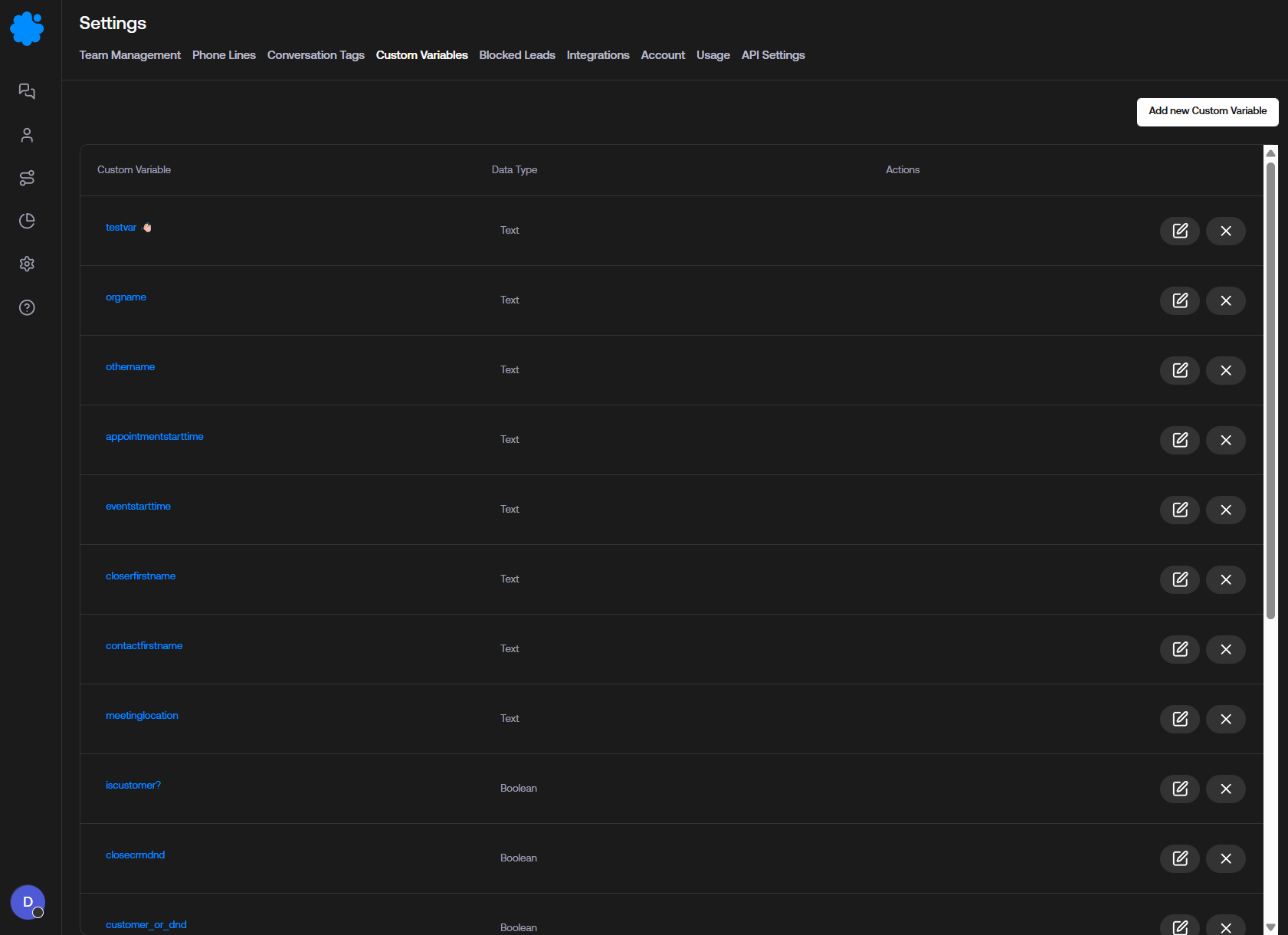
Ability to pass through custom information to be stored in the Sendblue Dashboard
Blocked Leads
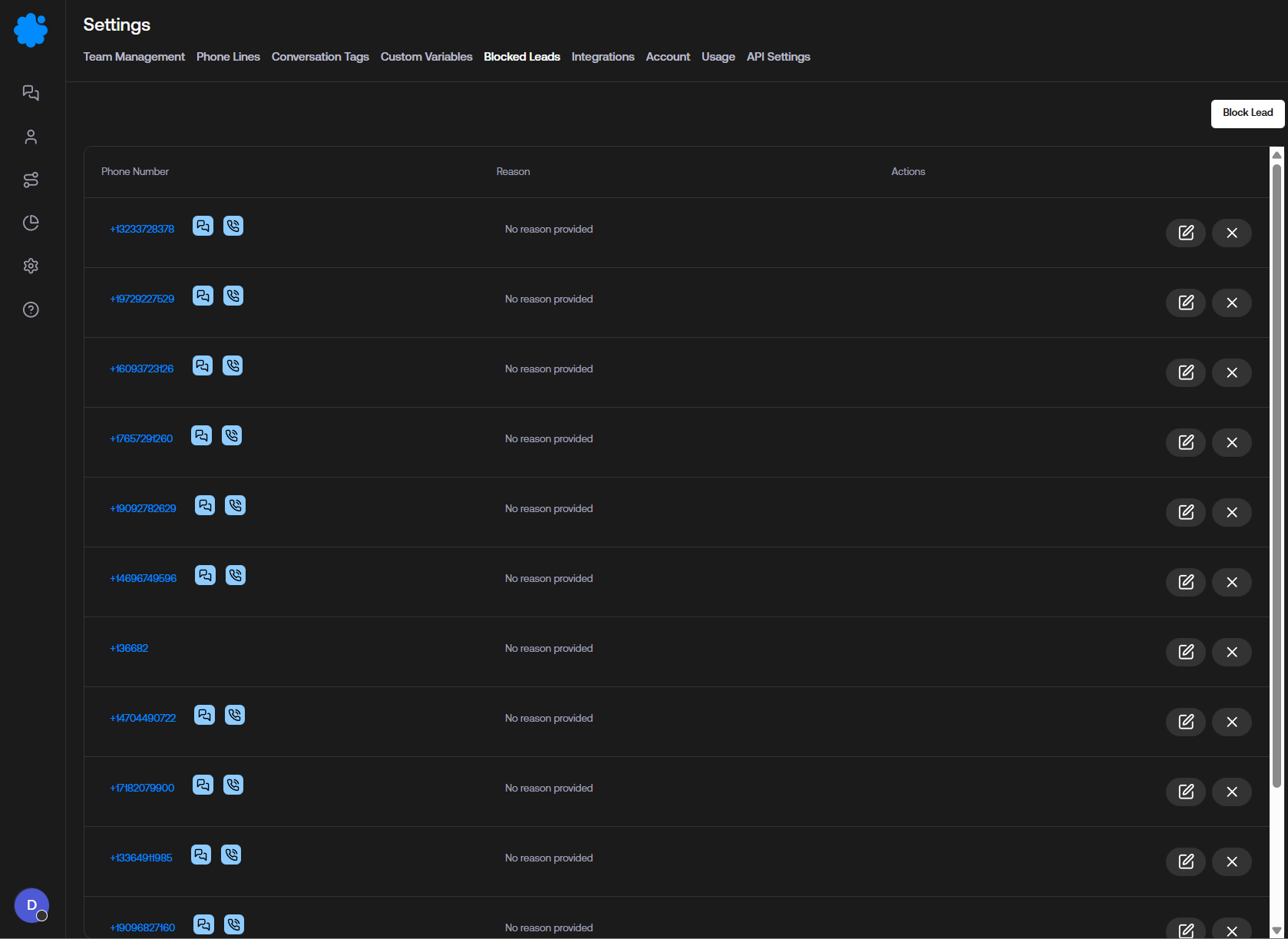
Leads that no longer have the ability to text or call the Sendblue Lines
Integrations
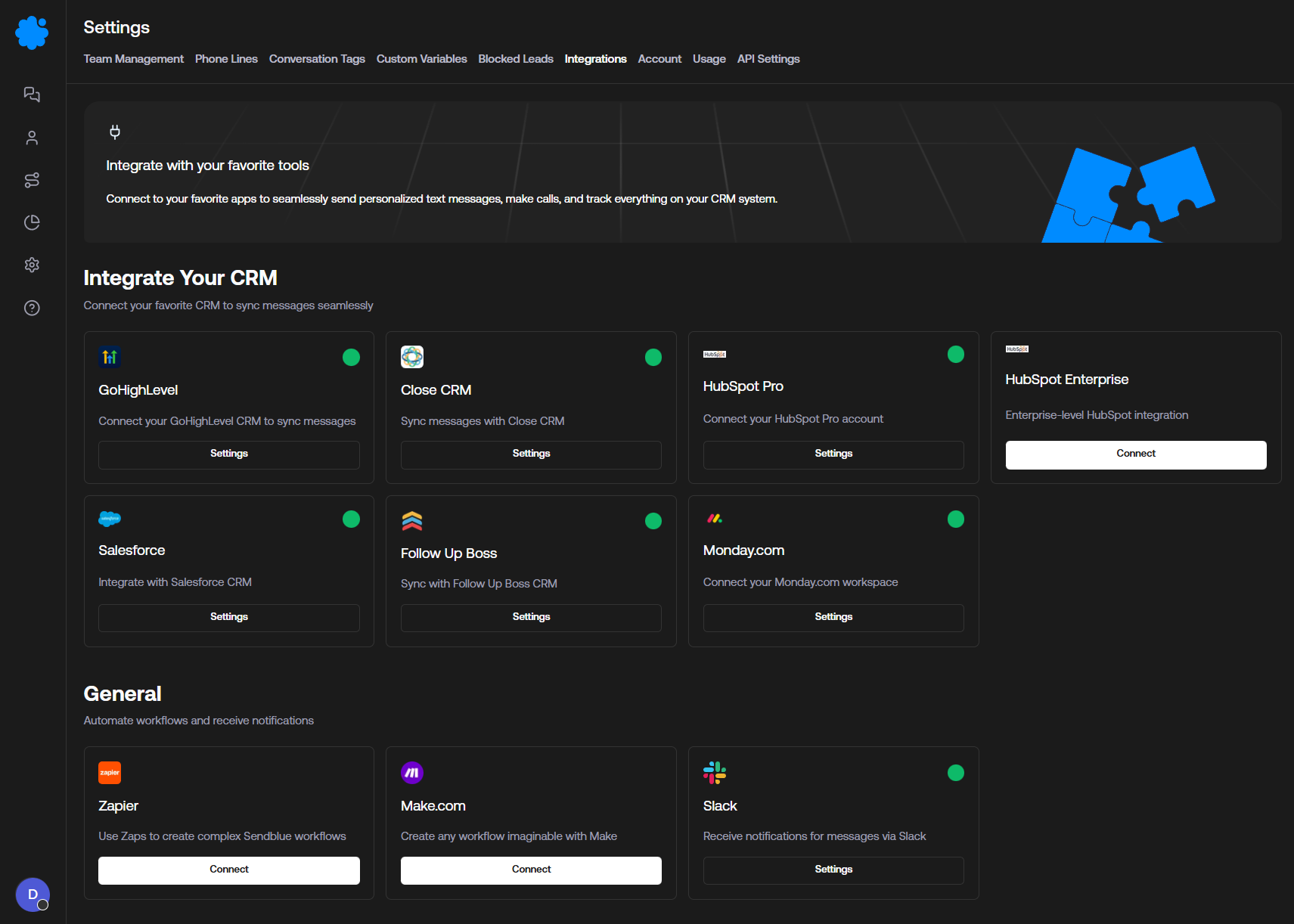
Ability to connect your favorite CRM, No Code Tools, and Slack
Account
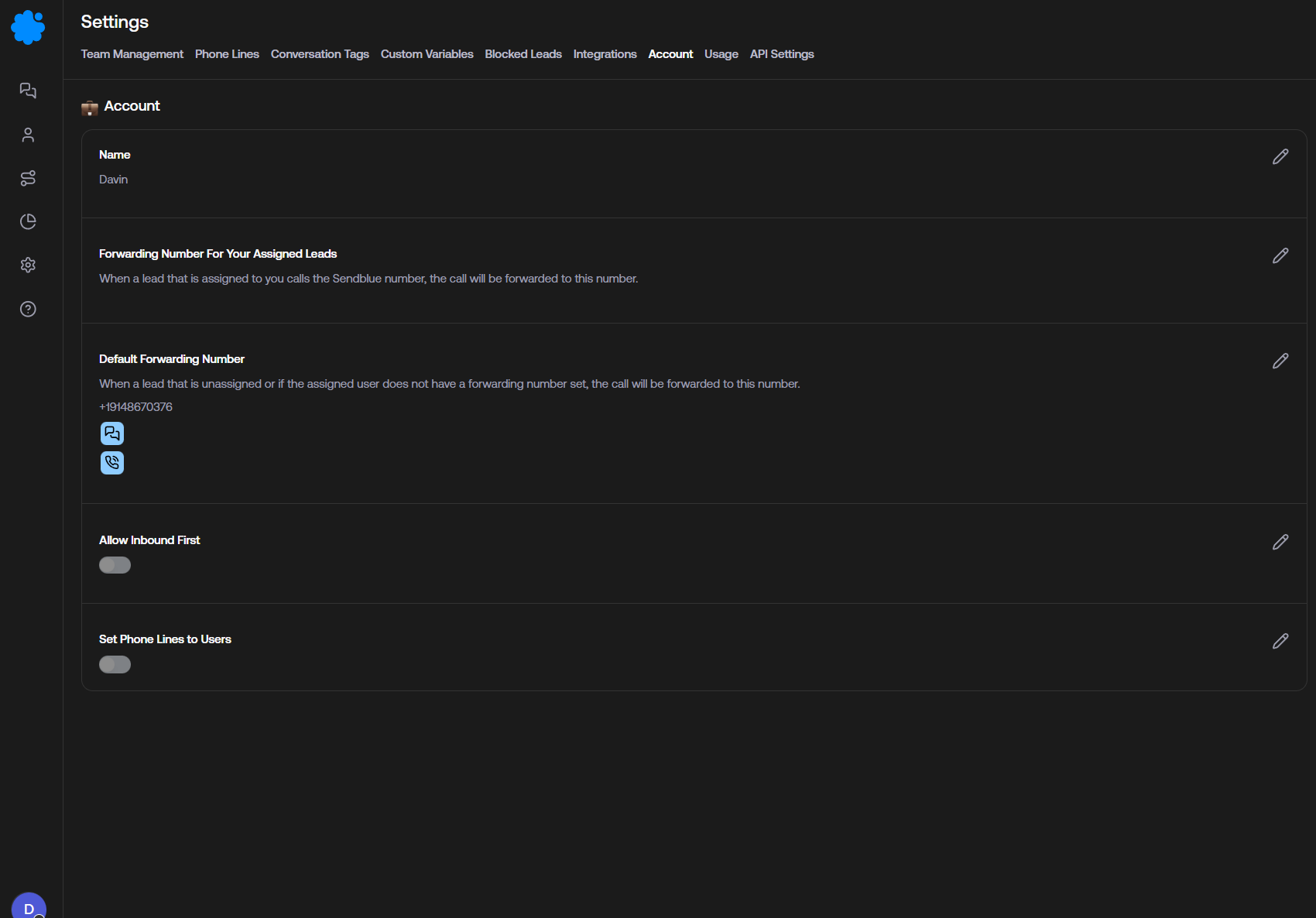
Forwarding Number for Assigned Leads: The Forwarding number for inbound calls that is assigned to a specific user
Note that each user can have their own forwarding number by accessing Team Management.
Default Forwarding Number Usage
If a user does not have a specific forwarding number assigned, the system will automatically use the Default Forwarding Number
Allow Inbound First
Off by default as these messages count toward daily usage
Allows users to text the Sendblue line before sending a text to them
Set Phone Lines to Users
Allows users to individually have their own Sendblue lines attached to their account
Note: Only useful for accounts with 2+ lines
Usage
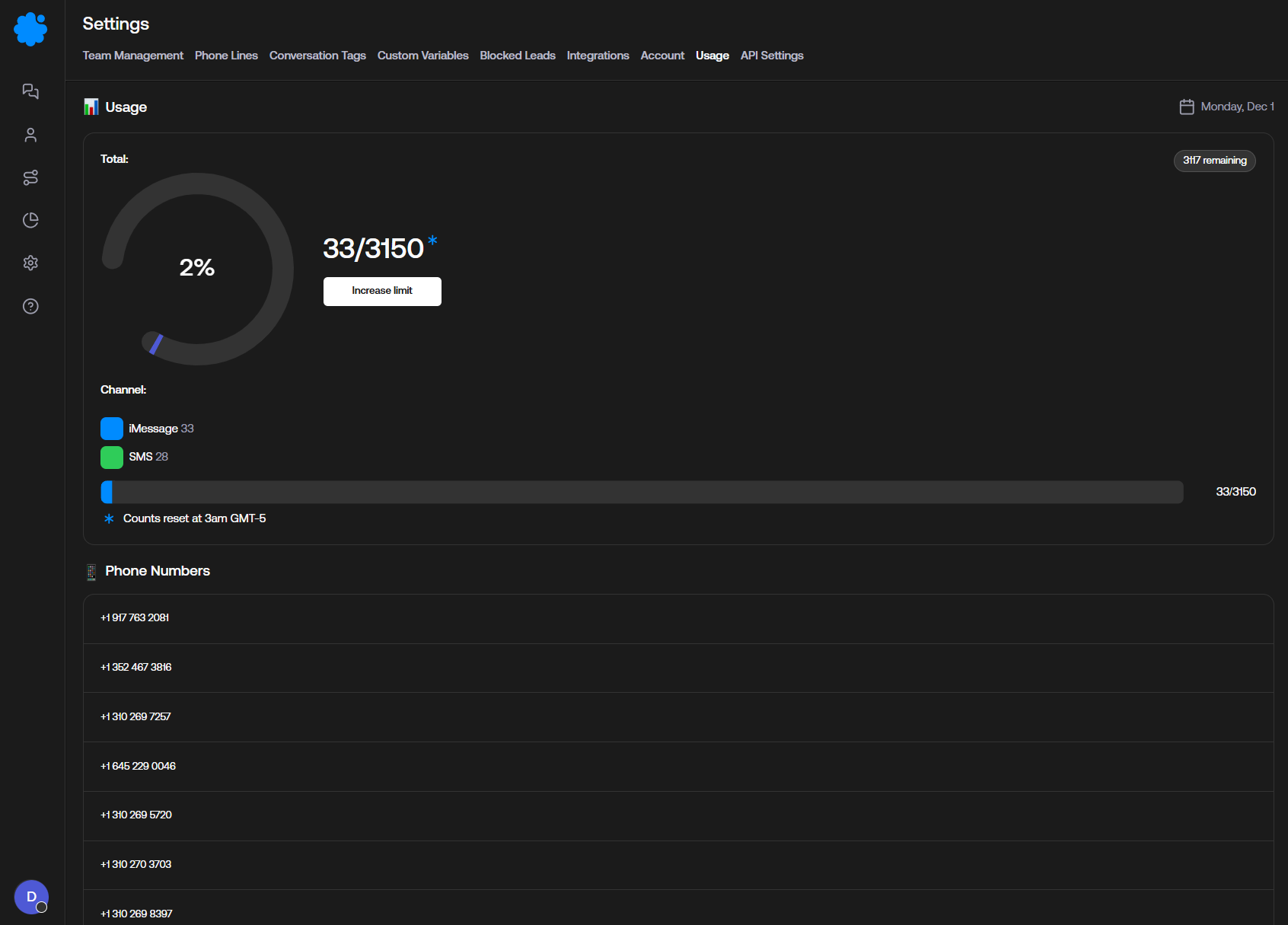
View your current progress toward your daily limit of net new contacts added to the Sendblue Dashboard
Limits reset at 3AM EST Daily