Conversation Filtering
Last updated: February 5, 2025
Overview
Filtering conversations in Sendblue allows you to quickly sort and manage your messages based on specific criteria. This feature helps streamline your workflow by displaying only the conversations that matter most at any given time.
Step-by-Step Instructions
Step 1: Start at the Conversations tab
Navigate to the Conversations tab in the Sendblue dashboard.
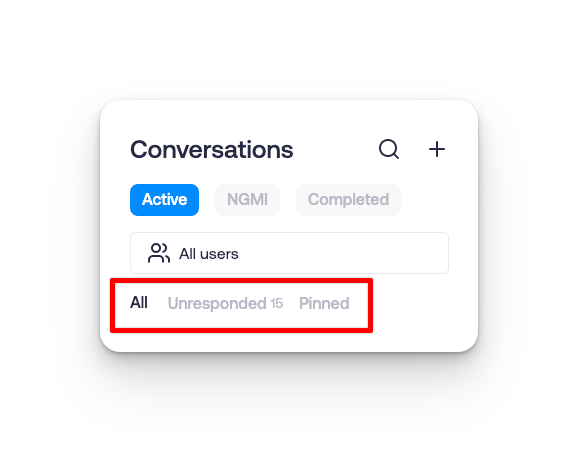
Step 2: Select a Filter
Choose from the following filter options:
All – Displays all conversations sent from your Sendblue lines.
Unresponded – Shows conversations that have not yet received a response.
Pinned – Displays conversations that have been manually pinned for quick access.
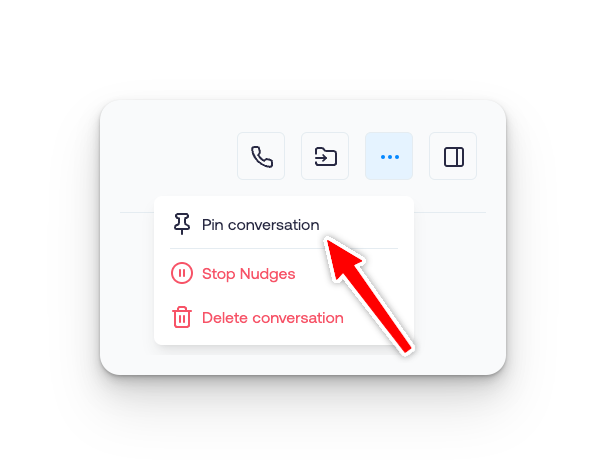
Step 3: Pinning Conversations
Open a conversation you want to pin.
Click on the three dots in the conversation options.
Select Pinned to filter by pinned conversations.