Sending Messages
Last updated: February 5, 2025
Overview
Sendblue provides a seamless messaging experience with real-time texting, media attachments, and scheduling options. This guide will walk you through how to send messages effectively.
Step-by-Step Instructions
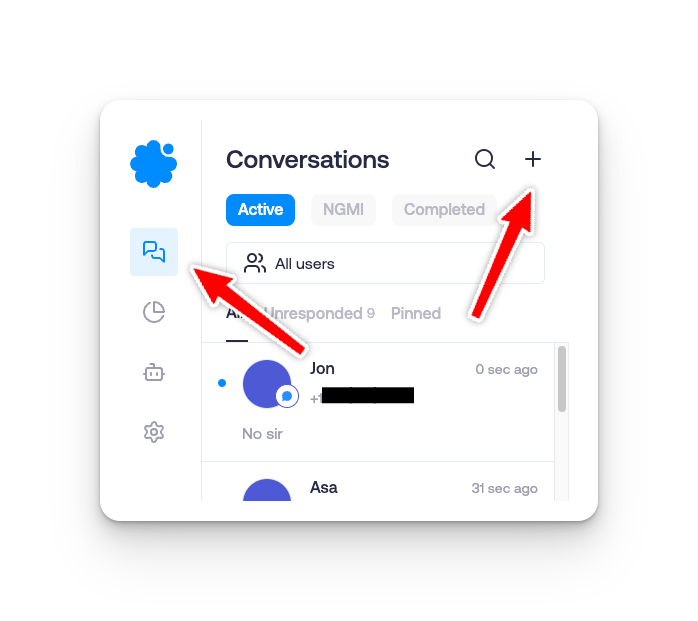
Step 1: Open a Conversation
Navigate to the Conversations tab in the Sendblue dashboard.
Select an existing conversation or start a New Conversation.
Step 2: Compose Your Message
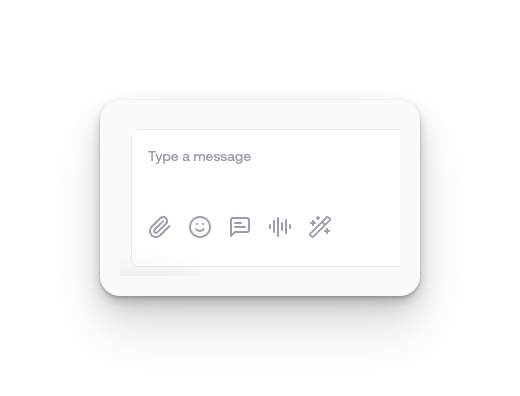
Type your message at the bottom of the chat window.
Use the emoji icon to insert emojis.
Attach images, videos, or files by dragging and dropping or clicking the attachment icon.
Record a voice memo and send it using the audio icon.
Quickly send commonly used messages, media files, and voice memos using the chat message icon.
Enhance messages with effects using the wand icon.
Step 3: Send or Schedule the Message
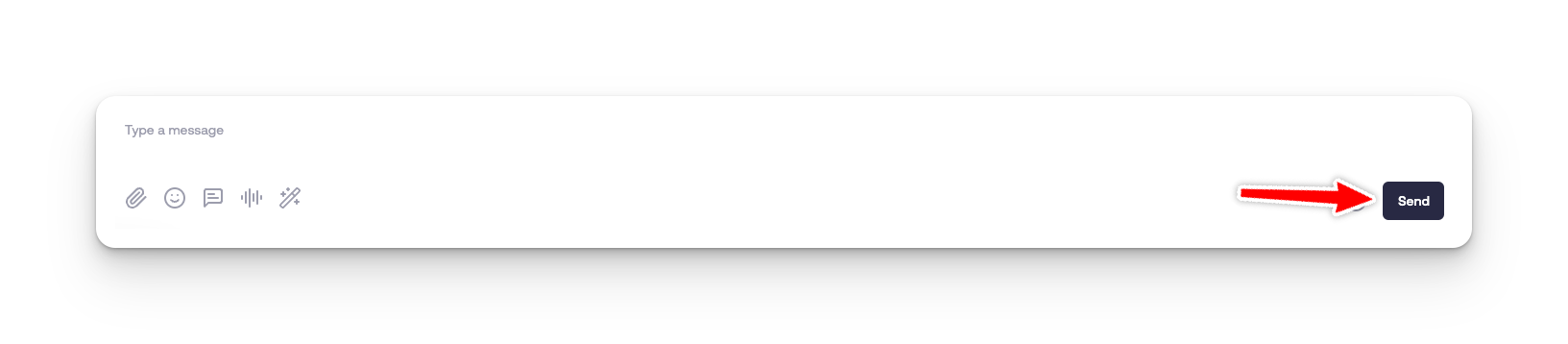
Click the Send button to send the message instantly.
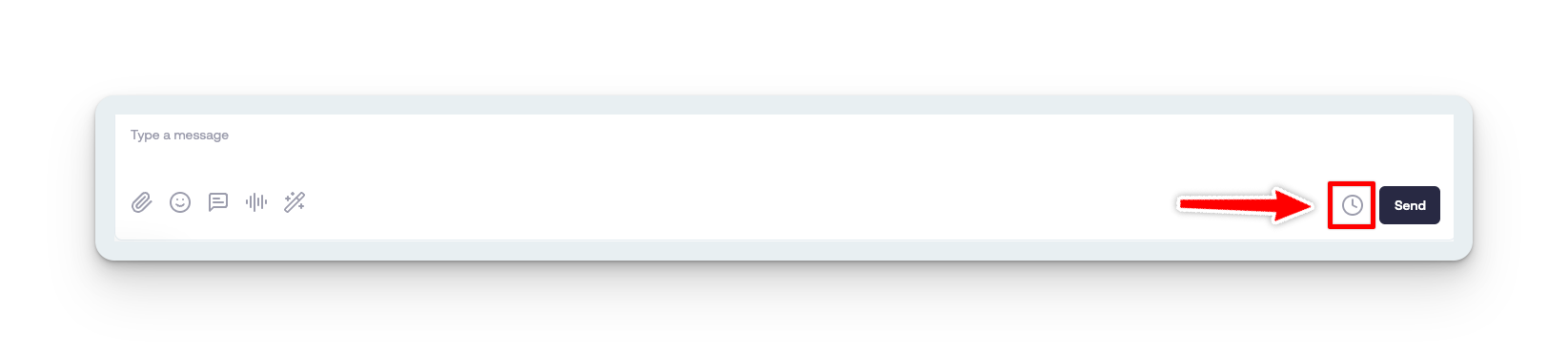
To schedule the message:
Click the Schedule icon.
Choose the date and time for sending.
Schedule the message and Send.
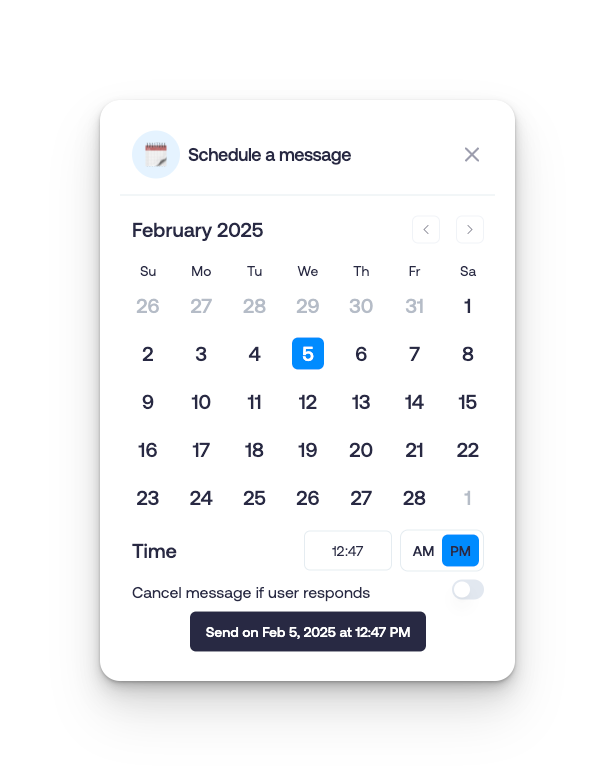
Toggle the Cancel message if user responds if you are using this feature as a follow-up message.