Creating Group Chats
Last updated: February 5, 2025
Overview
Group chats in Sendblue allow you to communicate with 2 Sendblue lines at once. Follow these steps to create a group chat and add the necessary participants.
Step-by-Step Instructions
Step 1: Open Conversations
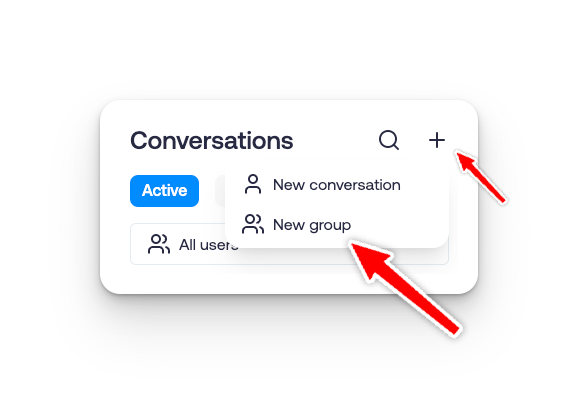
Navigate to the Conversations tab in the Sendblue dashboard.
Click the + sign to start a new conversation.
Select New Group from the menu.
Step 2: Create a New Group
A form will appear prompting you to select participants for the group chat.
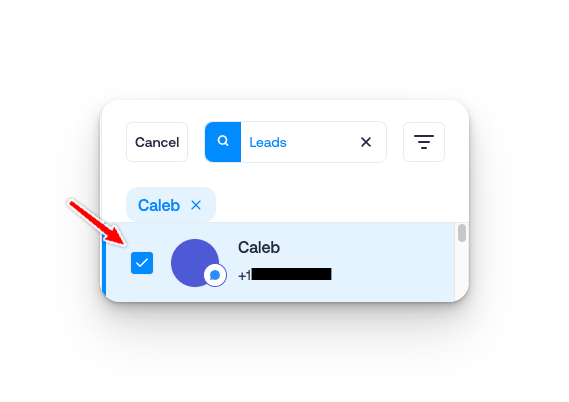
Step 3: Select Lead
Choose the Lead you want to include in the group chat.
Step 4: Switch to Team Members
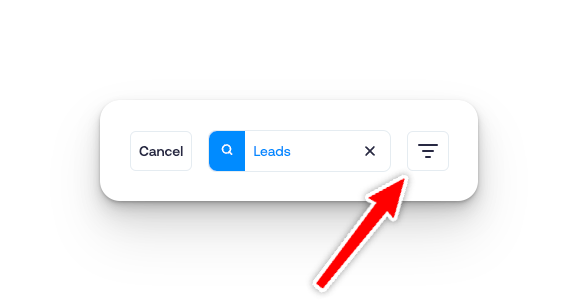
Click on the Filter icon to switch to team members.
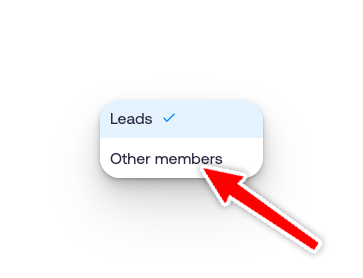
Step 5: Switch to Team Members
Select the Team Members you want to add.
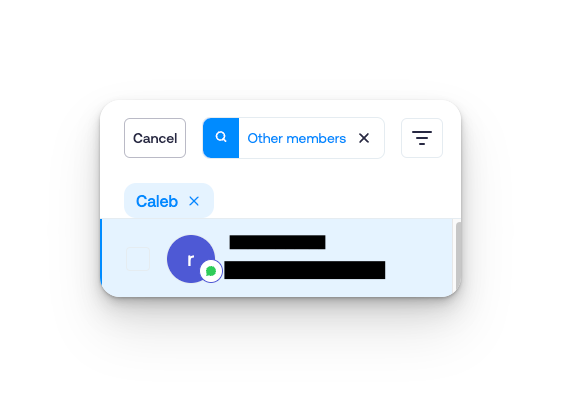
Step 6: Create the Group Chat
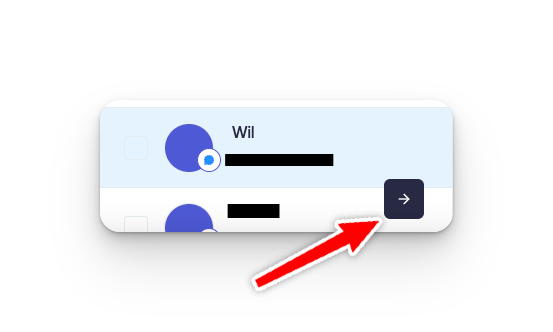
After selecting all participants, click the Next icon to finalize.
The group chat will now be created and available in your conversations list.